How to Calibrate Your 3D Printer's Flow Rate to Produce More Accurate Parts.

What Is Flow in 3D Printing?
Flow is the setting in the slicer software that allows you to control, via software, the amount of filament that will be pushed through and purged by the extruder.
This amount of extruded filament will determine whether your parts are accurate whether or not it changes in size.
Why It's Important to Calibrate Flow
Calibrating your printer's flow rate will not only give you more precise parts, but it will also help you avoid problems such as under-extrusion or walls that don't stick together (to name a few issues, among others).
Imagine printing parts that don't fit, that won't turn, that can't be sold because their dimensions don't match what your customer requested.
Having your printer perfectly calibrated is priceless; you'll be able to set the standard for 3D printing, standing out in your field as someone who is reliable and produces high-quality prints.
How to Calibrate the Flow Rate of My 3D Printer
To calibrate the flow rate, you'll need to configure your 3D printer software to print a calibration cube and take some measurements. Based on this, we can perform the necessary calculations.
Step 1: Open Cura and Configure Settings.
In Cura, you'll add a calibration cube by clicking:
Extensions – Part for calibration – Add a cube
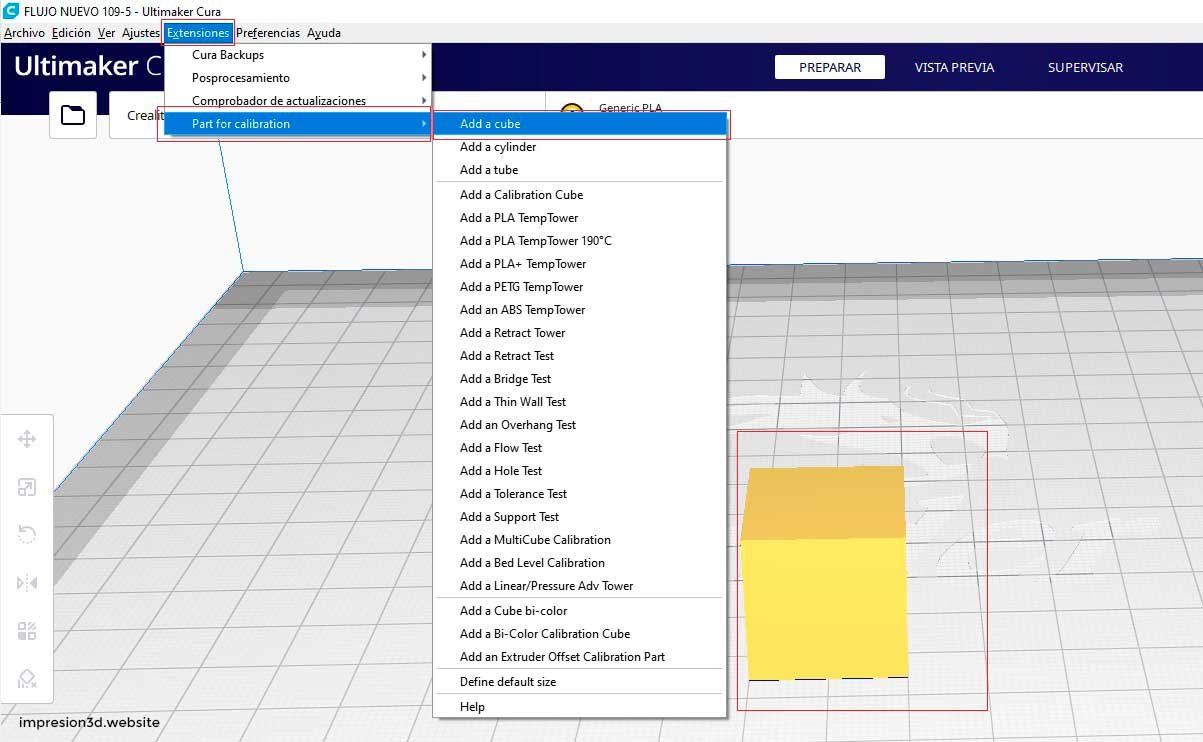
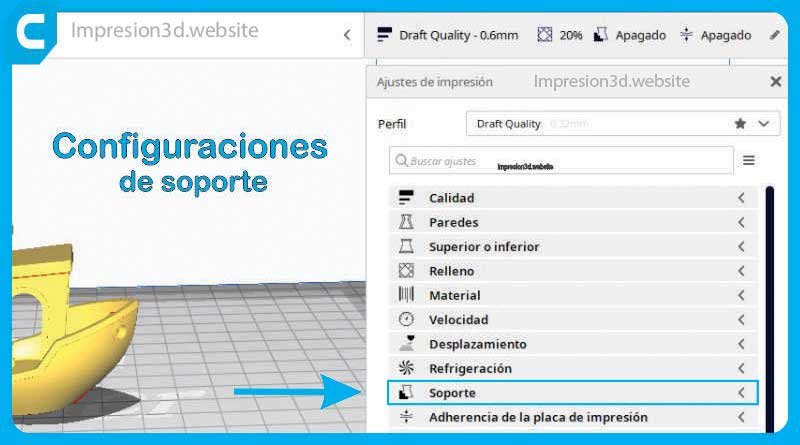
Next, you'll configure the following settings:
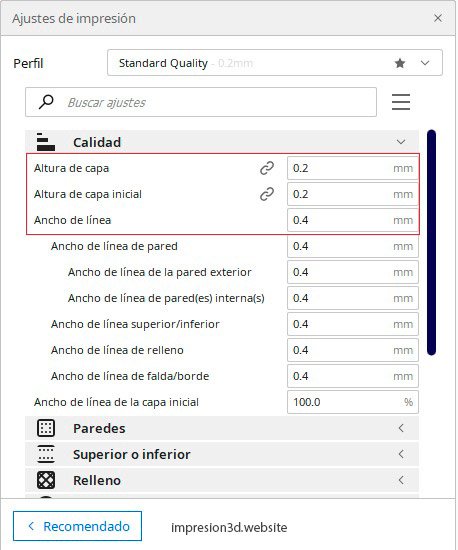
Quality
- Layer height: 0.2 mm
- Initial layer height: 0.2 mm
- Line width: 0.4 mm (must match the size of your nozzle)
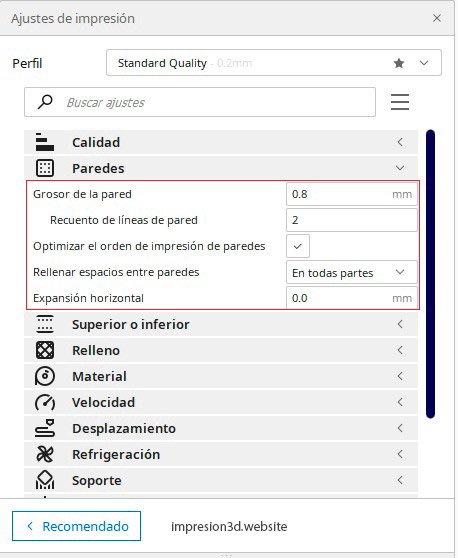
Walls
- Wall thickness: 0.8 mm (this will correspond to the size of the nozzle you have)
- Number of wall lines: 2
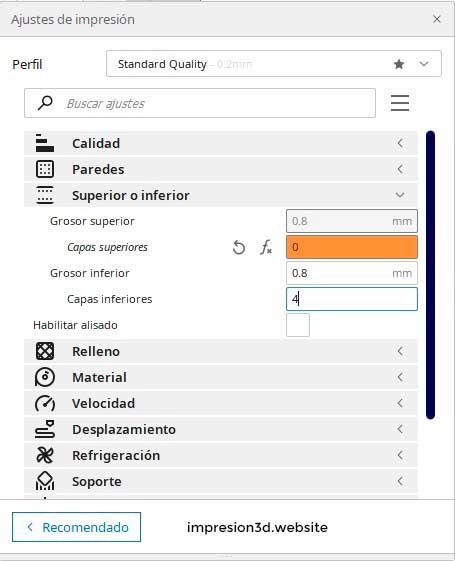
Higher or lower
- Upper layers: 0
- Lower layers: 4
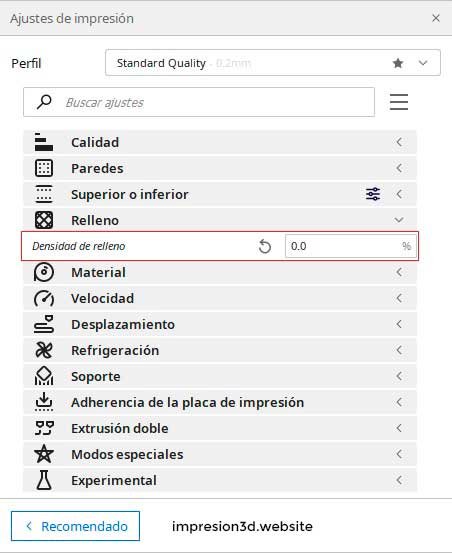
Filling
Filling density: 0.0 %
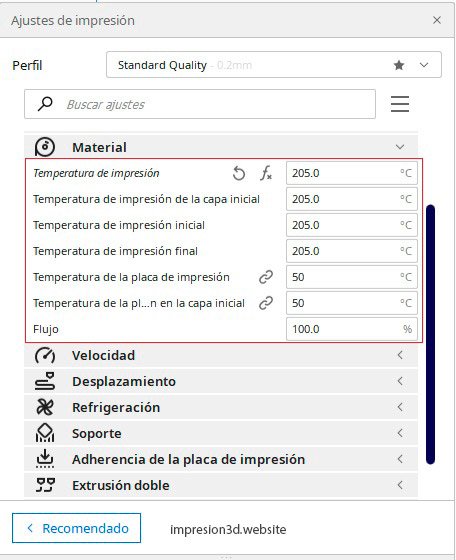
Material
- Printing temperature: 205.0 °C
- Print plate temperature: 50.0 °C
- Flow: 100.0 % (It is important to set it to 100%)
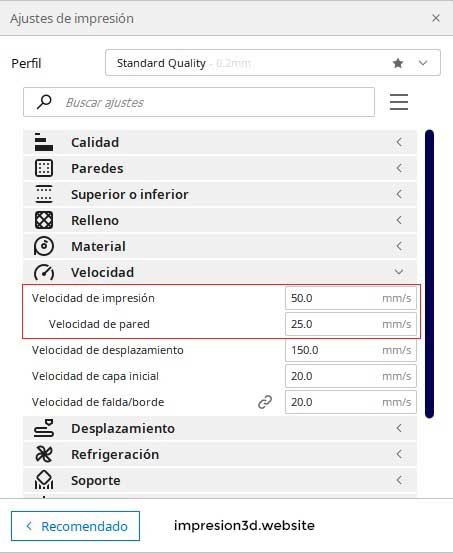
Speed
- Print speed: 50.0 mm/s
- Wall velocity: 25.0 mm/s
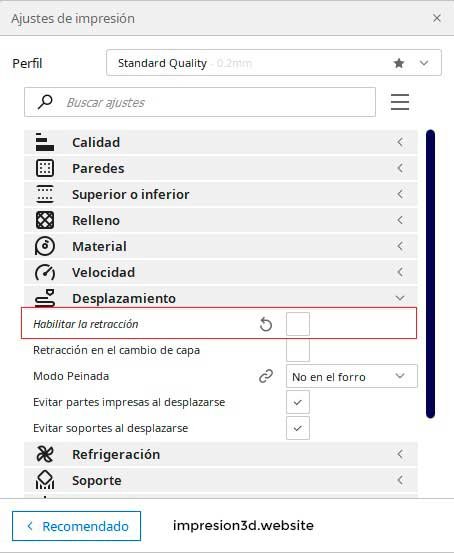
Displacement
Enable retraction: Disabled
Next, search for “compensate for overlaps ”wall-mounted" and you're going to disable. If it doesn't appear in the list, you can search for it in the search bar and turn it off.

Step 2: Print the cube and take measurements
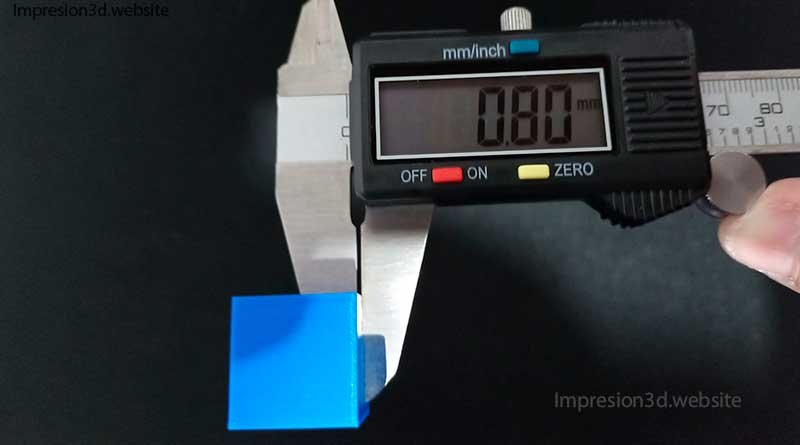
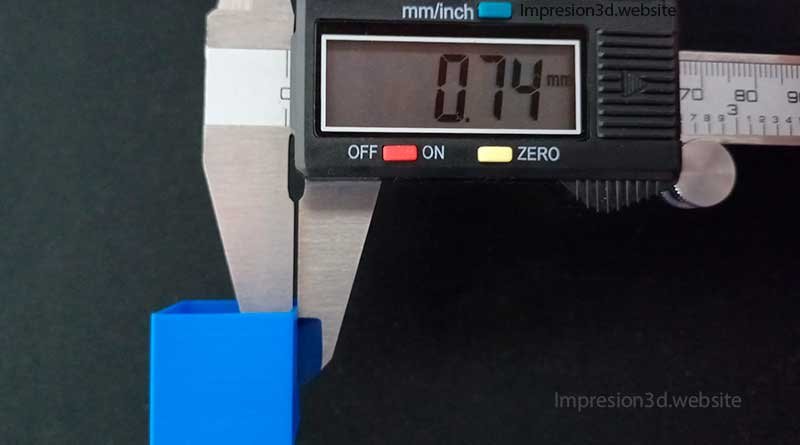
Once the cube has been printed, you'll need to measure all the walls and calculate the average measurement.
In my case, the measurements are: 0.74 mm / 0.71 mm / 0.74 mm / 0.74 mm
When I calculate the average, I get a total of 0.73 mm
Step 3: Apply the formula
(Wall thickness / Average thickness) * 100 = New flow rate
In my case, it would be: (0.8 mm / 0.73 mm) * 100
That would leave us with 1,095 * 100 = 109,5
109 % That would be the new flow rate to set in Cura (in my case).
Step 4: Set a new parameter in Cura and repeat Step 2
Now that you have the new flow value, you'll need to enter it into Cura and run the test again to make sure everything is okay.
After setting the new value, print the cube again (this time, be sure to enable retraction) and take the measurements again to see the results.
0.80 mm / 0.77 mm / 0.80 mm / 0.80 mm

Now your new parameters should give you parts with more accurate dimensions. Even so, you should conduct all kinds of tests to verify that this is actually the case.
YouTube Videos
Print Tests
I decided to run some tests to make sure the whole process works properly, and I printed a 20×20 cube calibration to take your measurements.
I also printed a fit test to see if, with the new parameters, the parts slide inside one another.
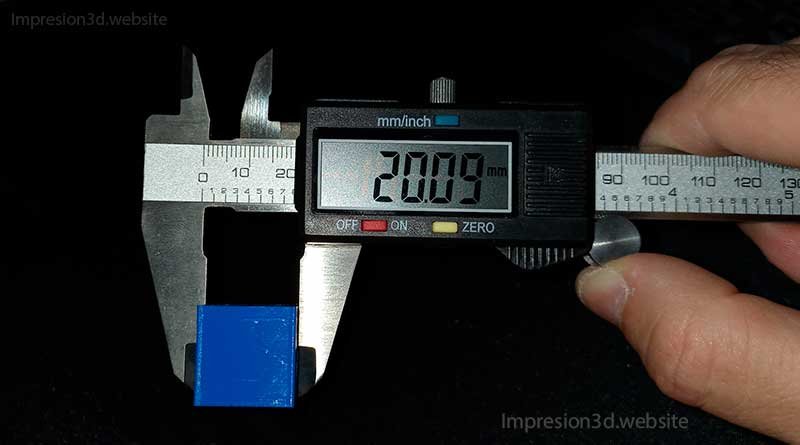
In the first test, I printed a 20-mm XYZ calibration cube, and the results were as follows:
X = 20.09 mm Y = 20.00 mm Z = 20.02 mm
I think they're pretty good, since the differences are minimal.
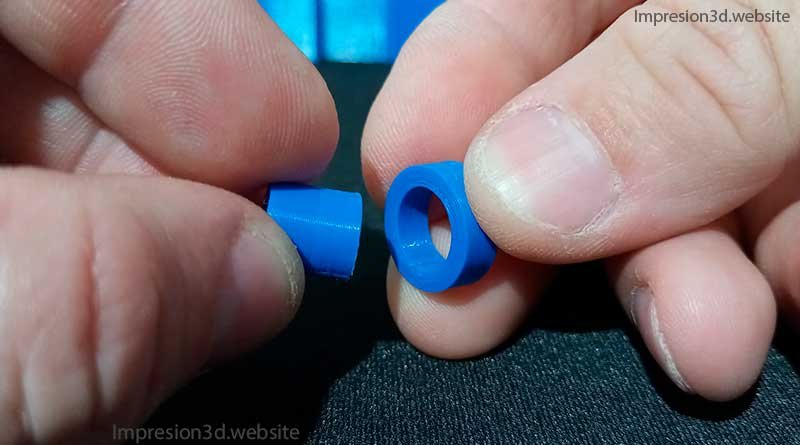
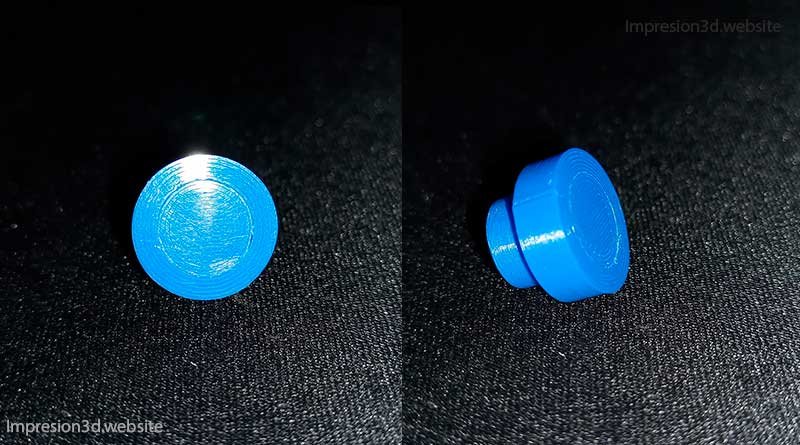
In this test, the cylinder went in with a little resistance, but it went in pretty well. I have to take into account that The seams offer a little resistance, but they can be sanded down if necessary, especially the first coat, which may be a little “flatter” than the rest.
Conclusions
I think calibrating the flow can really help make the dimensions of your projects more accurate. Even so, it seems to me that there are many variables at play that could cause interference, as I mentioned earlier, with the seams.
Calibrate the extruder steps and calibrating the flow via software can be crucial for achieving more accurate prints.
I also believe that many more tests can be conducted to improve these approaches using the horizontal expansion, something I'll talk about soon.

Responses