Is your Bambu Lab not working? Here are the most common problems and how to fix them

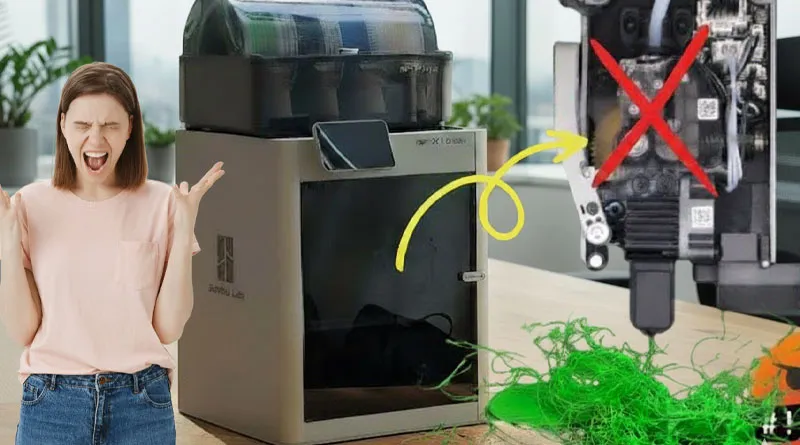
Printers Bambu Lab They have become one of the most sought-after options thanks to their speed, accuracy, and ease of use. However, not everything is perfect: many users report various Bambu Lab issues which can range from failures in the first layer and automatic calibration errors to jams in the AMS (Automatic Material System).
Although it may be frustrating, most of these Bambu Lab failures have practical solutions that don't require advanced technical support. In this article, we've compiled the Most Common Errors in Bambu Lab and how to resolve them step by step so you can keep printing without interruptions.
Problems with Bambu Lab on the first layer
One of the Most Common Problems with Bambu Lab 3D Printers, especially in the models A1 and A1 Mini, is when the The first coat does not adhere properly or has visible irregularities.
This error may be caused by an incorrect setting in the hotend or to loose parts in the head, which directly affects the alignment and the quality of the start of the print.
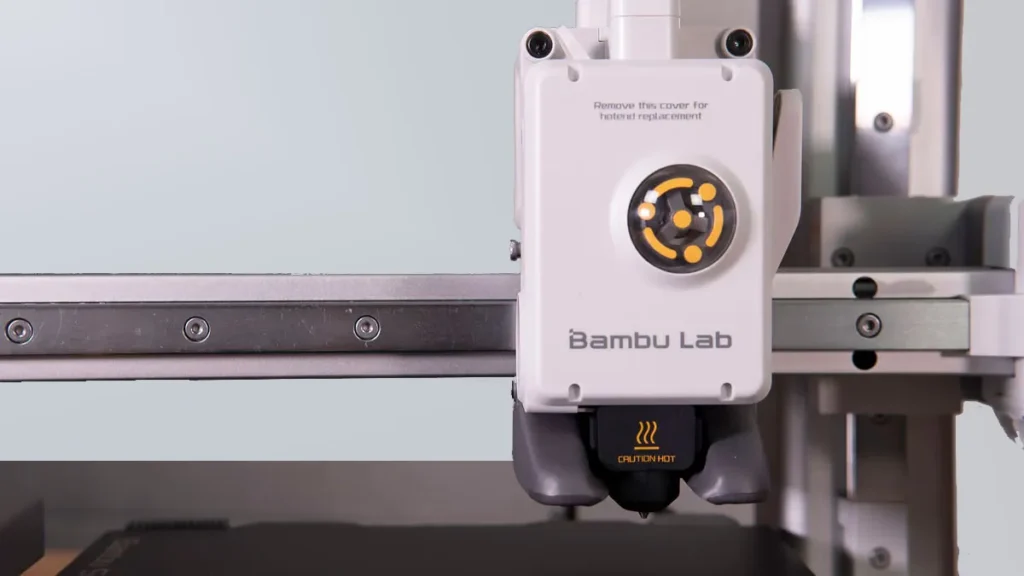
To resolve the First-layer issues at Bambu Lab, it is essential to review the Adjusting the hot end and the internal screws of the print head.
Tightening these components properly eliminates unwanted movement and improves the Nozzle leveling and consistency, resulting in a much cleaner and more uniform first coat.
After this adjustment, the results are usually immediate and visible in the next print.
YouTube video: Innovaland 3D
Step-by-Step Guide to Troubleshooting Issues with the First Layer
- Remove the hotend access cover.
Remove the top cover of the print head to access the internal parts. - Check the movement of the hotend assembly.
Check for any side-to-side movement or abnormal vibration.
➤ If the hot end moves, it means it isn't securely fastened, and that causes variations in the nozzle's height relative to the bed. - Disassemble the hot end.
Remove the three screws loosen the main fasteners holding it in place and carefully remove the hot end. - Check the four internal screws.
In many cases, these screws loosen slightly due to use or vibrations.
➤ Tighten them securely to ensure there is no play in the parts. - Reassemble the hotend.
Put the hot end back in place, carefully tighten the screws, and reinstall the cover. - Do a test print.
When you're done, print a test piece to check the improvement in the Adhesion and uniformity of the first coat.
Common Causes of Problems with the First Layer
- Hot end with loose screws that cause instability in the print head.
- Poor automatic leveling due to vibrations or incorrect readings.
- Filament residue or dirt in the nozzle.
- Print bed is dirty or has old adhesive residue on it.
- Incorrect Z-offset or starting height setting.
Quick Tips to Avoid Future Problems
- Check the hotend screws from time to time, especially if you use the printer heavily.
- Clean the nozzle and the print bed before each print.
- Perform automatic calibrations regularly while the printer is at operating temperature.
- Use a clean printing surface that is suitable for the type of material.
- Don't ignore slight vibrations or noises coming from the head: they may be early signs of looseness.
Jamming error in the AMS (Automatic Material System)
One of the most common problems with Bambu Lab is the traffic jam on the AMS, the system that allows the printer to automatically switch filaments. When this happens—the AMS locks up and the printer displays a “filament error” or is unable to load or switch filaments—the machine may stop and display a filament error or simply not perform the material change. Printing is paused, there is a failed attempt to change colors, or the AMS spindle spins idly.
Usually, when this happens, the filament is tangled, broken, or stuck inside the module or in the PTFE tube that connects to the hot end.
YouTube video: A3D prints
Step-by-Step Guide to Resolving the AMS Jam Error
(Do this with the printer turned off, and be careful.)
Preparation
- Turn off and unplug the printer.
- Remove the affected spool and have a pair of tweezers, a small screwdriver, a piece of test filament (PETG recommended), and a fine needle on hand.
- Turn off the AMS
- Disconnect the printer connector and any external cables according to the manual. Work with the unit unplugged.
- Open the case
- Loosen the screws and lift the casing to access the shafts and gears. Take photos if you're going to remove any parts so you can remember the order.
- Visually inspect the ducts
- Look for strands of filament, broken tips, or tangles in the grooves where the filament passes through. Check the PTFE tube as far as you can see.
- Remove the jammed filament
- If you see a clogged section, use tweezers to pull it out in the direction of the outlet. If it's really stuck, insert a piece of PETG or use a cleaning rod and push/wiggle it to clear the blockage (avoid forcing it by hitting it).
- Inspect engines and gears
- If the filament gets stuck as it tries to come out, loosen the motor or remove the gear cover to inspect it. Clean out any plastic debris or dust, and check the gears for broken parts.
- Reassembly and Load Test
- Set everything up properly, plug in the AMS, manually load a high-quality filament, and run the load/unload routine from the printer. Make sure the AMS pushes the filament without making any unusual noises.
- Final Print Test
- Perform a filament change test or a short print with a color change to confirm that the AMS is working properly.
If it is not resolved: Document the problem, take photos, and contact Bambu's official support (or a technical service provider). Excessive disassembly may void the warranty.
Common Causes of Bottlenecks in the AMS
- Filament tangled on the spool: The thread gets caught and doesn't feed smoothly.
- Broken filament or fragments inside the PTFE tube.
- Incompatible or overly flexible filament (TPU) that gets crushed or bent along the way.
- Irregular filament diameter (peaks or thicker areas).
- Moisture in the filament which makes it swell and become sticky.
- Excessive reel tension or a nearly empty spool that doesn't roll smoothly.
- Dirty or damaged gears within the AMS.
- Traces of dust or plastic accumulated in ducts.
Quick Tips for Avoiding Future Traffic Jams
- Cut the tip of the filament at a 45-degree angle before loading it.
- Use filament from a reputable brand and store it in a bag with a desiccant.
- Avoid loading TPU or very flexible filaments into the AMS unless they are recommended.
- Perform periodic visual inspections of the AMS and the PTFE tube.
- Keep some cleaning filament (PETG) on hand to push out debris when needed.
Automatic Calibration Issues (Auto Bed Leveling and Flow Calibration)
Bambu Lab printers automatically calibrate the bed level and extrusion flow before printing. However, some users report that the The first coat comes out uneven, too flat, or simply doesn't adhere, which ruins the impression right from the start.
In other cases, flow calibration produces incorrect readings, resulting in under-extrusion or excess material.
YouTube video: 3D Printed
Step-by-Step Guide to Troubleshooting Automatic Calibration Issues
Preparation
- Use a clean bed with no traces of glue or filament.
- Make sure the firmware is up to date.
- Restart the calibration process
- From the printer menu, run the Auto Bed Leveling (ABL) and the Flow Calibration. A restart often fixes temporary errors.
- Check the bed surface
- Make sure the bed plate is properly installed and free of dust, grease, or old adhesive residue. Wiping it down with isopropyl alcohol usually resolves reading problems.
- Check the sensors
- If the ABL continues to malfunction, it may be due to dirt on the sensor or the nozzle. Clean the nozzle and the tip of the hotend before calibration.
- Manual fine-tuning (optional)
- Although the Bambu Lab is automatic, if the first layer isn't even, you can manually adjust the Z-height during the initial print using the menu options. This compensates for slight differences that the ABL does not correct.
- Check the extruder flow
- If the flow calibration fails, try using a reliable reference filament. Some low-quality filaments produce unstable readings.
- Update Firmware and Bambu Studio
- Some calibration issues are caused by bugs that have already been fixed in updates. Make sure you have the latest version installed on both the printer and the slicer.
Common Causes of Automatic Calibration Failures
- Bed that is dirty or has glue residue on it that interfere with the measurement.
- Nozzle with filament residue which affects the elevation reading.
- Wear and tear or poor contact with the bed sheet.
- Calibration sensor is misaligned or dirty.
- Filament buildup in the shaft holes.
- Outdated firmware with errors in the ABL algorithms.
Quick Tips to Avoid Future Problems
- Clean the bed with isopropyl alcohol after each major print.
- Update the firmware at least once a month.
- Use replacement sheets if the current one shows visible wear.
- Keep the nozzle clean before performing the calibration.
- Perform preventive maintenance on the printer.
Adhesion Problems in the First Layer
One of the Most Common Problems with Bambu Lab Printers is that the The first layer does not adhere well to the build plate. This causes the part to detach while it's being printed, resulting in failed or warped prints—or, quite simply, a “spaghetti” of filament.
YouTube video: LayerLab
Step-by-Step Guide to Resolving Adhesion Problems in the First Coat
Preparation
- Have isopropyl alcohol, a spatula, and—if you use it—your preferred adhesive (glue stick, spray adhesive, Kapton tape, etc.) on hand.
- Making the Bed
- Thoroughly clean the surface with isopropyl alcohol. Grease residue from your hands or from the previous filament is the number one cause of poor adhesion.
- Check the Z calibration
- Make sure the nozzle isn't too high or too low. If Auto Bed Leveling doesn't correct it, manually adjust the Z-height during the first layer.
- Use auxiliary adhesives
- For difficult filaments (ABS, Nylon, PETG), apply a glue stick or spray adhesive. This improves adhesion and prevents warping.
- Check the bed and nozzle temperatures
- A common mistake is not preheating enough. Use the recommended temperatures for each filament. A bed that's too cold prevents proper adhesion.
- Enable Brim or Raft in the slicer
- If the part has a small contact area, I add a brim or raft in Bambu Studio. This creates a larger surface area and reduces the risk of delamination.
- Check the printing plate
- If it's worn or scratched, it may not stick properly. Consider replacing it if it no longer sticks well, even after cleaning it.
Common Causes of Poor Adherence
- Dirty or greasy bed.
- Incorrect Z-axis calibration.
- Low bed temperature for the used material.
- Use of Wet Filament that affects the first layer.
- Damaged or worn mattress surface.
- Design of a part with a small contact area.
Quick Tips to Avoid Future Problems
- Clean the bed before every important print.
- Adjust the Z-axis height manually if you notice that the first layer isn't even.
- Store the filament in a bag with desiccant to prevent moisture.
- Use brim or raft for tall pieces or those with a small base.
- Always keep a glue stick or some inexpensive hairspray on hand: it's often the quickest solution.
Filament Sensor Error (Filament Runout / Filament Error)
Printers Bambu Lab They have a sensor that detects when the filament runs out, breaks, or stops feeding. When this system fails, messages such as “Filament Runout” o “Filament Error” even if there is still material on the spool.
As a result, the printer stops in the middle of a print job, or fails to recognize that the filament has been loaded, interrupting long prints.
YouTube video: 3D Printed
Step-by-Step Guide to Fixing the Filament Sensor Error
To resolve a filament sensor error on the Bambu Lab, clean the sensor with a pipe cleaner or a piece of filament, check that the wiring is properly connected, verify that the sensor magnet moves freely and without obstruction, and make sure there are no stuck or warped filament remnants blocking the sensor arm.
- Turn off the printer and unplug the power cord. This prevents electrical damage while you are working on the sensor.
- Access the filament sensor. Place it at the filament entry point, usually near the extruder or the AMS.
- Clean the sensor. Use a pipe cleaner, compressed air, or a piece of filament to remove dust, plastic debris, or moisture.
- Check the wiring. Make sure the connector is securely attached and that there is no play or bent pins.
- Check the sensor's magnet. Check to make sure it moves freely and without obstruction.
- Check the filament. Make sure it isn't swollen from moisture or warped in the detection area.
- Turn the printer back on and run a filament load test. If the error persists, consider updating the firmware or replacing the sensor.
Common Causes of Filament Sensor Errors
- The tip of the filament was cut incorrectly which does not activate the sensor properly.
- Dust, debris, or shavings in the sensor channel.
- Special filaments (TPU, silk, metallic) that interfere with detection.
- Loose cable or connector of the sensor.
- Outdated firmware with reading errors.
- Faulty or misaligned sensor (Unusual, but possible.).
Quick Tips to Avoid Future Problems
- Always cut the filament at a 45° angle before loading it.
- Clean the sensor periodically with compressed air.
- Avoid loading filaments that contain dust or moisture.
- Keep a spool of basic filament on hand for quick tests.
- Keep your firmware up to date and check user forums for compatibility patches.
Unusual noises or vibrations in shafts
Bambu Lab 3D printers are known for their quality and precision, but in some cases, users report unusual noises or vibrations in the movement axes. These noises can affect the user experience and, at times, compromise print quality.
YouTube video: CHARACTER MAKER
Step-by-Step Guide to Fixing Unusual Noises or Vibrations in Shafts
- Turn off the printer and move the axes manually. Gently move the X, Y, and Z axes to detect areas of friction or resistance.
- Check the straps. Check to make sure they aren't too loose or too tight. Adjust the tension using the adjustment system that comes with the Bambu Lab.
- Lubricate the guides and rods. Use a lubricant suitable for 3D printers (PTFE or light grease) and apply a thin layer to the linear axes.
- Check the bearings and pulleys. Make sure the pulleys rotate freely and without play. If you find any damaged bearings, replace them.
- Leveling the machine. Place the printer on a firm, level surface to reduce external vibrations.
- Check the fans. Sometimes the noise comes from a fan that is dirty or has unbalanced blades. Clean them or replace them if necessary.
- Perform a test print. Check to see if the noises go away after making the adjustments.
Common Causes of Noise or Vibration in Shafts
- Belts that are too loose or too tight that cause knocking or slipping.
- Lack of lubrication in linear guides and linear rails.
- Worn bearings or pulleys that do not rotate properly.
- Unbalanced Fans that transmit vibrations to the chassis.
- Unstable support surface which amplifies the noise from the printer.
Quick Tips to Avoid Future Problems
- Check the belt tension every 2 to 3 months.
- Lubricate the linear axes at least every 100 hours of printing.
- Keep the fans free of dust.
- Avoid placing the printer on vibrating tables or soft surfaces.
Problems with the built-in camera
Bambu Lab 3D printers typically include a built-in camera that allows you to monitor prints in real time from the app or the web. However, there are times when the camera stops streaming, the image appears blurry, or the system simply doesn't recognize it.
This can be frustrating when you rely on it to monitor the progress of the parts.
YouTube video: 3D Rundown
Step-by-Step Guide to Troubleshooting Problems with the Built-in Camera
To troubleshoot issues with the built-in camera on a Bambu Lab, make sure you have a stable Wi-Fi connection, update the firmware, clean the lens, check that the internal wiring is in good condition, and reduce network traffic. In most cases, updating the software and improving the connection will resolve the issue.
- Restart the printer and the application. Sometimes a simple restart gets the transmission working again.
- Check your Wi-Fi connection. Connect the printer to a stable network, preferably a 5 GHz network, to improve speed.
- Update the firmware and software. Make sure that both the printer and the Bambu Studio app are updated to the latest version.
- Clean the camera lens. Use a microfiber cloth to remove dust or stains.
- Check the internal wiring. If you have experience, open the compartment and check that the camera cable is securely connected.
- It reduces network traffic. Prevent other devices from using too much bandwidth while you're using the camera.
- Try it on another device. To rule out the possibility that the problem is caused by the computer or cell phone rather than the printer.
Common Causes of Problems with the Built-in Camera
- Unstable or weak Wi-Fi connection, which causes interruptions in the transmission.
- Outdated firmware from the printer or the Bambu Studio app.
- Camera is dirty or covered in dust or plastic, affecting the sharpness.
- Loose internal connection cable or damaged inside the printer.
- Overload on the local network which limits the smooth streaming of video.
Quick Tips to Avoid Future Problems
- Always keep your printer up to date with the latest firmware version.
- Connect the device to a stable 5 GHz Wi-Fi network.
- Clean the camera lens regularly to prevent blurry images.
- Use a router with good range if the printer is in a room far away.
Firmware error or failed update
Bambu Lab 3D printers require periodic firmware updates to improve stability and add new features. However, in some cases, the update may fail, causing the printer to freeze or display firmware-related error messages.
This is causing concern among users, as it may prevent the printer from working properly until the problem is resolved.
YouTube video: Leckiestein
Step-by-Step Guide to Resolving a Firmware Error or Failed Update
To resolve a firmware error on a Bambu Lab printer, restart the printer and the software, make sure you have a stable Wi-Fi connection, try the update again from Bambu Studio or using a USB flash drive, and if the problem persists, perform a factory reset or contact technical support.
- Restart the printer and the application. Sometimes, after a restart, the pending update resumes without any problems.
- Check your Wi-Fi connection. An unstable signal may interrupt the firmware download. We recommend using a 5 GHz network.
- Run the update again from Bambu Studio. Try downloading and reinstalling the firmware.
- Update using a USB flash drive. Download the official firmware from the Bambu Lab website, copy it to a USB flash drive, and connect the flash drive to the printer.
- Perform a factory reset. If the error persists, perform a reset from the printer's settings menu.
- Contact technical support. If the machine freezes or stops responding, we recommend opening a support ticket with Bambu Lab's official support team.
Common Causes of Firmware Errors or Failed Updates
- Unstable Wi-Fi connection during the download.
- Power outage occurred while the firmware was being installed.
- Corrupted or incomplete update file.
- Incompatible firmware version is being used.
- Internal memory error in the printer.
Quick Tips to Avoid Future Problems
- Always keep the printer connected to a stable network when updating.
- Do not turn off the machine during a firmware update.
- Download updates only from official sources (Bambu Studio or the official website).
- Back up your profiles and settings before updating.
- Check the release notes to confirm compatibility.
Extrusion Defects (Under-extrusion / Over-extrusion)
One of the Bambu Lab issues One of the most common issues among users is defective extrusion, which manifests as under-extrusion (when material is missing from the layers) or over-extrusion (when too much material is deposited). These issues directly affect the quality of the printed parts, resulting in gaps, uneven surfaces, or excess material buildup.
This type of error is often frustrating because even with a good 3D design, the final results can look unprofessional.
YouTube video: The 3D Factory
Step-by-Step Guide to Fixing Extrusion Defects (Under-extrusion / Over-extrusion)
To troubleshoot extrusion issues on a Bambu Lab printer, check the condition of the nozzle and hot end, calibrate the extruder steps (E-steps), adjust the filament flow in the slicer, and make sure to use high-quality filament that has been stored properly.
- Check the nozzle. Check to see if it is partially clogged and clean it with a needle or a cold pull.
- Check the extruder pressure. Adjust the tension of the gear that pushes the filament to prevent slippage.
- Calibrate the E-steps. Make sure the extruder is dispensing exactly the specified amount of filament.
- Adjust the flow in the slicer. Correct the flow rate by decreasing or increasing it, depending on the type of error.
- Control the print temperature. A temperature that is too low can cause under-extrusion, while a temperature that is too high causes over-extrusion and dripping.
- Check the filament. If it is damp, old, or of poor quality, it may be the main cause of the inconsistency.
- Print a test page. Print a calibration cube to check whether the extrusion is now uniform.
Common Causes of Extrusion Defects
- Nozzle partially or completely clogged.
- Incorrect pressure on the extruder gear.
- The flow rate setting in the slicer is incorrectly calibrated.
- Inappropriate printing temperatures.
- Filament that is damaged, damp, or of poor quality.
Quick Tips to Avoid Future Problems
- Clean the nozzle periodically using maintenance techniques (needle or cold pull).
- Use filaments from reputable brands and store them in dry boxes or with desiccant.
- Perform flow and E-step calibrations every time you change materials or extruders.
- Print at the temperature recommended by the filament manufacturer.
- Perform regular calibration tests to ensure consistent extrusion.
Clogged nozzle or premature wear
Among the Bambu Lab issues One of the most commonly reported issues is a clogged nozzle or one that wears out faster than expected. A nozzle in poor condition directly affects print quality, causing incomplete layers, uneven surfaces, and, in severe cases, preventing the filament from being extruded.
This problem usually occurs due to a buildup of debris, the use of abrasive materials, or simply a lack of preventive maintenance.
YouTube video: A3D prints
Step-by-Step Guide to Fixing a Clogged or Prematurely Worn Nozzle
To fix a clogged nozzle on a Bambu Lab, clean it with a needle or perform a cold pull, temporarily increase the temperature to remove filament residue, and if the damage is obvious, replace the nozzle with a new one (preferably made of hardened steel if you're using abrasive filaments).
- Increase the hotend temperature. Set the nozzle to a temperature a few degrees higher than the usual filament temperature to try to dislodge any stuck debris.
- Perform a cold pull. Insert a cleaning filament or nylon filament, heat the nozzle, and pull the filament while it's cool to remove internal residue.
- Use a cleaning needle. Gently insert a needle designed specifically for nozzles to clear the opening.
- Check the condition of the nozzle. Check for signs of wear on the outlet diameter or the thread.
- Replace the nozzle if necessary. If it is very worn or damaged, replace it with a new one.
- Choose reinforced nozzles. If you use filaments such as carbon fiber, wood, or metal, use hardened steel or ruby nozzles to prevent rapid wear.
- Print a test page. Once you have cleaned or replaced the nozzle, print a calibration cube to verify that the extrusion is working properly.
Common Causes of a Jammed Nozzle or Premature Wear
- Waste buildup due to prolonged printing.
- Use of abrasive filaments with brass nozzles.
- Incorrect print temperatures.
- Failure to clean the nozzle regularly.
- Poor filament quality (impurities, moisture, dust).
Quick Tips to Avoid Future Problems
- Perform periodic cleanings using a cold pull or cleaning filament.
- Always use high-quality filament that has been stored properly.
- Replace the brass nozzles with hardened steel ones if you're working with abrasive materials.
- Do not print at a temperature lower than the recommended setting, as this can cause paper jams.
- Keep a set of spare nozzles on hand to avoid production downtime.
Problems with Wi-Fi Connectivity and Bambu Studio
Another one of the Bambu Lab issues The issues that cause the most frustration among users are connectivity problems between the printer, the Wi-Fi, and the Bambu Studio software. These errors can prevent the printer from connecting properly to the cloud, cause print jobs sent from the PC to fail, or make the printer appear disconnected even when it is turned on.
Connectivity is essential for getting the most out of the smart features of Bambu Lab printers, so resolving this issue is a priority for many users.
YouTube video: Quick and Easy
Step-by-Step Guide to Troubleshooting Wi-Fi and Bambu Studio Connectivity Issues
To troubleshoot connection issues between a Bambu Lab printer and Bambu Studio, check the stability of your Wi-Fi network, use the 5 GHz band if possible, restart the printer and the software, update the firmware, and verify that the printer is properly linked to your cloud account.
- Restart the printer and Bambu Studio. A quick restart may restore the connection.
- Check the Wi-Fi network. Make sure the printer is connected to a stable signal, preferably a 5 GHz signal.
- Check the network password. If you changed the Wi-Fi password, reconfigure it on the printer.
- Update the firmware. Download the latest version from the printer menu or Bambu Studio.
- Check that your account is linked. Open the Bambu Handy app or Bambu Studio and make sure the printer is properly paired.
- Disable firewalls or blocks. Some antivirus programs or routers with advanced filters may block communication with Bambu Lab's servers.
- Try using a different network. Connect the printer to a mobile hotspot to rule out problems with your home network.
Common Causes of Wi-Fi Connectivity Issues with Bambu Studio
- Weak or unstable Wi-Fi signal.
- Using the 2.4 GHz band, which is prone to interference, instead of the 5 GHz band.
- Outdated firmware on the printer.
- Incorrect network settings or incorrect password.
- Temporary outages on Bambu Lab's servers.
- Connection blocked by firewalls or a misconfigured router.
Quick Tips to Avoid Future Problems
- Always keep your printer and Bambu Studio updated to the latest version available.
- Use a 5 GHz Wi-Fi network for greater stability and speed.
- Place the printer near the router, or use signal repeaters if it's in a remote area.
- Check periodically to make sure your printer is linked to your cloud account.
- Temporarily disable firewalls if you encounter connection issues.
Overheating or temperature detection errors
The Bambu Lab printers They are equipped with temperature-sensing systems to ensure safe and accurate printing. However, in some cases, errors related to the Overheating of the hot end or heated bed, or sensor reading errors. These Bambu Lab issues They can interrupt a print job midway through and produce defective parts.
When the machine detects abnormal temperatures or fluctuations, it may display error messages on the screen or automatically stop the process to prevent further damage.
YouTube video: Carlex DIY
Step-by-Step Guide to Troubleshooting Overheating or Temperature Sensing Errors
To resolve the Temperature Issues with Bambu Lab Printers, it is important to check both the hardware and the software:
- Restart the printer: Sometimes a restart resets the sensor readings.
- Check the thermistor: Make sure it's properly connected and in good condition, since it's responsible for measuring the temperature.
- Check the heating element: If it shows signs of wear or damage, it could be causing fluctuations in the heating process.
- Clean the heating element: Filament residue or dirt can affect heat dissipation.
- Update the firmware: Older versions may have bugs related to temperature calibration.
- Check the internal ventilation: Make sure the fans are working properly and are not blocked.
- Try using a different filament: Some materials require extreme temperatures and may produce unstable readings.
Common Causes of Overheating or Temperature Sensing Errors
- Loose, damaged, or misaligned thermistor in the hot end.
- Worn-out or defective heating element.
- Clogged or malfunctioning fans, reducing cooling.
- Outdated firmware that causes incorrect temperature readings.
- Accumulation of burnt filament residue on the heating block.
Quick Tips to Avoid Future Problems
- Perform regular maintenance on the hot end and the heated bed.
- Replace the thermistor and the heating element at the first sign of wear.
- Always keep the firmware on your Bambu Lab printer up to date.
- Avoid printing in environments with extreme temperatures.
- Make sure the fans and heat sinks are always clean and working properly.
Layer Shift Errors
One of the Bambu Lab issues one of the most frustrating things is the Layer Shift, known as layer shift. This error occurs when, during printing, the layers become misaligned and the part appears to be “shifted” to one side. The result is deformed, unusable objects, which leads to a waste of time and material.
The Layer Shift in Bambu Lab Printers It is usually associated with mechanical failures, vibrations, belt problems, or communication errors between the firmware and the motors. Although it may seem like a serious problem, in most cases it can be resolved with simple adjustments and proper preventive maintenance.
YouTube video: MihaiDesigns
Step-by-Step Guide to Fixing Layer Shift Errors
- Restart the print job and observe the error pattern: If the error always occurs at the same height, it may be a mechanical problem.
- Check the X- and Y-axis belts: Make sure they are neither too loose nor too tight. Incorrect tension causes misalignment.
- Check the condition of the rollers and linear guides: A buildup of dirt or dried grease can cause the parts to seize up.
- Lubricate the shafts and guides: Use lubricants specifically designed for 3D printers to improve glide.
- Check the tightness of the pulleys: If the screws are loose, the motors will not transmit motion properly.
- Reduce the print speed: For large or highly detailed pieces, reducing the speed can help prevent vibrations.
- Check the table or surface where the printer is located: If it vibrates easily, place the machine on a firm, stable surface.
- Update the printer's firmware: Some cases of layer shift in Bambu Lab are due to software bugs that have already been fixed in more recent versions.
Common Causes of Layer Shift Errors in Bambu Lab Printers
- Loose, improperly tensioned, or worn belts.
- Loose pulleys on the motors.
- Dirty or poorly lubricated linear guides.
- Excessive vibrations on the workbench.
- Print speeds are too high for the part.
- Outdated firmware causing motor synchronization issues.
Quick Tips to Avoid Future Problems
- Check the belt tension periodically.
- Keep the printer's guides and shafts clean and lubricated.
- Print at a speed appropriate for the type of part and material.
- Place the printer on a stable surface to reduce vibrations.
- Always update the firmware on your Bambu Lab to ensure better motor control.
Conclusion: Mastering your Bambu Lab is a matter of practice and maintenance
The Problems with Bambu Lab printers They may seem frustrating at first, but most have simple solutions if approached methodically and with patience. From a jam in the AMS to poor adhesion in the first layer, almost all common errors stem from calibration adjustments, preventive maintenance, or minor checks we can perform at home.
Learning to recognize symptoms, understand the causes, and apply practical solutions will make you a more independent and confident user. In addition, keeping your Bambu Lab clean, up to date, and calibrated will extend its lifespan and improve the quality of every print.
Final tip: Bookmark this article and refer to it whenever you notice unusual behavior in your printer. It can save you hours of trial and error.
Have you had any other issues with your Bambu Lab that we didn't mention? Share them in the comments so we can help other users in the community.
If you'd like to receive more guides, tutorials, and tips on 3D printing, Sign up for free at impresion3d.net/ and join our community.
Interesting
Interesting topic