How to Add a Printer in PrusaSlicer

To add a printer in PrusaSlicer, go to the “Printer Settings” tab, open the “System Settings” window for the default printer, and then click “Add/Remove Printers.”.
To add a 3D printer in PrusaSlicer, follow these steps:
1. Open PrusaSlicer on your computer.
If you don't have PrusaSlicer installed on your computer yet, you can check out this post “PrusaSlicer: The slicer from Prusa Research”
2. Go to the “Printer Settings” tab”
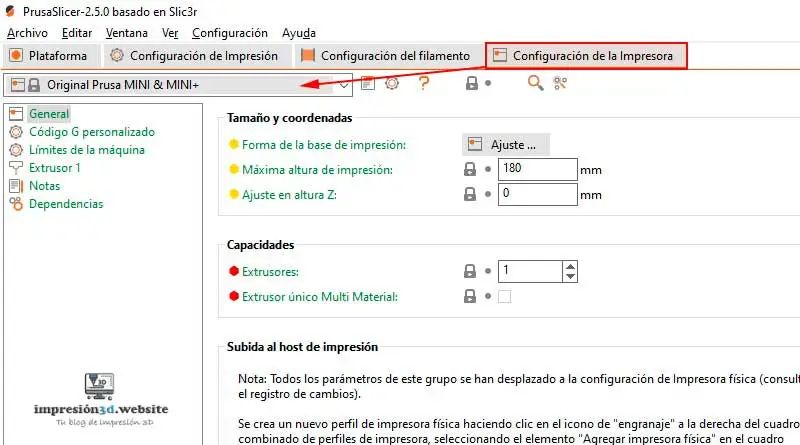
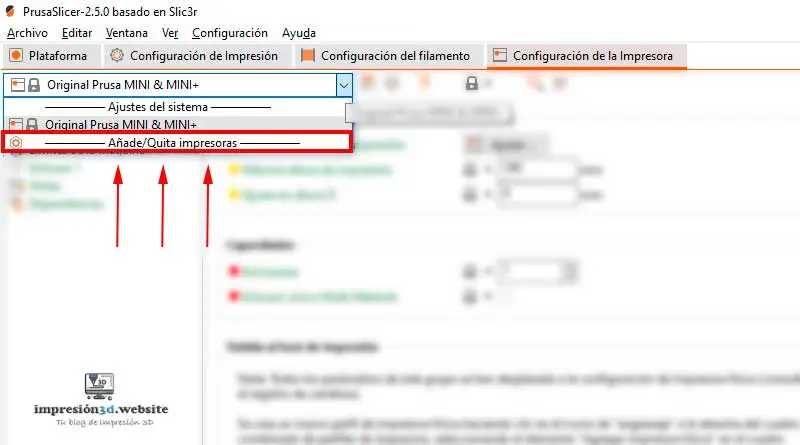
3. Open the “System Settings” window”
Then click “Add/Remove Printers“
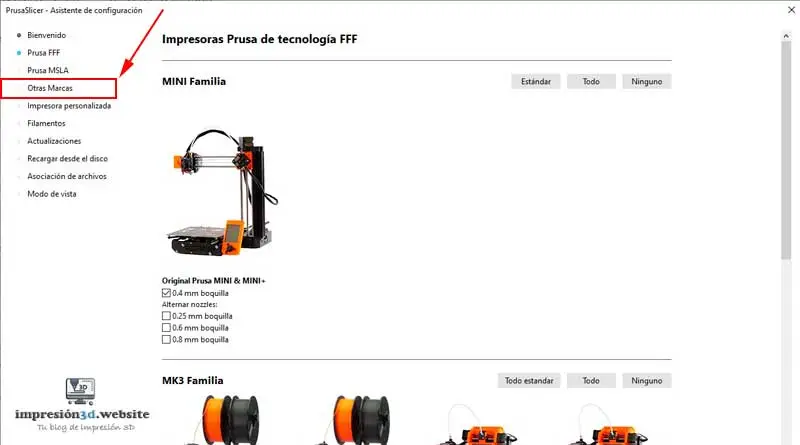
4. Click on other brands.
If your printer is a different brand, click “Other Brands.”
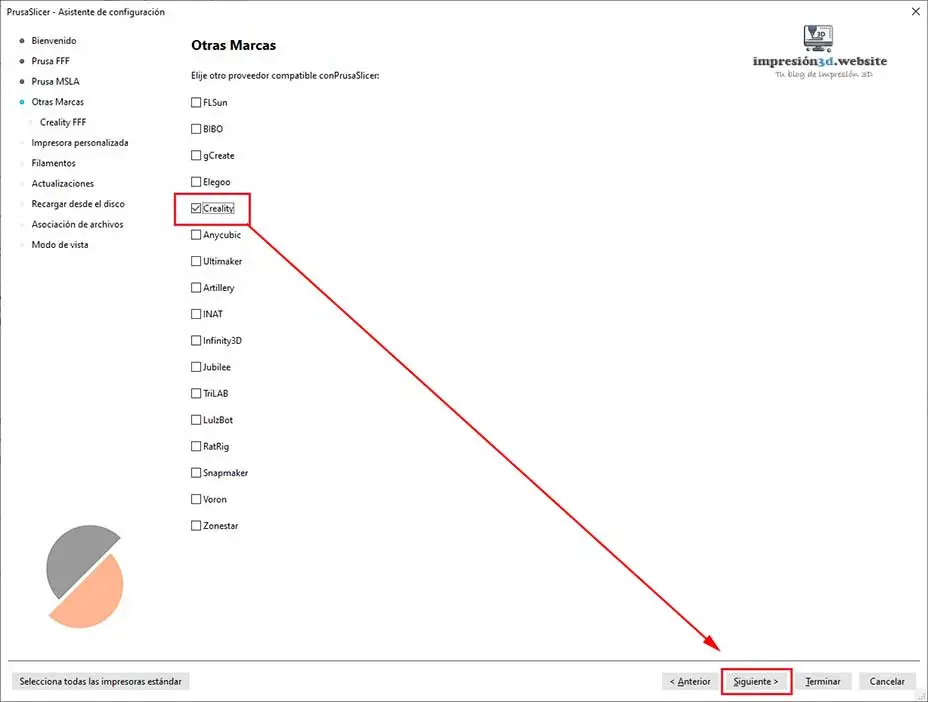
5. Choose your 3D printer brand
Select your 3D printer brand and click “Next”
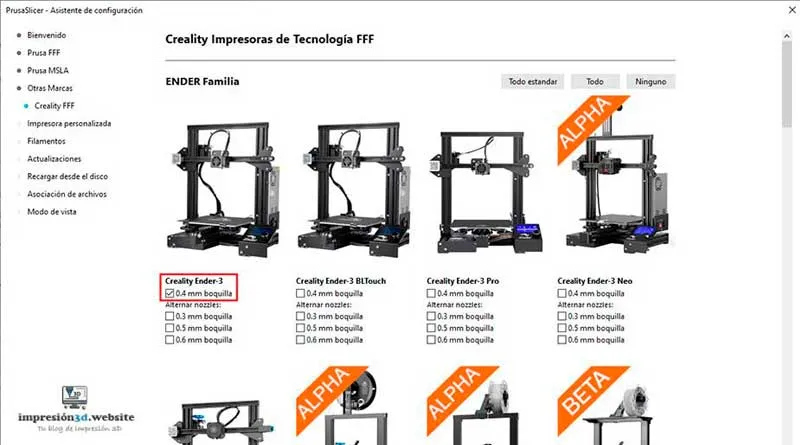
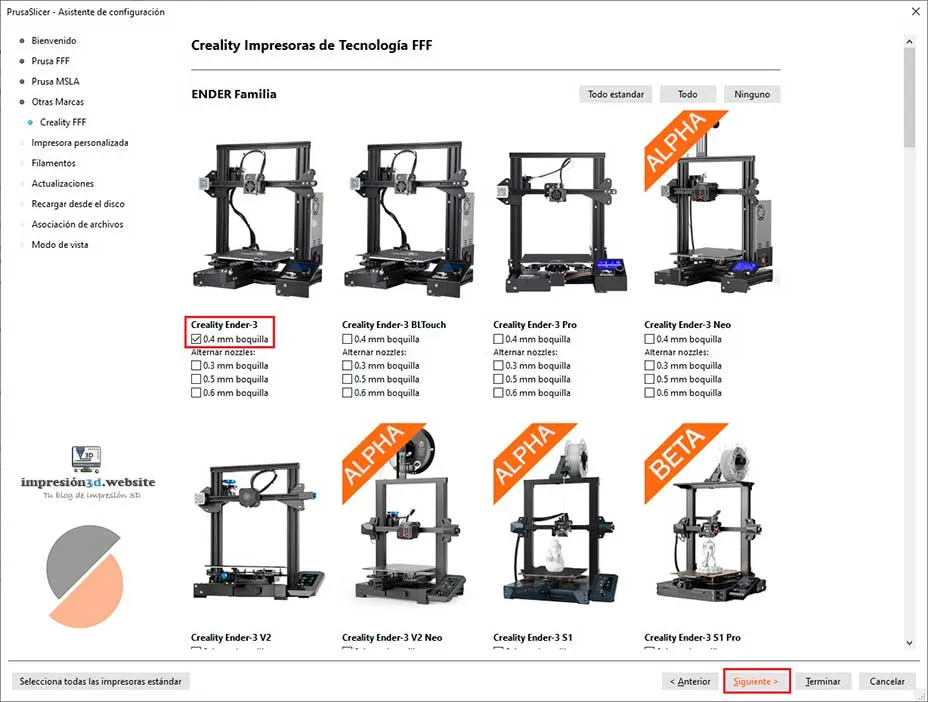
6. Choose a 3D printer model
I'm going to choose a Creality Ender 3 with a 0.4 mm nozzle
After choosing your model, click “Next.”.
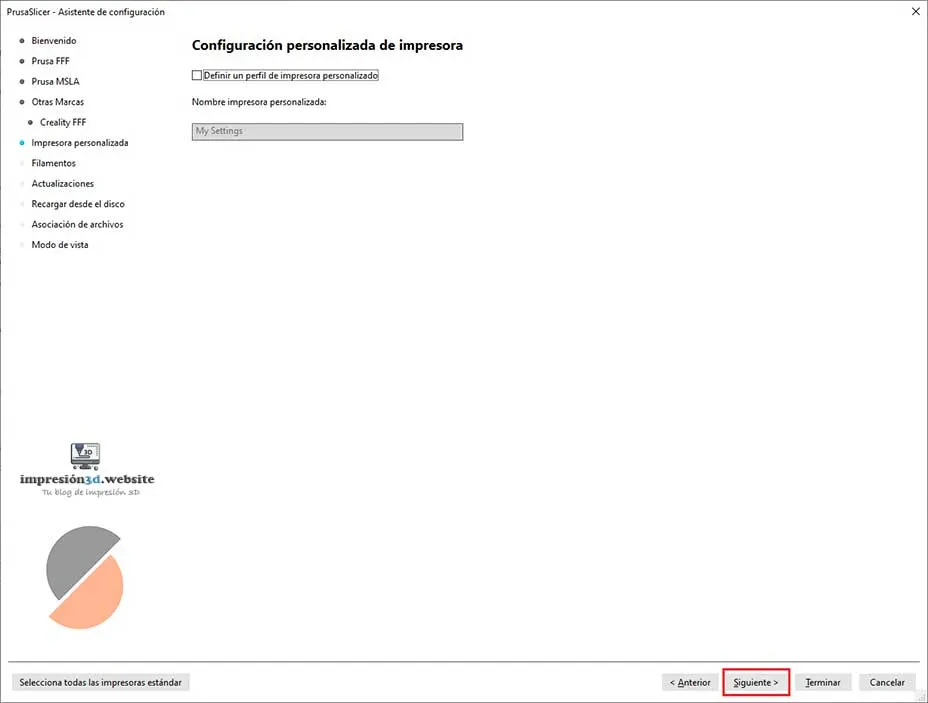
7. Custom Settings
If your 3D printer isn't listed anywhere, this is where you can enter its name and configure it manually.
If you've already chosen your printer from the list, click “Next.”.
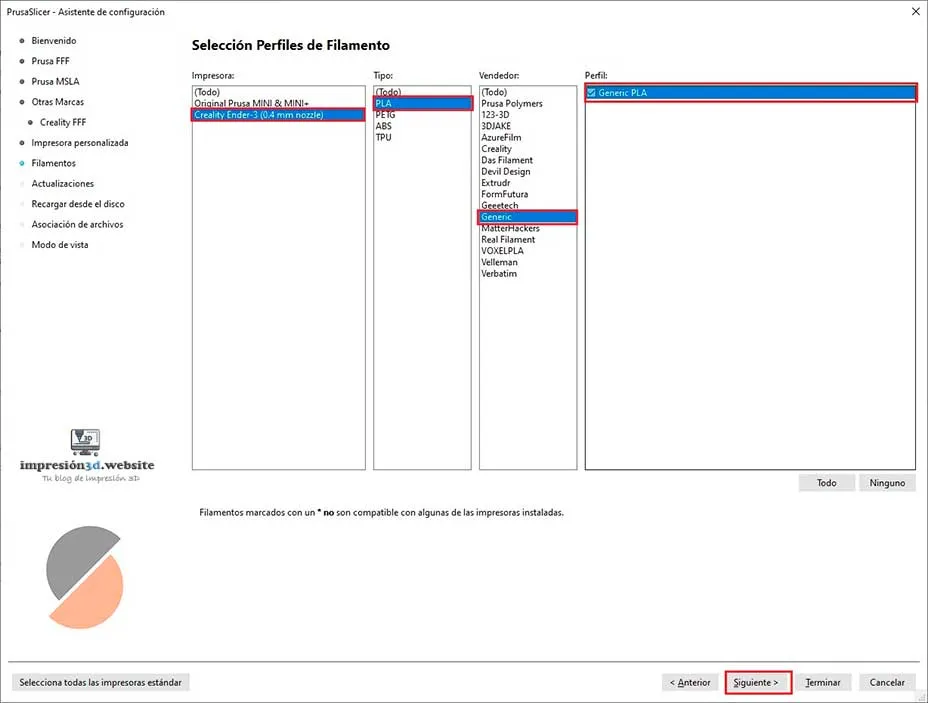
8. Select Filament Profiles.
Here you can configure the filaments you'll be using.
In my case, I'm going to choose all the generic options.
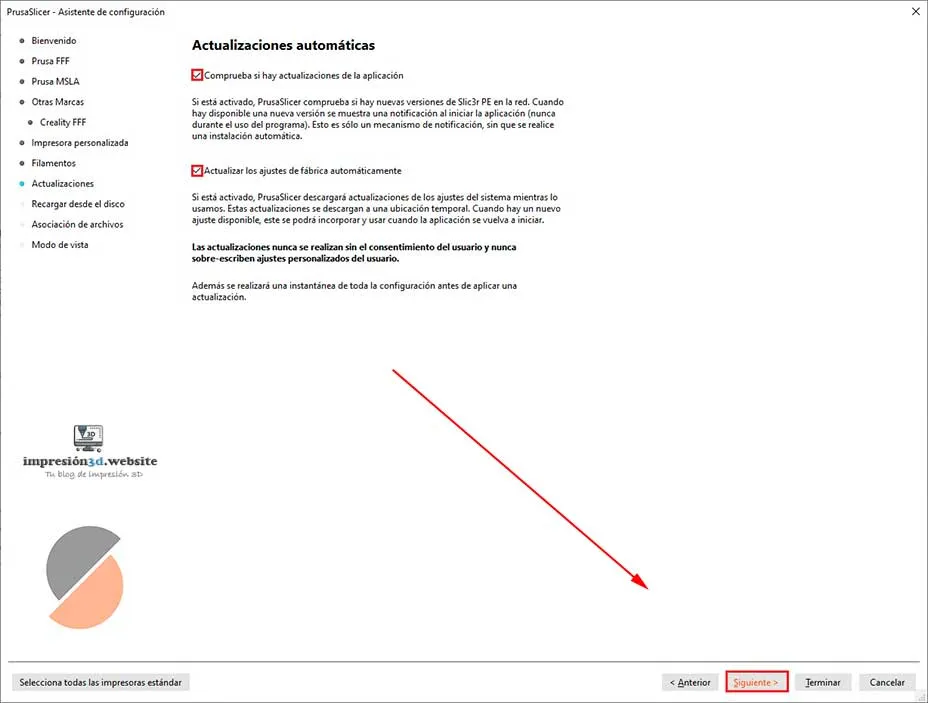
9. Automatic updates.
Select both options so that the PrusaSlicer program updates automatically.
Click “Next.”.
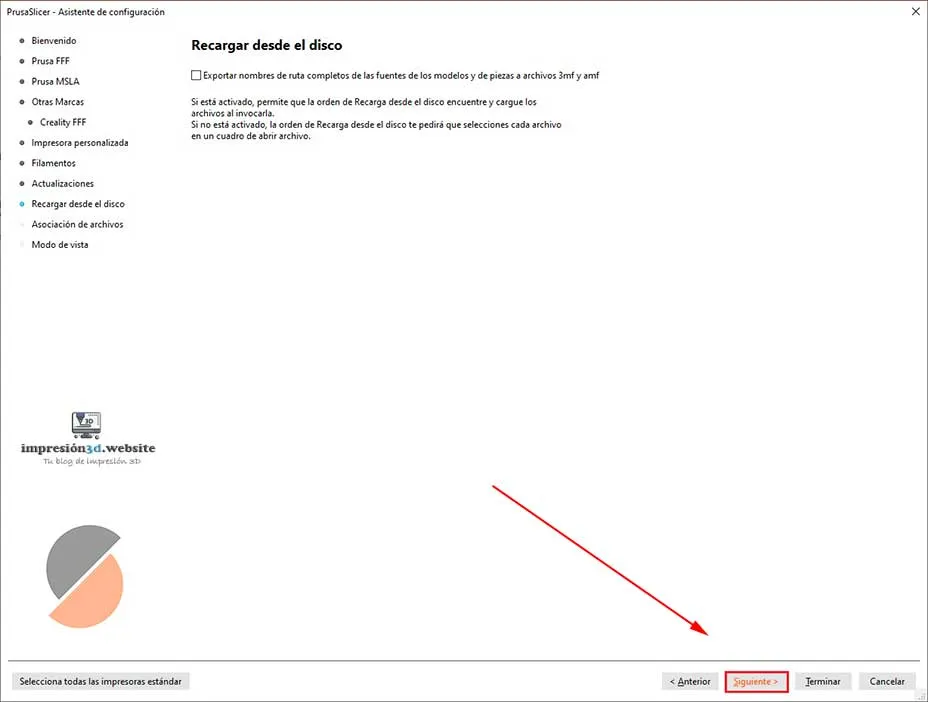
10. Load from disk
According to the official PrusaSlicer website, this feature is useful when you want to replace the newest version of a model with an older version without having to reconfigure settings such as custom supports, for example.
You can read more here.
I'm going to leave it turned off. Click “Next.”.
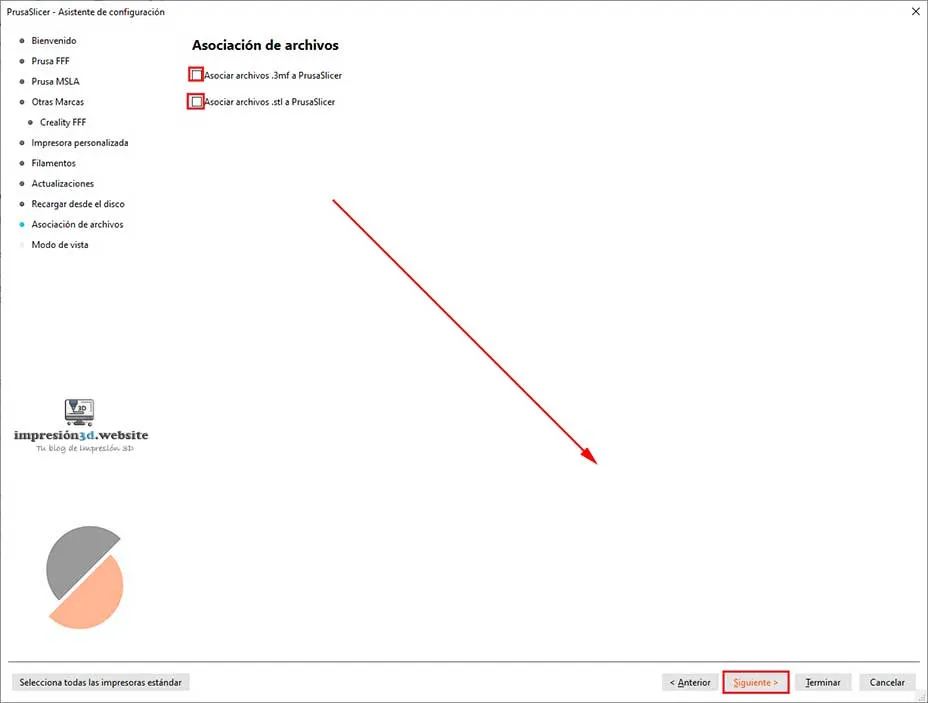
11. Association of Archives.
If you check these boxes, you'll associate .3mf and .STL files with PrusaSlicer.
This means that every time you double-click a file, PrusaSlicer will open automatically.
If you're using a different slicer, don't select them.
Click “Next.”.
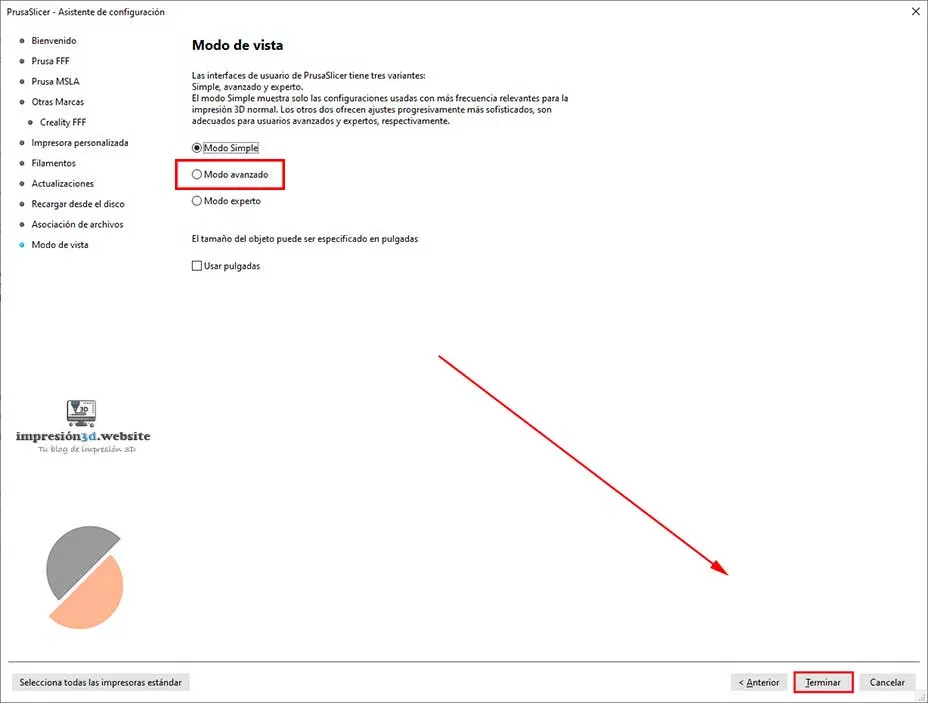
12. View Mode
If you're a beginner, you can leave “simple mode” selected. This mode is basic and doesn't have many settings that can be changed.
If, on the other hand, you're a more advanced user, select “Advanced Mode” to have more control over all the settings and parameters.
Click Finish.
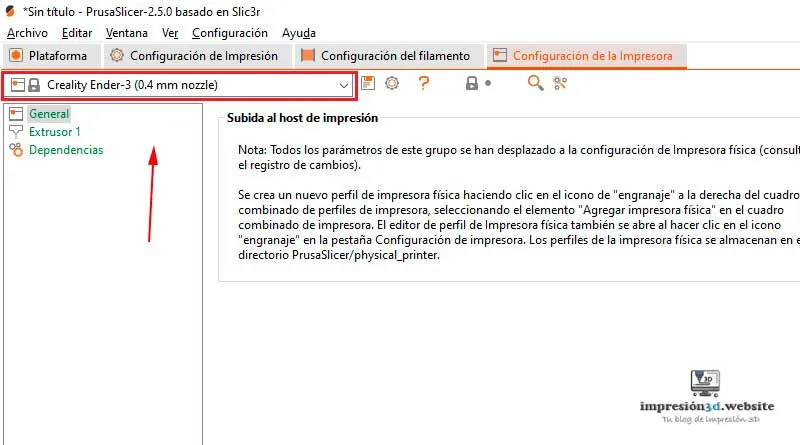
13. Check to make sure your 3D printer has been added.
Your printer should appear in the same printer profile window.
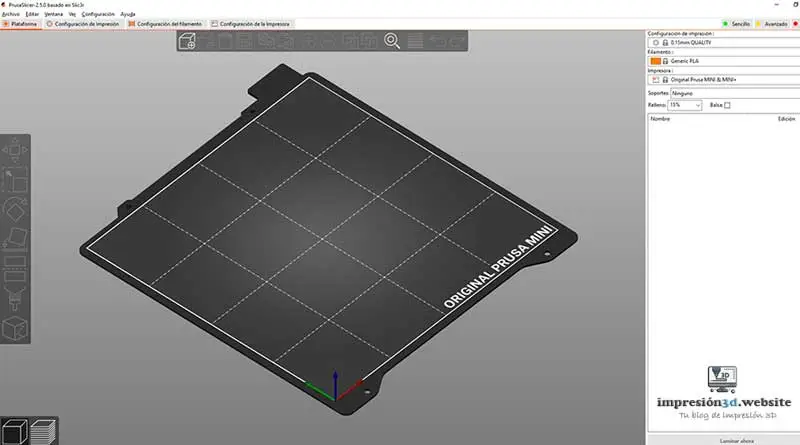
14. Check the "Platform" tab.
On the platform tab, you should see the plate with your 3D printer's brand name or logo
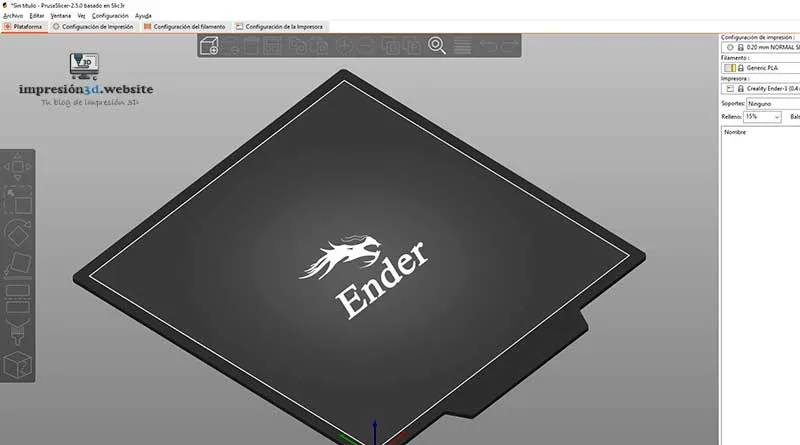
If everything went well, your 3D printer should now be added to PrusaSlicer.
Responses