How to Maintain a 3D Printer: A Complete Guide

Maintaining a 3D printer is essential for it to operate efficiently, reliably, and safely.
Today I'm going to show you a series of steps to help keep your 3D printer in top condition over time.
- Removal of dust and plastic debris
- Wheel and Belt Adjustments
- General Lubrication
- Electrical System
- Adjusting Nuts and Bolts
- Items to Review
- Conclusions
1. Removal of dust and plastic debris
Dust buildup is one of the most common and noticeable problems with our printers. Fortunately, it's also one of the easiest to fix.
You can use different tools to perform this cleaning, which will allow you to reach every nook and cranny of your printer.
- Compressed air
- A Dedicated Rag
- A paintbrush
- A toothbrush
- Paper napkins
- Isopropyl alcohol
- Alcohol-soaked swabs
- A vacuum cleaner
General cleaning of the structure
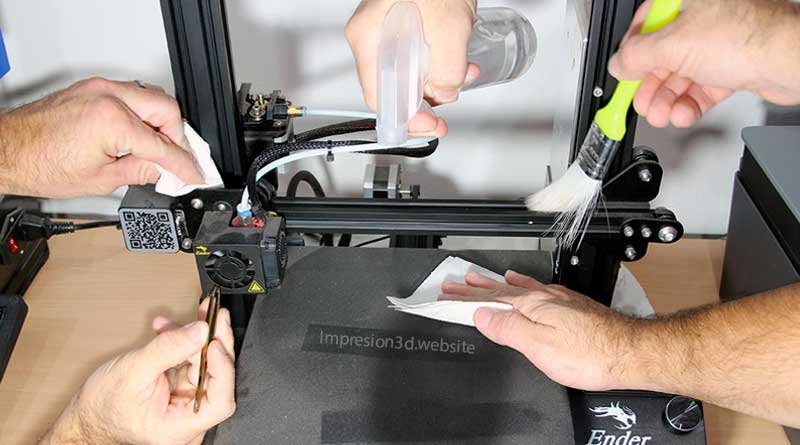
You can start maintaining a 3D printer by giving it a general cleaning with a can of compressed air, blowing it all over the printer to remove dust and plastic particles that have settled on the surface.
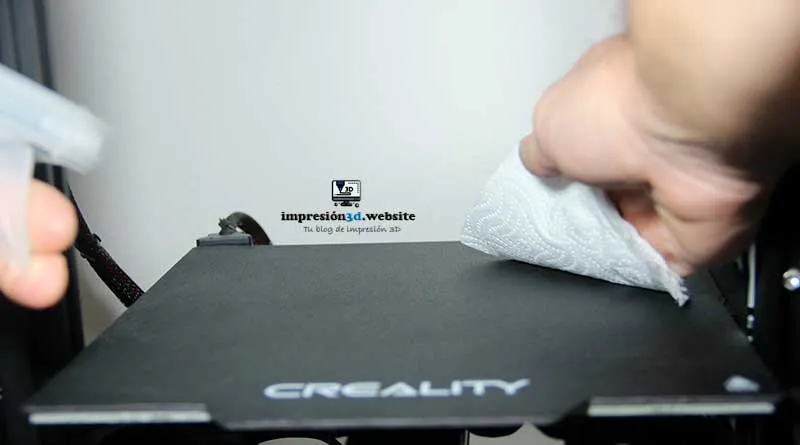
If you don't have or can't find a can of compressed air, you can use a cloth to clean the printer. You can dampen the cloth with isopropyl alcohol for a more thorough cleaning.
For hard-to-reach areas, you can use a brush to remove the dust.
Cleaning of moving parts and hard-to-reach areas
Bearings are one of the areas you should clean, since they tend to accumulate dust and all kinds of dirt. V-Slot wheels are a prime example, since they play a very important role and must move as smoothly as possible, without any jerks.
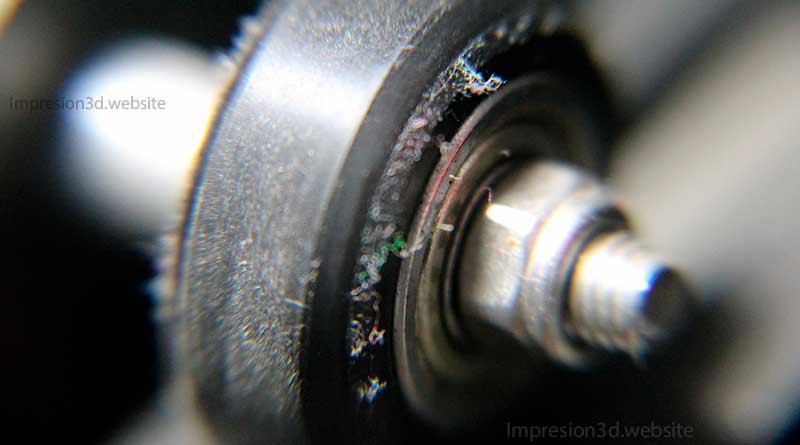
Here, you can use a cloth or a piece of paper soaked in isopropyl alcohol; as you move the wheels back and forth, place the damp cloth on the bearings so that they get cleaned as they move.
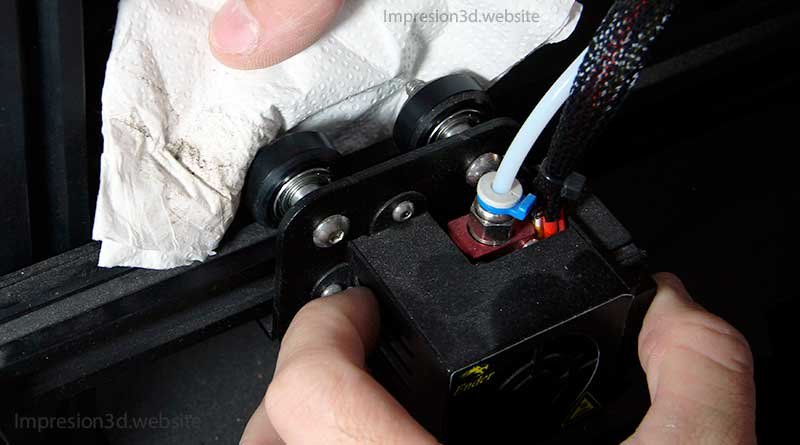
If you use paper napkins to clean, be careful not to leave small pieces of paper lying around.
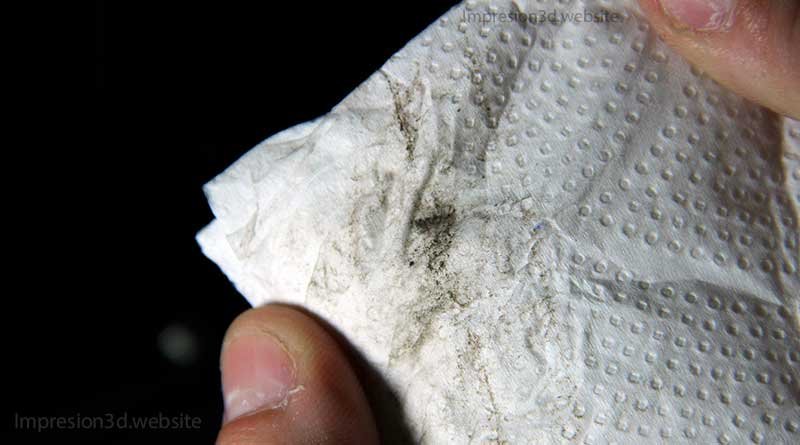
In printers with linear guides, dirt will accumulate at the ends; you can also use paper to clean them.
Another place where dust and dirt can accumulate is in the layer fans.
If these fans accumulate too much dirt, their performance could be affected, which would have a negative impact on the hotend's operation.
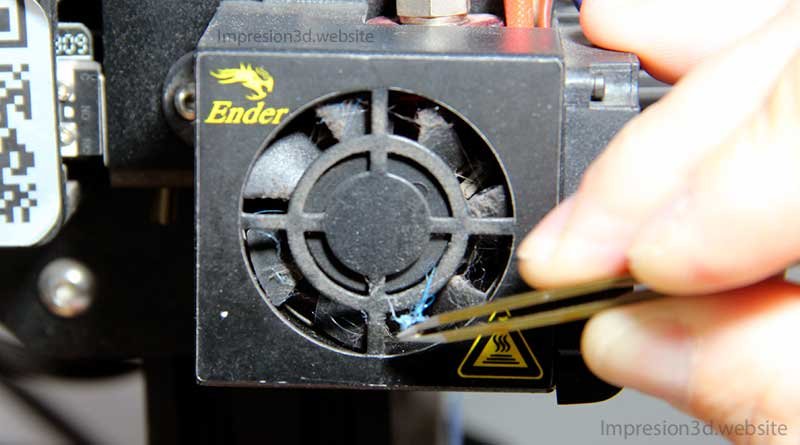
In this case, you'll need to remove the fan covers—whether they're the factory ones or the ones you have—by unscrewing the screws.
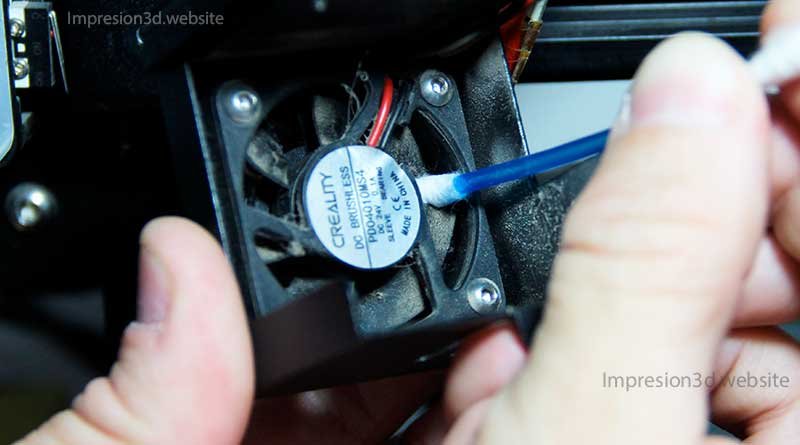
Be sure to clean the fans thoroughly with a cotton swab dipped in alcohol. If there are any plastic fibers, you can remove them with tweezers; if necessary, use a vacuum cleaner.
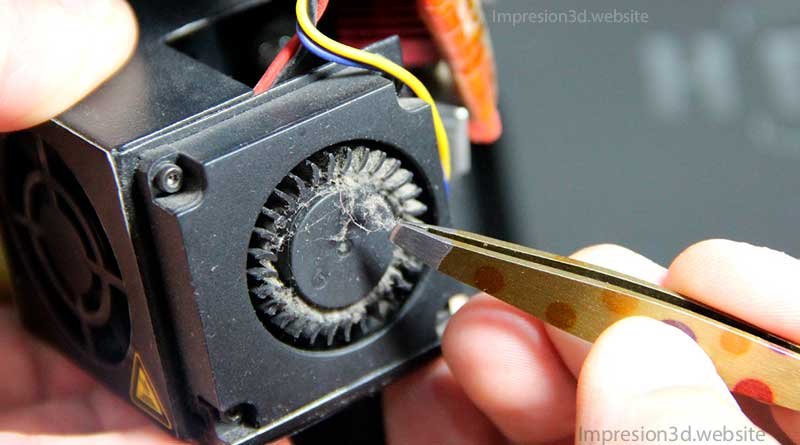
Some fans, such as the ones on the motherboard on the Ender 3 (first generation) point upward, and this area is prone to accumulating plastic pieces that can get inside or fall onto the motherboard.
In this case, remove the cover by unscrewing the screws, and take this opportunity to clean the fan and check the motherboard, which We'll see later.
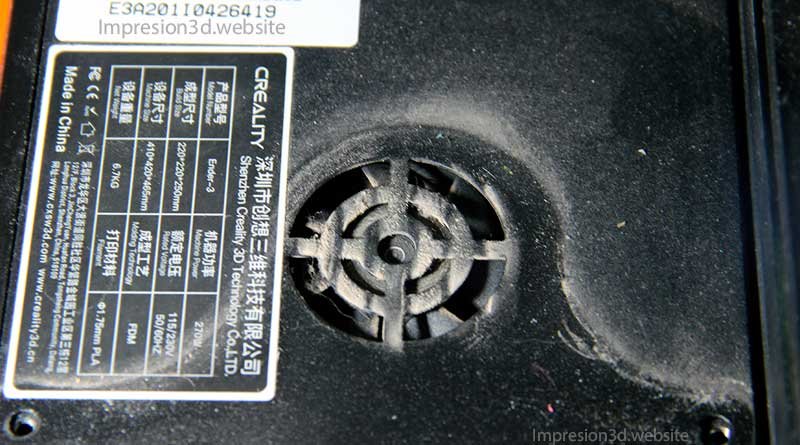
And finally, you can run the brush through any crack or crevice where you see dirt or grime.
If you know that one of your printers won't be used for a long time, you can cover it with a bag to keep dust out and prevent it from getting dirty.
2. Adjusting Wheels and Belts
The printer's constant rocking and vibration can cause some screws or eccentric nuts to come loose. It's important to make sure everything is properly tightened and calibrated.
V-Slot Wheels
First, you should check to make sure the wheels on the hotend carriage aren't too loose—to the point where it's almost coming off.
Remember that this system should be able to slide smoothly from one end to the other (it shouldn't be too tight).
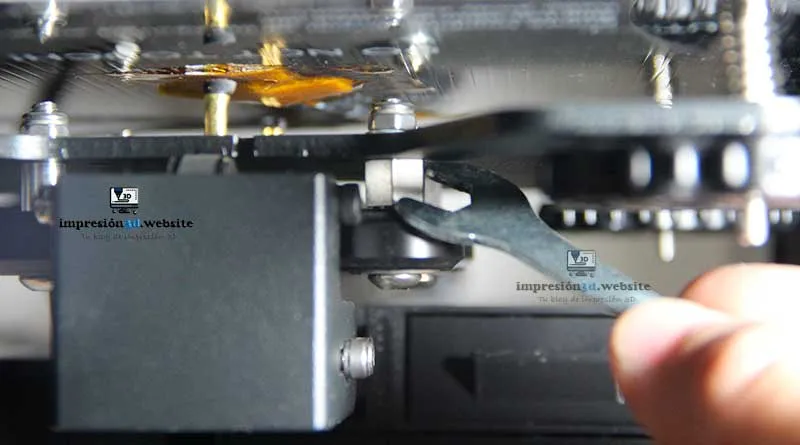
- If the wheels are too loose: The hotend carriage will wobble, which may affect the quality of your prints.
- If the wheels are too tight: The hotend carriage may be too tight, which could cause wear on the V-Slot wheels
If any of the wheels are damaged, you'll need to replace them with new ones.
Belt Tension
Once you have inspected and adjusted all the bearings, you can check the belt tension.
The belts must be properly aligned and sufficiently tight. They must not be loose, nor should they be too tight.
If your belts aren't tight enough, you'll need to loosen the screws on the tensioners, then pull on the belts to increase the tension. Immediately afterward, you'll need to retighten them without losing that tension.
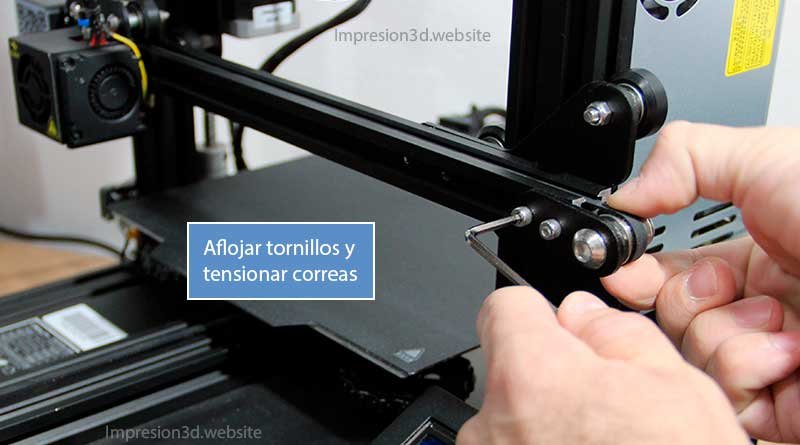
You can download and print a tensioner for Thingiverse, which will make this task easier.
3. General Lubrication
Once we've finished adjusting the tension of the belts, we'll move on to lubricating all the moving parts, especially the Z-axis.
It's a good idea to keep some fat at home, since you'll put it to good use and have it on hand whenever you need it.
If you want to know which grease is best for 3D printers, I recommend checking out the following post: What kind of grease should be used in 3D printers?
Linear Bearings
For reels that move on linear bearings, apply grease to a piece of paper and spread it over the entire hardened shaft.
While the hot end is on the left, lubricate the entire right side; when you're done, move the hot end to the right and lubricate the left side. When you're finished, move the spool back and forth so that the grease is evenly distributed throughout the entire rod.
You'll use the same lubrication process for the linear rails, placing it on the sides and on top of the rails. Move the reel from left to right to help distribute the grease.
Z-Axis Rod
One of the places that also needs this grease is the Z-axis; perhaps the best way to do this is to remove the rod from the printer, apply the grease to the Z-axis lead screw, and then reinstall the rod.
This way, as the rod passes through the guide thread, it will become saturated with grease until it reaches the bottom.
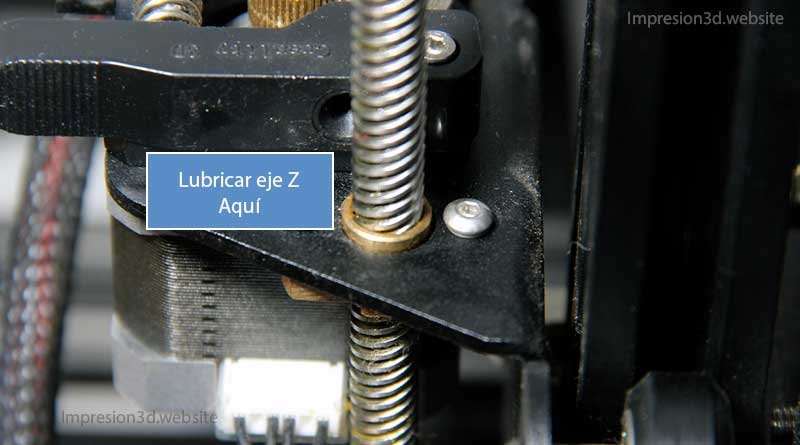
Another way—without removing the rod—would be to place the grease on top of the guide and instruct the printer to raise the Z-axis until it reaches the top stop.
4. Electrical System
When performing maintenance on a 3D printer, it is important to check the electrical system.
In the next step, you will inspect the printer's entire wiring system, including its connectors and connections.
Connectors
On some printers The connectors that connect to the power source can overheat. You should check that these connectors are free of burn marks, melted parts, or anything else that catches your eye.
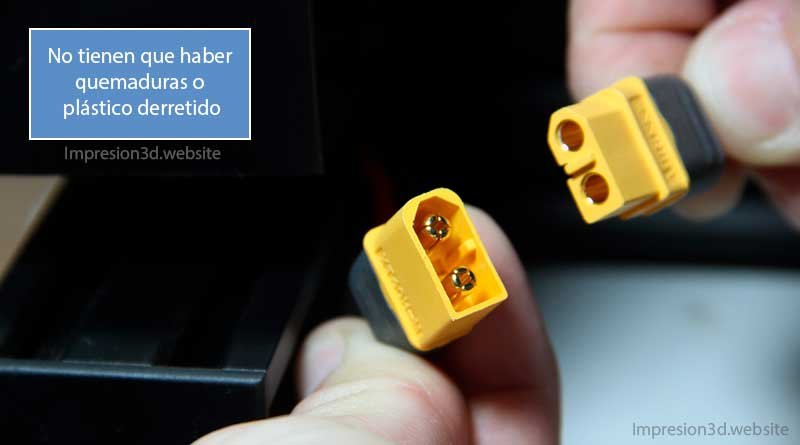
Then you can check the connections throughout the printer. Make sure the connectors are properly connected, make sure there are no loose wires.
Motherboard
You can also check all the connections on the motherboard, make sure there are no loose cables, and verify that all the screws are tightened properly.
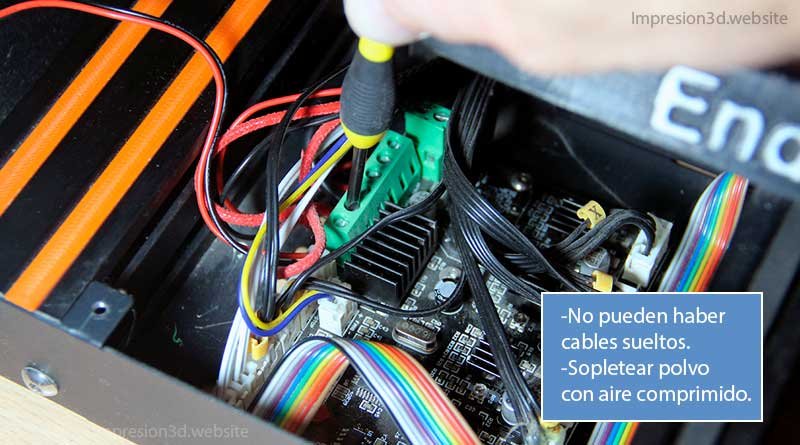
The cables connecting to the motherboard must be in good condition on the outside; they must not be burned or broken, and their insulation must also be intact.
Hotend and heated bed
The hotend wires must not come into contact with any metal parts that get hot, nor should they be pinched in any way. You should check the outside of the wires for any signs of damage.
You should also check the heating bed's wires to make sure they aren't burned or damaged in any way.
These cables must be properly secured to their mount.
5. Tightening Nuts and Screws
When performing maintenance on a 3D printer, you should first check and tighten all the screws that support and hold the printer's structure together. These will be the screws that are easiest to access.
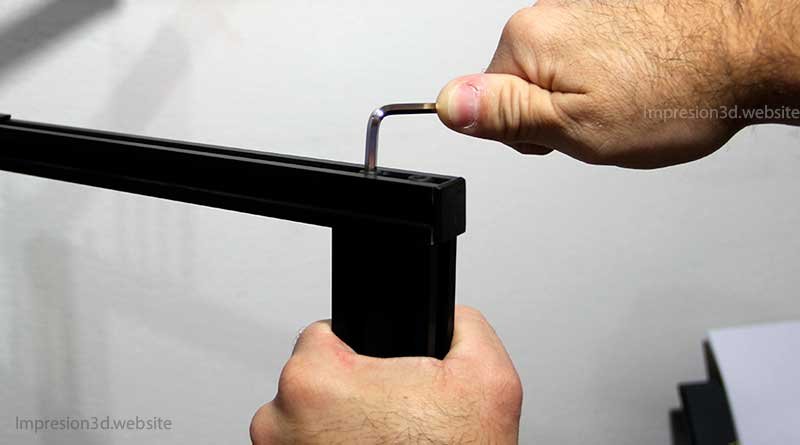
Check the screws that secure the eccentric wheels and make sure they are tight.
Another point to keep in mind is the Allen screws on the pulleys of NEMA motors. It will be relatively easy to check that these screws are tight and, therefore, that the belts are functioning properly.
Hotend
One of the most important components is the hot end, because if its screws are loose, this could cause quality issues with your prints. Make sure all of its fasteners on the carriage are properly tightened.
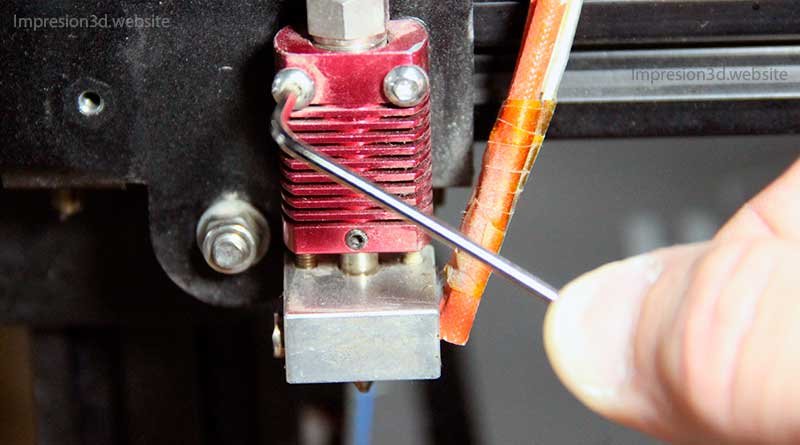
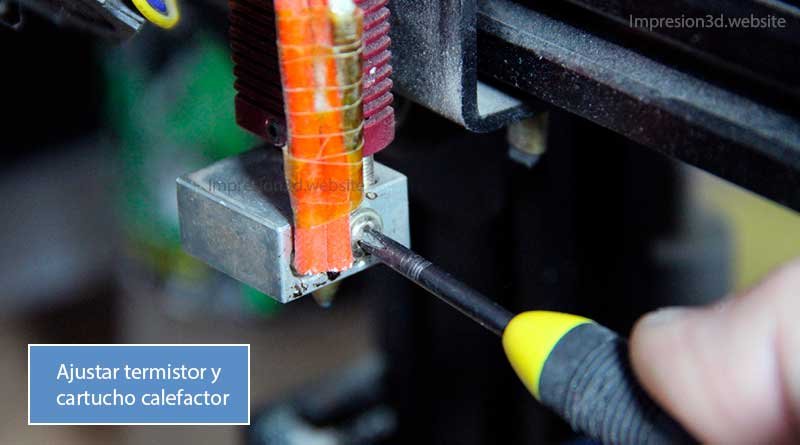
With the housing disassembled, you should also check that the thermistor (temperature sensor) and the heating cartridge are securely fastened, since if the latter comes loose and falls onto the print, it could cause a fire. Do not overtighten them, as you could strip the threads on the aluminum block.
6. Parts to inspect
Extruder
One of the parts you absolutely must check (especially if you have a printer with its original components) is the extruder arm. It's one of the components that can break or wear out.
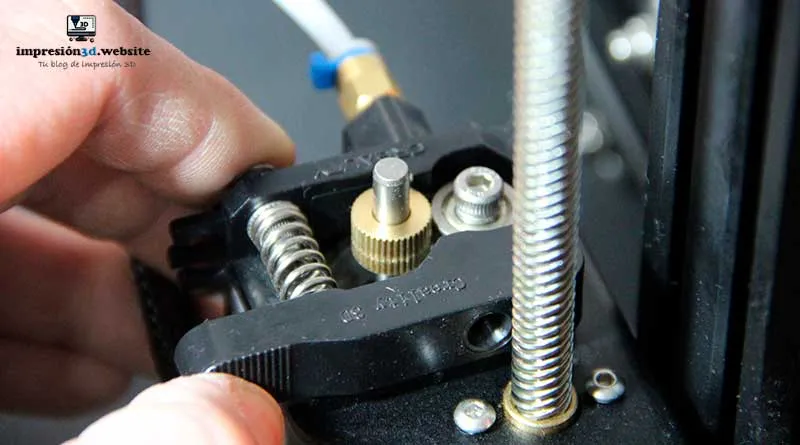
In particular, Creality brand plastic extruders, which are of poor quality, can break or wear out in the area of the extruder arm where the filament enters.
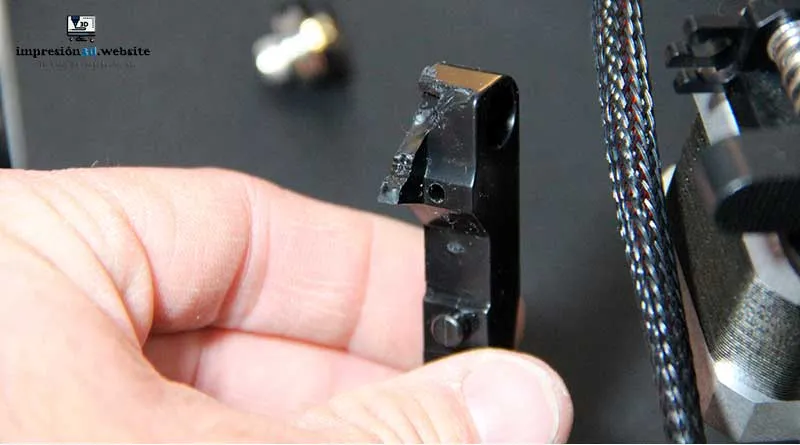
These parts now have a metal insert, but the plastic portion can still break.
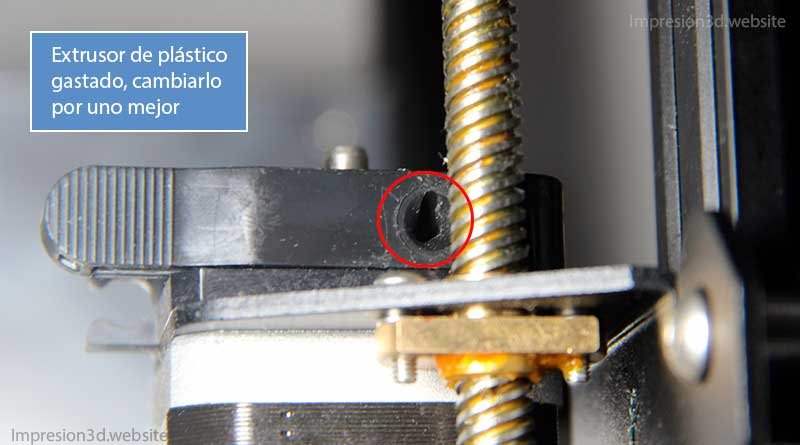
If this is the case for you, I recommend that you at least upgrade to an aluminum extruder. They're much more reliable and rarely—if ever—break down. At least mine haven't failed me yet.
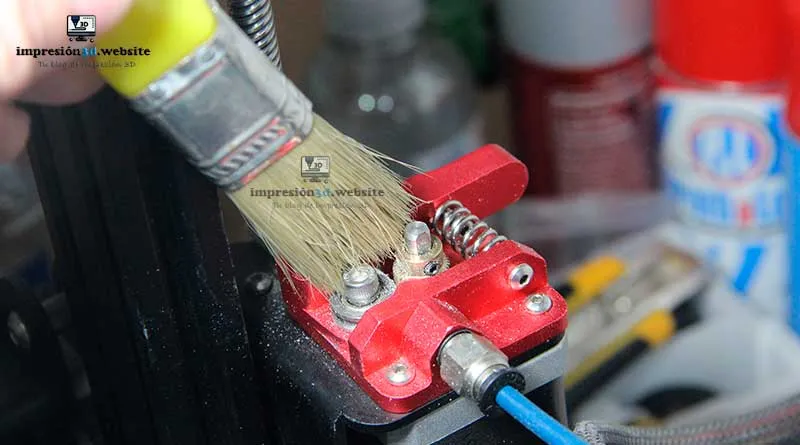
Another item to check is the extruder gears, which may need cleaning, you can use compressed air or an old toothbrush to clean them.
Bowden System
This system often has problems because the Racor couplings (especially the factory-installed ones) fail and the hoses come loose. You should check to make sure the Teflon hose is properly installed and not twisted.
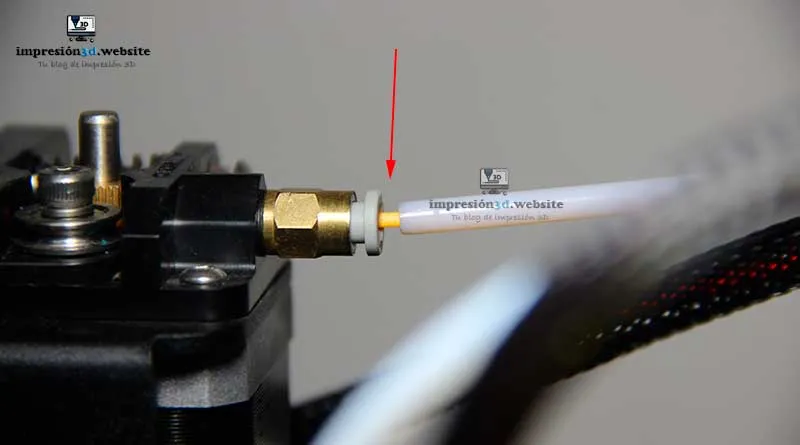
Note that the Racor couplings make sure their locks are secured, and that they are securely attached to the hot end and the extruder.
7. Conclusions on 3D Printer Maintenance:
Performing maintenance on a 3D printer can be very beneficial; it can extend the life of your printer (which means spending less money on replacement parts) and will also allow you to produce higher-quality prints.
Performing maintenance on a 3D printer can give you peace of mind that everything is working properly and that the risk of fire can be reduced if everything is within normal parameters.
I invite you to read: “Effects of Moisture on 3D Printing Filaments”A post you might find interesting.".
Very good post. I really appreciate this site. Keep up the good work!
[…] Make sure your 3D printer is clean and in good condition; here’s a post on “how to maintain your 3D printer.“ […]