How to Set Up OrcaSlicer for Your Ender 3 Step by Step (and Any 3D Printer)

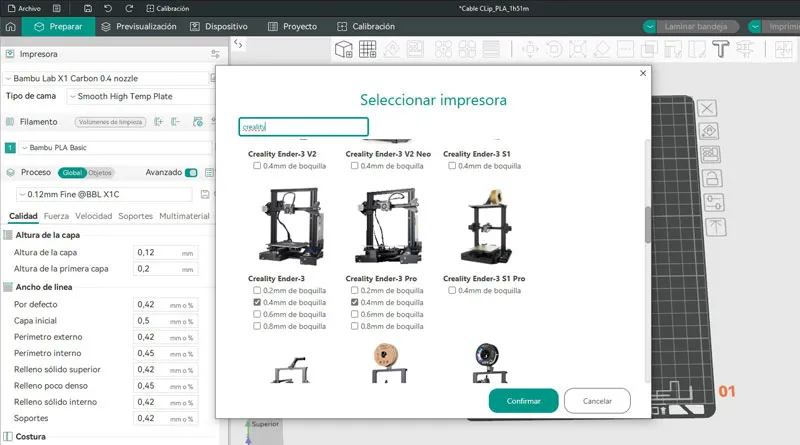
If you have a Ender 3 and you want to take advantage of OrcaSlicer, you'll be happy to know that this software already includes preconfigured profiles for most models of Creality, including the Ender 3, Ender 3 Pro, Ender 3 V2 and several of its variants.
In this guide, you'll learn how to set it up correctly, adjust the basic settings, and get it ready to print accurately on the first try.
Step 1: Check if your Ender 3 already has a profile available
When you open OrcaSlicer for the first time, you'll see an initial setup wizard.
- In the section on Manufacturer, select Creality.
- In the list of models, look for Ender 3, Ender 3 Pro, Ender 3 V2 or the version that is most compatible with your printer.
- If your exact model isn't listed, choose a similar one (for example, Ender 3 V2)—you can adjust the settings later.
Tip: If you've already completed the setup wizard, you can add a new printer at any time from the Printer Settings > Select Printer.


Step 2: Load the preconfigured profile
Once the model has been selected, OrcaSlicer will automatically load the machine's basic parameters:
- Bed size: 220 x 220 x 250 mm
- Firmware: Marlin
- Default Temperatures for PLA
- Retraction, speed, and flow rate configured for extruder type Bowden
These settings are usually sufficient to start printing without any problems.
Just make sure your printer's name appears in the lower-right corner, and save the profile to use it as the default.
Why isn't my printer listed?
If your 3D printer doesn't appear in the Orcaslicer list, you can create a profile manually to add it. Keep reading to see the next steps.
Step 3: Create a manual profile (optional)
If your 3D printer doesn't appear in the Orcaslicer list or if your Ender 3 If it has modifications (for example, a direct-drive extruder or a different hotend), you can create a manual profile from scratch.
At the top of the same menu where you select the printer, choose the system used by your 3D printer. For an Ender 3, select “Marlin.”


Basic Printer Setup (For Ender 3)
- Bed size: 220 x 220 x 250 mm
- Firmware: Marlin
- Origin in the center: Disabled
- G-code flavor: Marlin


Recommended Initial G-Code (For Ender 3)
; Ender 3 Custom Start G-code
G92 E0 ; Reset Extruder
G28 ; Home all axes
G1 Z2.0 F3000 ; Move the Z-axis up slightly to prevent scratching the heated bed
G1 X0.1 Y20 Z0.3 F5000.0 ; Move to start position
G1 X0.1 Y200.0 Z0.3 F1500.0 E15 ; Draw the first line
G1 X0.4 Y200.0 Z0.3 F5000.0 ; Move slightly to the side
G1 X0.4 Y20 Z0.3 F1500.0 E30 ; Draw the second line
G92 E0 ; Reset extruder
G1 Z2.0 F3000 ; Move the Z-axis up slightly to prevent scratching the heated bed
G1 X5 Y20 Z0.3 F5000.0 ; Move over to prevent blob squish
Recommended final G-code
G91 ;Relative positioning
G1 E-2 F2700 ;Retract slightly
G1 E-2 Z0.2 F2400 ;Retract and raise Z
G1 X5 Y5 F3000 ;Wipe out
G1 Z10 ;Raise Z further
G90 ;Absolute positioning

G1 X0 Y{machine_depth} ;Start print
M106 S0 ;Turn off fan
M104 S0 ;Turn off hotend
M140 S0 ;Turn off bed

M84 X Y E ;Disable all steppers except Z
With these codes, your printer will perform homing correctly, purge the filament at the start, and turn off the heaters when finished.
Set the Nozzle Size
If your printer has a different nozzle size, you can change it in the same window by clicking the “Extruder 1” tab”

Step 4: Adjust retraction, flow, and speed
These three factors determine the final quality of the part:
- Retraction: 4.5 mm at 40 mm/s (for Bowden). If you have a direct-drive extruder, lower it to 1 mm.
- Flow: Keep 100% until you perform a specific calibration.
- Speed: 50 mm/s is a safe starting point for the Ender 3.

Step 5: Test the profile
Export a simple model (such as a calibration cube) and save it to the SD card.
Before printing, make sure that:
- The nozzle and the bed reach the set temperature.
- No homing errors or movement outside the print area should occur.
In just a few steps, you can have OrcaSlicer, perfectly configured for your Ender 3, using the profiles already included in the program and making the necessary fine-tuning adjustments for your machine.
Configure OrcaSlicer for your Ender 3 It's much easier than it looks. With just a few minutes of tweaking, you can achieve results as precise as those from Cura or PrusaSlicer, taking advantage of OrcaSlicer's advanced features.
If you follow the steps in this guide, you'll end up with an optimized, stable profile that's 100% compatible with your Creality printer.
💬 Have you tried OrcaSlicer with your Ender 3 yet?
Tell us about your experience in the comments, share this article with other users, or sign up at impresion3d.net/ to access more practical guides and ready-to-use configurations.

Responses