3D Lithography: Color Photos with a 3D Printer + Best Settings

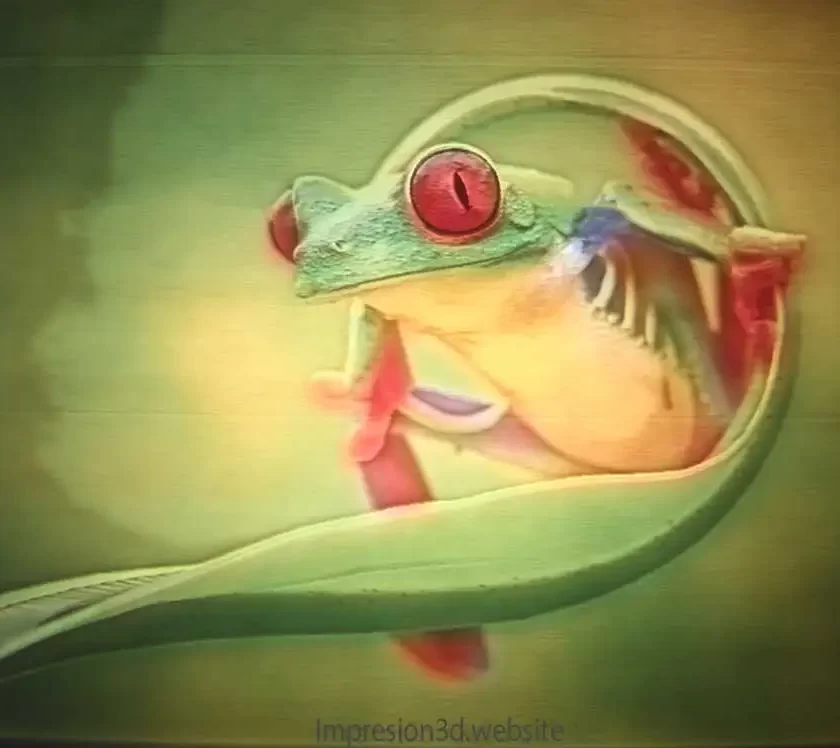
3D lithophany is a technique for projecting an image (or photograph) through a semi-translucent medium (preferably white), using layers of varying thicknesses to allow light to pass through.
It is the variation in material thickness that causes the opacity to vary as light passes through, making the thicker areas darker and the thinner areas lighter. Using this method, it is possible to produce a very sharp image.
Originally, lithophanes were made of porcelain; a positive image was created using wax, and then the image was transferred to the final material.
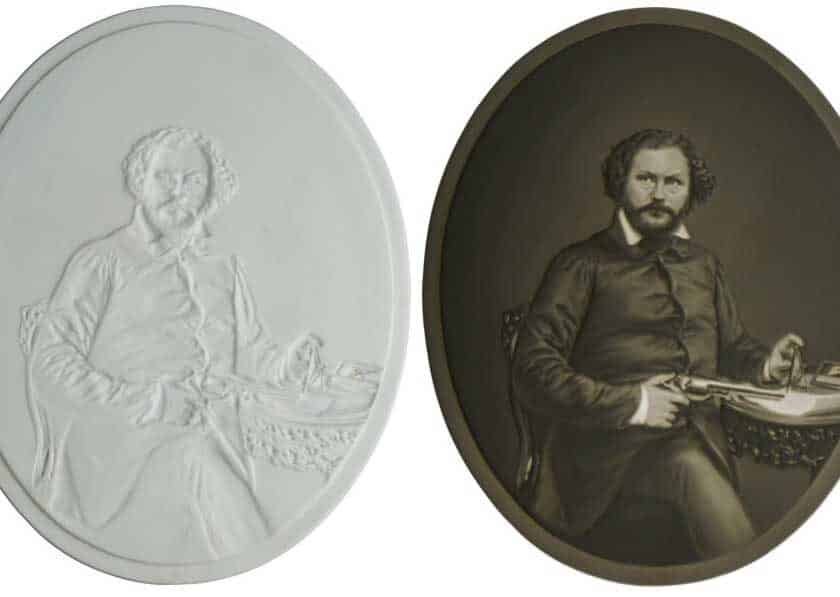
The most common use of a lithophane was—and still is—decorative, specifically for creating lamps. Today, with 3D printers, they can be taken to a whole new level, allowing for the creation of more sophisticated and customizable lamps.
How a lithophane Works
Once the lithophane has been created, a light source is needed to produce the effect that reveals the hidden image; without it, all you would see is a white sheet.
Placing a light behind the sheet will be enough to reveal the image created with the Lithophane Generator. The light can be natural light, from a candle, or from an electric lamp.
What You Need to Make 3D Lithophanes
To make a lithophane with a 3D printer, you'll need:
- A “Lithophany Generator“, and An image (or photograph).
- A laminating software as “Healing” or “PrusaSlicer”
- One 3D printer with a white filament.
- Print a color page using Paint
1. Lithophany Generator
A generator for 3D Lithophany It is a platform or application designed to convert a 2D image into an STL file, ready to be downloaded and processed by the slicer before being sent to the 3D printer.
The Online Lithophane Generator It will process the image you want, and then you'll choose the settings that determine the size, thickness, and type of frame needed to produce the 3D lithophane.
There are currently two widely used platforms:
- 3dp.rocks: She creates black-and-white lithographs.
- itslitho.com: has the ability to produce color lithophanes, (printing a sheet of color paper).
For this post, I'm going to use the second option: itslitho.com, since I want to print a full-color 3D lithophane.
The image can be in color or black and white. It all depends on what you want to print.

2. Laminating software
In this post, I'll use as an example Healing from Ultimaker, but you can choose whichever one you want.
To 3D print a lithophane, you'll need to set some special printing parameters, which I'll explain later in this post.

3. A 3D printer
Any 3D printer will work; I understand that resin printers work too, although I've never tried it.

In this post, I'm going to focus on FDM printers, using a Creality Ender 3 to make the sample lithophanes. In any case, you can use any printer.
Here is a list of The 10 Best 3D Printers for Beginners, selected and ranked based on their cost-to-quality ratio.
The key to producing high-quality lithophanes with any 3D printer is use white material and special lamination settings to achieve the best possible quality.
How to Make 3D Lithophanes
Use a 3D lithophane generator to process your image, then download the STL file and set the optimal parameters in Cura. Once you’re ready, you can print the lithophane on your 3D printer using white filament—preferably high-quality filament.
If your lithophane is in color, remember to print the image in color using Paint.
Here is a tutorial that follows the 4 steps listed above:
Step 1: Online Lithophany Generator itslitho.com
Click on the link in the title to access the lithophane generator, then follow the steps below.
1) Upload the Image
To upload the image, go to the tab in the upper left corner.
In this section, the only option you'll need to click is “Upload“. A window will open here so you can select the file, and it will be uploaded to the website.

2) Edit the Image
In this section, you can modify (if you wish) the settings for:
2.1) Grayscale method:
- Averaging (to average)
- Luminance (luminance)
- Black & White (Black and White)
2.2) Image Editor:
- Brightness (Shine)
- Contrast (Contrast)
- Exposure (exhibition)
- Blur (Blur)
2.3) Image transformations:
- Rotate (Rotate)
- Crop width (Cut widthwise)
- Crop height (Cut high)
- Mirror (Mirror effect)
- Flip (Turn around)

If the image you've uploaded is the right size and has the right colors, you don't have to change anything; you can leave it as is. If you need to, you can make the changes mentioned above; feel free to experiment.
In my particular case, the image I chose It does not need to be edited, so I'm going to leave the values as they are:

If you've made a mistake and want to reset the settings, you can click the arrow in the upper-right corner. This will reset all settings to their previous values.

3) Modeling Lithophany
Once you've finished the previous step, you can move on to the next tab, “Model”where you can configure all settings of your lithophane before printing it
We'll go through this step by step to understand what each setting is for:
3.1) Shape Options
- Plane (Map)
- Cylinder (Cylindrical)
- Sphere (Spherical)
- Arc (Arched)
- Pumpkin (Pumpkin)
- Revolve (Vase Type)
- Circle (Circular)
- Christmas Specials (Christmas Specials)
- Heart (Heart)
- Hexagon (Hexagon)

These are all the forms available in the program, and Each one will have its own settings, with its own configurable settings.
In this tutorial on 3D lithophanes, I'm going to focus on the shape “Arc“, since I want to present this in a simple, educational way, without overcomplicating things so that I can explain them clearly. Also One of the secrets to making really good lithophanes is to print them vertically., and this form will be a great help in that regard.
Arc Options:
- Height (Height): Here you'll need to choose the height Whatever dimensions you want for your lithophane, the width will be set automatically.
- Angle (Angle): This changes the angle of the curve and measures it in degrees. (I'll leave it at the default settings.)
- Min Thick (Minimum thickness): I will leave the default values at 0.8 mm
- Max Thick (Maximum Thickness): Also, the default values are 3.2 mm
- Crop (cut): It will allow you to change the width by cropping the image.
- Inside (Inside): It will show the variation in thickness on the inside (I'll leave it turned off; I haven't tried it yet)

3.2) Frame Options
- None (None): No frame will be added
- Frame (Frame): It will place a frame around the lithophane
- Border (Border): This will create a thin border around the lithophane
I'll choose the default options, I'll leave the dialog box with its default settings.

3.3) Quality Options
- mm per pixel: 0.15 mm This setting determines the image quality; as the number of millimeters per pixel increases, so does the image's file size in megabytes (Be careful, or the file will be very large.)
- Preview Model: It lets us choose the preview quality.

3.4) Attributes
- Turn on the lamp: Allows you to add a bracket for lamps or spotlights
- Close bottom: Add a flat base
- Nightlight: Add a base with a hole
These options are interesting, but I'm going to leave them at their default settings.

3.5) Model Options
- No light (unlit): Displays the lithophane without lighting (white sheet)
- Backlit (Backlit): Shows the effect of the 3D lithophane; you can see the image.
- Normal gradient (normal gradients): Shows the lithophane illuminated from the front, with color gradients.
I'll also keep the default settings.

3.6) Image options
- Positive image (positive image): It is important that this option always be enabled; otherwise, the image will be negative.
- Flip image (Rotate image): Flips the image vertically
- Mirror image (Mirror Image): Flips the image horizontally
- Horizontal Placement (Horizontal Adjustment): Moves the image horizontally from side to side
- Vertical Placement (Vertical Adjustment): Moves the image vertically up or down.
- Zoom factor (Zoom factor): Zooms in or out on the image.

Here, too, you shouldn't change anything unless it's necessary, The default settings will be the correct ones.
Once you've finished with these settings, you'll be able to download the color images and the STL file you'll need for slicing in Cura.
4) Download the 3D lithophane files
Click the “Download” which is in the lower right corner.

Then select the “LITHOPHANE” and “COLOR LITHOPHANE” options”

The STL files and images will begin downloading.
Step 2: Open the STL file in Cura and adjust the parameters
Before printing the lithophane, let's set the optimal settings in Cura (or whichever slicer you use), since printing lithophanes requires precise adjustments.
To keep things simple when it comes to the settings, I'm going to leave a download link with the best parameters, so they can download my profile directly, and then everyone can modify it however they want.
Some curing parameters for printing lithophanes are:
Quality
- Coat length: it should be between 0.1 mm and 0.2 mm, since a larger size will make the lines in the print more visible.
- Initial layer height: must not exceed 0.2 mm
- The line width: will be the same as the one for the Boquilla (0.4 mm)
Walls
- Count of wall lines: 10 (It would be best if they were all walls.)
- Z-stitch position: Select “Left Rear”so that the seam is hidden and not visible all over the lithophane.".
- Seam allowance preference: “hide seam“
Filling
- Filling density: 100%
Material
- Printing temperature: 205 °C (for PLA)
- Printing plate temperature: 50.0 °C (not required for PLA)
- Flow: 100%
Speed
- Print speed: 35.0 mm/s or 40.0 mm/s (It'll take a lot of time, but it's the best way to ensure good quality.)
- Outer wall velocity: 25.0 mm/s
- Initial layer speed: Always set to 20.0 mm/s
- Skirt/edge speed: 20 mm/s
Displacement
- Enable retraction: if
- Retraction distance: 5.0 mm (or whatever size you usually use)
- Retraction speed: 45.0 mm/s (or whatever speed you usually use)
- Combed style: “Not in the lining“
Refrigeration
- Enable print cooling: if
- Fan speed: 100%
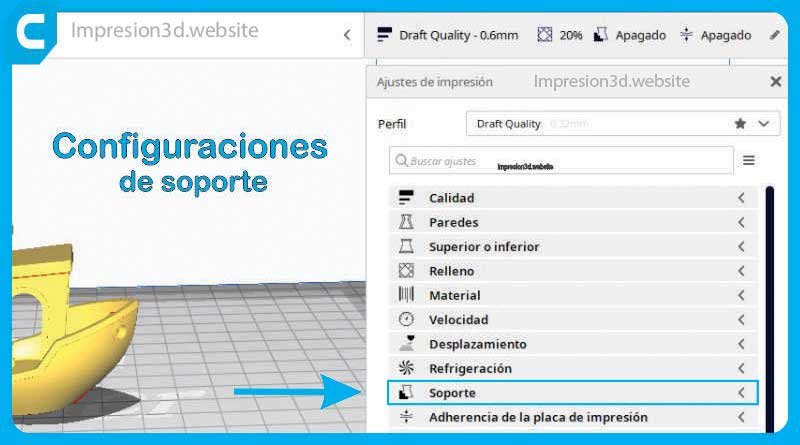
Support
- It's not necessary, turn it off
Adhesion of the impression plate
- Adhesion type of the impression plate: “Edge“
- Count of edge lines: 10 laps will be enough.

Once all your settings are ready, you can perform the segmentation and save the G-code file to your microSD card
Step 3: Print a 3D Lithophane
Remember before printing:
- Make sure your 3D printer is clean and in good condition; here's a post about “How to Maintain Your 3D Printer“.
- Be sure to How to Properly Level the Build Plate on Your 3D Printer Before printing.
- Use a good-quality white filament, and if it's an old filament Be careful with the moisture problems.
If everything goes well, you'll have a lithophane like the one in the photo. It will be white with the shapes from the image, but the image won't be visible unless you shine a light through it from behind.

This is what the backlit lithograph would look like; the black-and-white image will be visible.

To add colors, you'll need to print the image you downloaded earlier using the Paint app in Windows
Why use Paint?
Because Paint lets you set the necessary options so the image prints at actual size. We'll go over that next.
Step 4: Print a color page from Paint

Once you've opened the image in Paint, you'll need to set up the print page.
Go to “File” > “Print” > “Page Setup”

In this window, you must select: Set to 100% (normal size) and click OK

Once you've done that, you can print the sheet on your color printer

Once you have the sheet, you can place it on the back and see how the lithophane is in color!

Video from the channel: dorcuCom – Maker for Makers
Here's a lithophane lamp I made with a photo of my son; I hope you like it.


Practical Assignment: Now try making your own full-color lithophane! Let me know how it went in the comments…
Thank you very much for your article; it has been very helpful to me.
I'm glad I was able to help. Good luck with your projects!
That's explained very well!
Step by step. Very detailed.
Thank you very much!
Thank you, Fernando, for your comment and for stopping by!
Good luck with your projects!
Excellent!!! Congratulations. Very useful.
Thanks for your comment, Francisco! I'm glad you liked it. Good luck with your projects!