How to Properly Level the Build Plate on Your 3D Printer

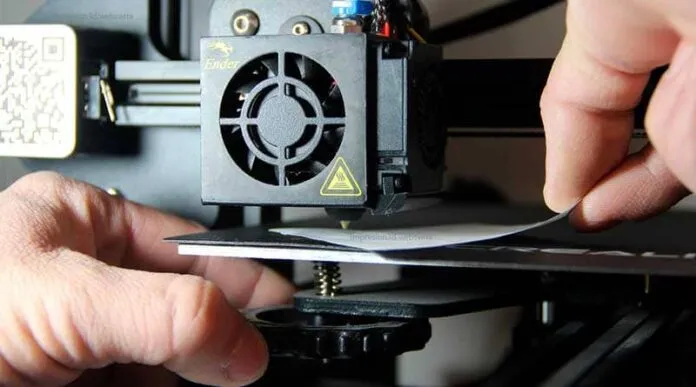
Leveling the print bed is one of the most important steps in 3D printing. If the distance between the nozzle and the print bed is incorrect (either too large or too small), the object will not adhere.
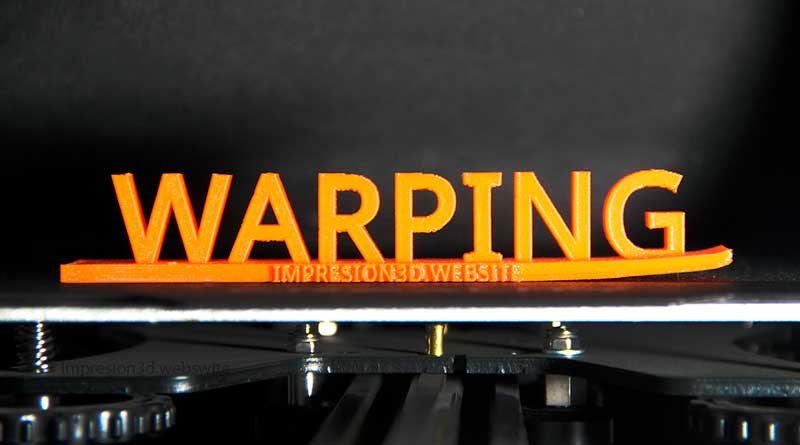
Failure to level the bed properly can lead to defects and errors such as parts failing to adhere, excess or insufficient material, warping, and other problems that would not have occurred if the bed had been leveled correctly.
The purpose of this short tutorial is to resolve once and for all All your questions about how to properly level the build plate on your 3D printer.
How to Level a 3D Printer Bed
For the process of manual leveling, it is recommended that Heat the nozzle and the print bed to the appropriate temperature via the 3D printer's menu (nozzle: 200 °C bed: 60 °C)
It is recommended that you level the surface while hot because materials expand when exposed to heat, and failing to do so would yield different results.
I also recommend, until you've successfully completed your first leveling, remove the filament whatever you have set up, since it may hinder the process.
Don't retract it manually because you could burn out the Bowden tube, remove the filament and then put it back in place.
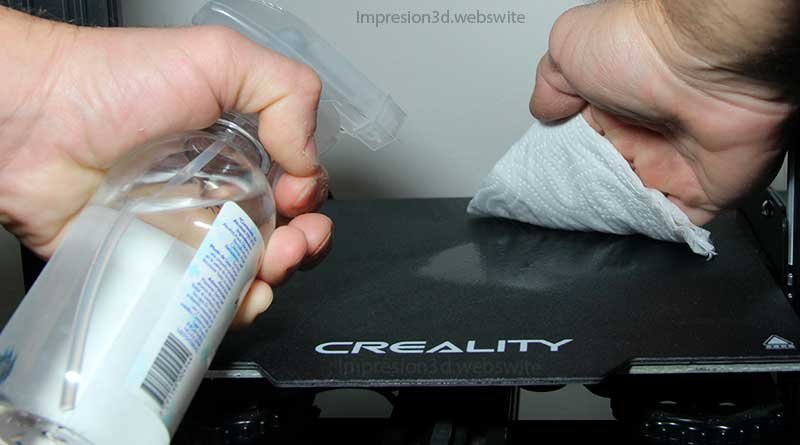
Step 1: Clean the 3D printer bed.
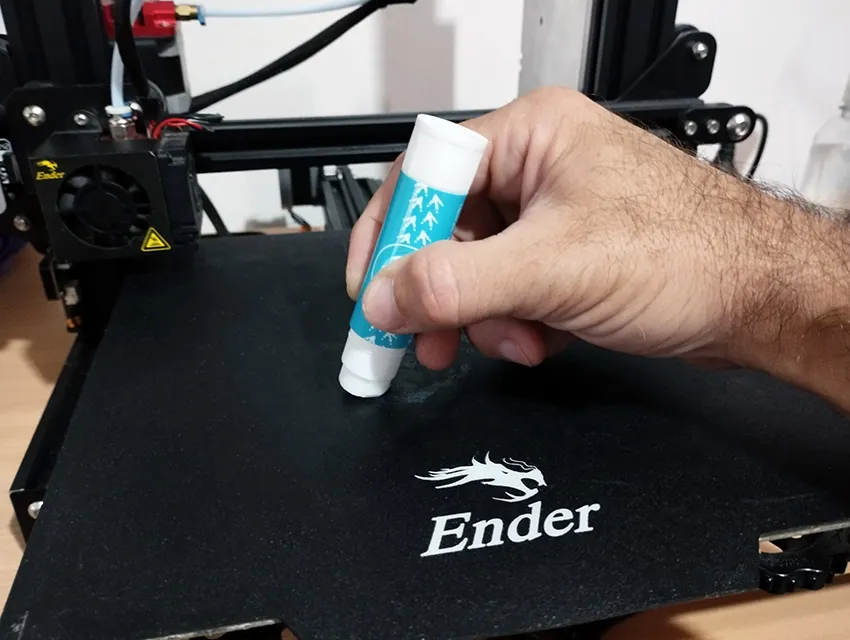
Since you'll be printing something during this tutorial, there must be no traces of plastic or adhesive residue.
You should clean the print bed with water and/or alcohol.
Use a paper towel or a clean cloth to wipe away any dirt.
A clean, debris-free surface is the first step toward achieving proper leveling.
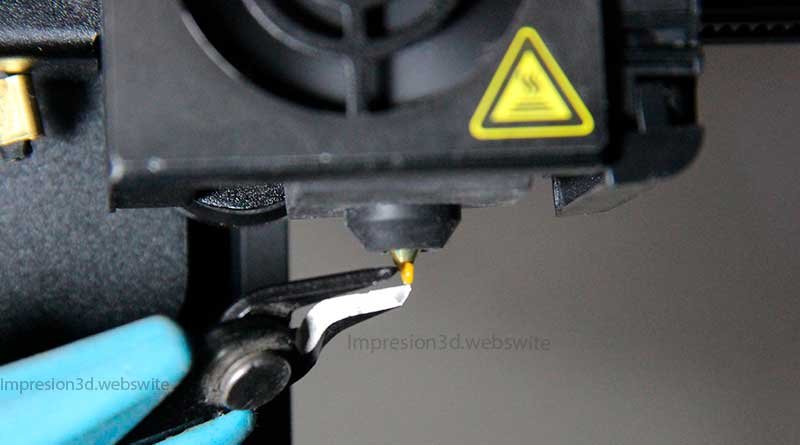
Step 2: Clean the hotend nozzle.
The nozzle must be clean and free of any excess plastic, as this can interfere with bed leveling and lead to inaccurate results.
You can do this with any tool; just be careful to don't get burned.
To perform the leveling, you must remove any plastic debris that is located in the nozzle.
Heat the nozzle to 200 °C and remove the filament from the extrusion system.
Then remove any excess plastic that oozes out of the nozzle.
Step 3: Download Files (Ender3 – Ender 3 Pro).
For 3D printers Ender 3 y Ender 3 Pro, you can use some G-code files that will send automatically the extruder at the four corners of the hot bed.
If you have an Ender 3 printer, you'll need these G-code files to help you level the print bed properly.
These files are used to automatically guide the nozzle to the four corners and the center (for Ender 3-type printers), where you'll make the necessary adjustments using a sheet of paper.
The other file It's for printing out some sample squares, which will help you make corrections as you go.
If your printer isn't an Ender 3, check to see if your printer's menu has an automated leveling option. Most printers should already have that option.
If that option is not available, you can perform the calibration by MANUALLY moving the extruder to the four corners and the center.
Step 4: Make the Adjustments
With the hotend heated, start printing the first file (for Ender 3 printers), and when the machine positions the nozzle at the first corner, slide the paper underneath while adjusting the base screws.
The goal is to move the base of the nozzle closer (or farther away) until the paper can pass underneath the nozzle but with some resistance. The paper should be able to pass through and come out, but it should also be able to go back in.
When performing this action, neither the base nor the hot end should move up or down, as this would indicate that the hot end carriage is loose or that the factory springs are losing their tension.
You'll repeat the process at all the corners and in the center.
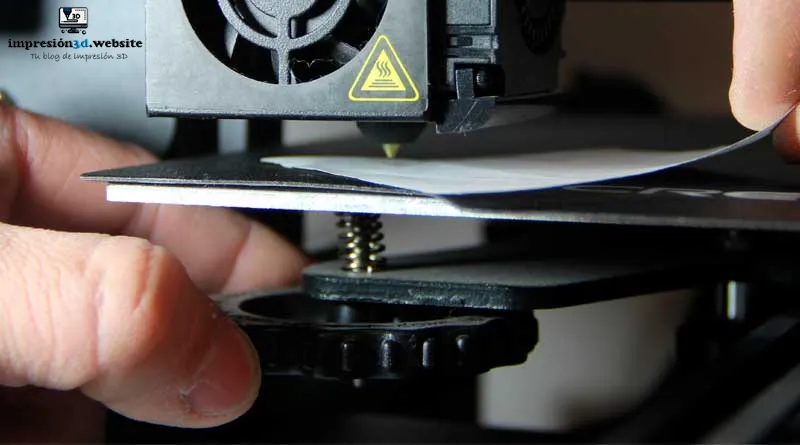
If this is your first time doing this, then you should do it twice to make sure the base is properly leveled.
Step 5: Print reference squares
Once you've done the initial leveling with the piece of paper or the millimeter spacers, you'll move on to a second one part of the leveling printing a few 20 mm x 20 mm squares.

by HobbyHoarder from Thingiverse
At this point, you can reload the PLA filament and use the file squares_20x20.gcode to start printing.
With the squares, you're going to adjust as you go, that is, you've already made a first attempt on paper, but now you're going to look for the sweet spot so that all printouts have A perfect first coat.
Please keep the following in mind:
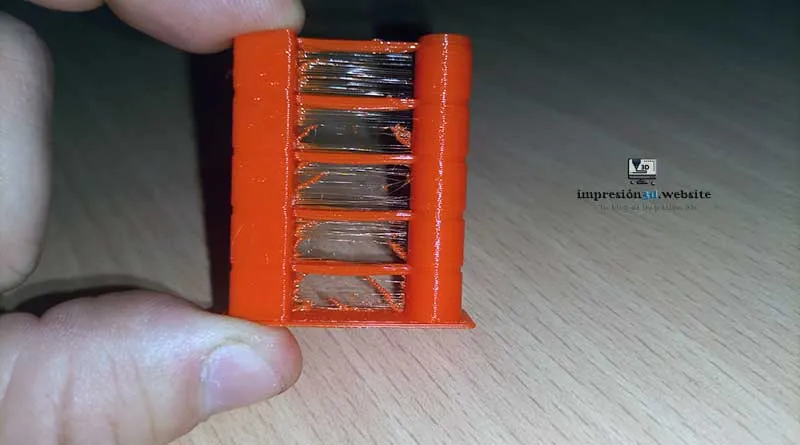
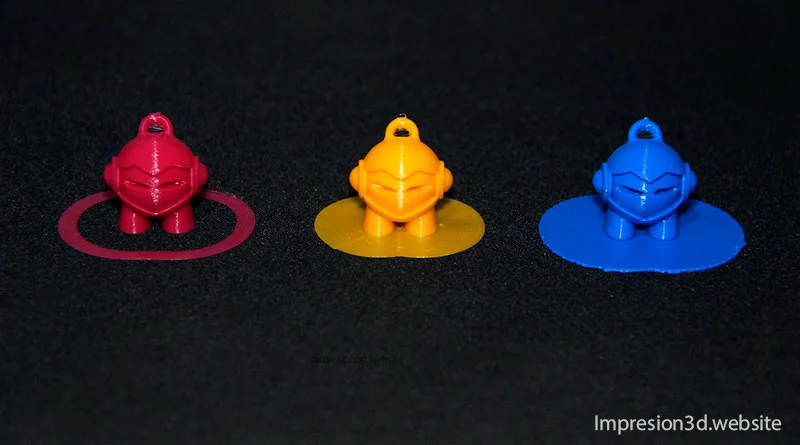
- If the filament is becoming transparent and there is excess filament coming out of the nozzle, it's because it's too close to the bed. The solution is to tighten the nuts before you're done to move the bed away from the nozzle.
- If the filament peels off the heated bed, or the walls don't stick to each other, then the nozzle is too far away from the bed, and you'll need to move it closer by loosening the screws.
- If you're lucky and the square printed perfectly, then you won't need to make any changes.
Once you've made the adjustments, you can print the squares again and check to make sure they all look perfect.
This will indicate that your calibration was successful.
The printer bed cannot be leveled
What happens if you can't level the 3D printer's build plate?
If you can't level the print bed because the The nozzle doesn't scrape against the paper, o The first layer doesn't stick in a hot bed, or The bed doesn't move away from the nozzle It's because there's a problem.
Here are some of the most common problems that prevent you from leveling the 3D printer bed:
- The bed isn't flat enough.
- Some or all of the screws that secure the platform They're slacking off or they have a crazy spin.
- You replaced a thick base with a thinner one and didn't level it enough.
Some possible solutions include:
- Replace the base with one made of glass, since it will retain its flat shape.
- Add a nut so the screw doesn't spin out of control.
- If you've changed the base and run out of screw at the first corner before you can finish turning the wheel, be sure to level it. Continue around all the corners, and you'll see that on the next pass, the base will get closer to the nozzle.
I invite you to read: Strand Formation in 3D Printing (and How to Avoid It)
[…] How to Properly Level the Build Plate on Your 3D Printer […]
[…] how to properly level the build plate of your 3D printer before […]