Strategies for Improving Adhesion on a 3D Printing Bed Without Spending Money

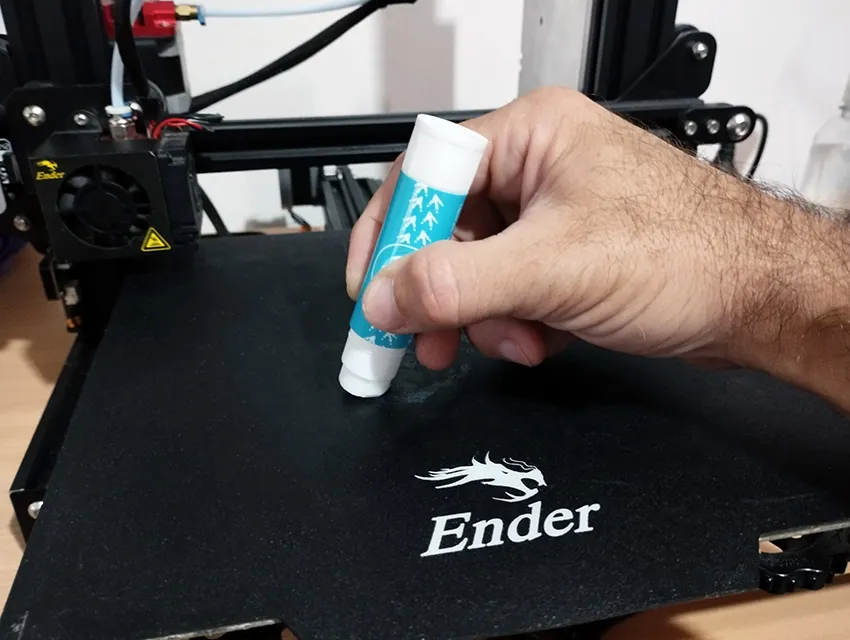
Adhesion in the first layer is the foundation of a good 3D print. If it doesn't adhere properly, the print may fail, warp, or peel off midway through the process. Fortunately, there are ways to improve adhesion without spending money—or using inexpensive solutions you already have at home. Here's how to do it.
1. Level the print bed correctly

Leveling the print bed is the first step toward good adhesion. If the print bed isn't level, the nozzle may be too high (which prevents the filament from adhering) or too low (which can clog the extruder or cause the first layer to flatten too much).
Problems Caused by Poor Leveling:
- If the nozzle is too high, the first layer won't adhere properly and will peel off easily.
- If the nozzle is too low, the filament may be compressed too much, causing inconsistencies in the print.
- An uneven bed results in some parts of the print adhering well and others not, which causes defects in the part.
Solution:
- Use a sheet of paper to adjust the distance between the nozzle and the print bed. The sheet of paper should slide with slight resistance between the nozzle and the print surface.
- Manually adjust the leveling screws at the four corners and in the center, if necessary.
- If your printer supports it, use an automatic leveling sensor to improve accuracy.
- Check the level regularly, as the bed may become misaligned over time due to vibrations or temperature changes.
2. Adjust the nozzle distance (Z-offset)

The Z-offset This parameter defines the distance between the nozzle and the print bed along the Z-axis. Incorrectly setting this value can cause adhesion problems on the first layer, affecting the entire print.
Why is it important to set the Z-offset correctly?
If the nozzle is too high:
- The filament will not adhere properly to the print bed, and the print will fail.
- Loose filament strands may form in the first layer.
- The part may come loose during printing.
If the nozzle is too low:
- The nozzle may become clogged due to filament buildup.
- The filament may expand too much and affect print accuracy.
- There may be filament drag in the first layer, causing irregularities.
If the nozzle is too high, the filament won't adhere properly. If it's too low, the extrusion will be uneven.
Solution:
- Use the “Baby Steps” feature (if your printer has it) to adjust the height in real time.
- Adjust the “Z-offset” in the printer software.
How to Adjust the Z-Offset on an Ender 3
Follow these steps to properly calibrate the nozzle distance:
1. Preheat the printer
Before adjusting the Z-offset, it is essential that the nozzle and the bed be at the proper printing temperature. This prevents thermal expansion from affecting the adjustment.
- Turn on the printer and open the menu.
- Go to “Control” → “Temperature” and adjust the temperature of the bed and the extruder:
- PLA: 60°C bed, 200°C nozzle.
- ABS: 100°C bed, 230°C nozzle.
- Wait for the temperature to stabilize before continuing.
2. Access the manual adjustment option
- On the main menu, select “Set Up” → “Move Axis” → “Move Z”.
- Lower the Z-axis until the nozzle is very close to the bed.
- Place a sheet of plain paper (80 g/m²) between the nozzle and the print bed.
3. Adjust the nozzle distance manually
- Move the nozzle up or down in small increments.
- The ideal distance is one at which the sheet of paper can slide with some resistance, but without getting stuck.
- If the blade moves too freely, lower the nozzle further.
- If the blade doesn't move, raise the nozzle slightly.
4. Adjusting the Z-offset if you're using an autoleveling sensor
If your Ender 3 has a BLTouch or CR-Touch, the process is different:
- Go to “Control” → “Motion” → “Z-offset”.
- Use the buttons to increase or decrease the value until you achieve the same resistance with the sheet of paper.
- Save the adjusted value to the firmware using the option “Save Settings”.
5. Check with a test print
- Load a test file with a large first layer (it can be a 50×50 mm square).
- Watch how the filament is deposited:
- If it's too far away and won't stick, lower the Z-offset further.
- If it's too flattened and rough, increase the Z-offset.
- Adjusts the Z-offset in real time If your printer has this feature “Baby Steps” in the menu.
3. Cleaning and Maintenance of the Printing Surface

One of the most common reasons why filament doesn't adhere properly to the print bed is dirt buildup on the surface. Filament residue, dust, fingerprints, and even adhesive residue can affect adhesion and cause printing failures.
Why is it important to clean the print bed?
If the print bed is dirty:
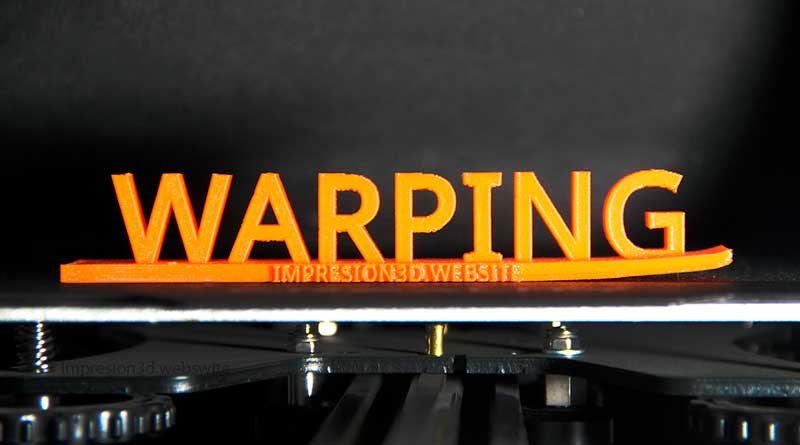
- The filament will not adhere properly to the first layer, causing warping or printing errors.
- Imperfections and bubbles may form at the base of the piece.
- Accumulated residue can cause irregularities on the printing surface.
A proper maintenance ensures that the bed surface is always in optimal condition for printing, reducing errors and improving adhesion.
Solution:
- Use isopropyl alcohol to clean the print bed before each print.
- Avoid touching the bed with your hands so you don't leave any oil on it.
How to Clean the Print Bed Properly
Depending on the material of the printing surface, there are different cleaning methods.
1. Cleaning with isopropyl alcohol (for glass and smooth surfaces)
This is the most effective and easiest way to clean glass beds, smooth PEI, or flat, non-textured surfaces.
Steps to Follow:
- Turn off the printer and let it cool down before making the bed.
- Use 70% or 99% isopropyl alcohol and a clean microfiber cloth or lint-free paper.
- Moisten the cloth with alcohol and rub the entire surface in circular motions.
- Wait until the alcohol has completely evaporated before starting the print job.
Tip: If you use a glass sheet, you can wash it with soap and water once a week to remove any sticky residue.
2. Cleaning with soap and water (for glass beds or removable surfaces)
If the bed has traces of glue sticks, hairspray, or other adhesives on it, the best option is to use soap and water.
Steps to Follow:
- Remove the print bed if possible.
- Wash with warm water and mild soap.
- Use a soft sponge to scrub the surface without scratching it.
- Rinse it thoroughly and dry it with a clean cloth before putting it back in the printer.
💡 Avoid touching the bed with your fingers after cleaning it, since skin oil can affect adhesion.
3. Cleaning with acetone (for PEI sheets or textured surfaces)
If you use a PEI sheet or a textured bed, alcohol may not be enough to remove the grease that has built up over time.
Steps to Follow:
- Apply a small amount of pure acetone on a clean cloth.
- Gently rub the surface.
- Wait until the acetone has completely evaporated before printing.
⚠️ Caution: Do not use acetone on acrylic or polycarbonate surfaces, as it may damage them.
Maintenance regularly to prevent the buildup of residue
To ensure good adhesion with each print, follow these recommendations:
- Clean the bed after every 3 or 4 prints with isopropyl alcohol.
- Avoid touching the bed with your fingers after cleaning it. If necessary, use gloves or tweezers to handle the filament.
- Do not use too much adhesive. If you use glue sticks or hairspray, remove them before each new print.
- Check the surface regularly to check for signs of wear or buildup of residue.
When is it necessary to replace the printing surface?
If you notice that, despite proper cleaning, adhesion remains poor, it may be time to replace the impression surface.
Signs of wear:
Deep scratches or peeling on the PEI sheet.
Loss of texture on rough surfaces.
Cracks or distortions in the glass.
Proper maintenance will extend the life of the print bed and improve the quality of your prints without spending extra money on adhesives or expensive solutions.
4. Adjust the bed temperature
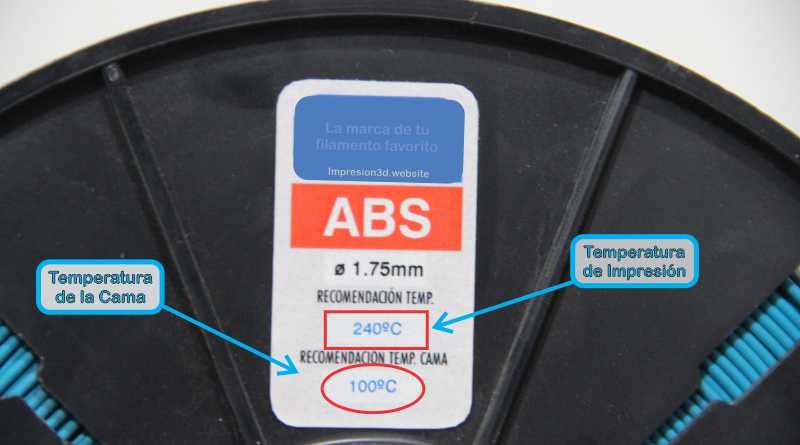
Temperature plays a key role in the adhesion of the first layer. If the print bed is too cold, the filament won't adhere properly and may peel off during printing. On the other hand, if the temperature is too high, the material could warp or become excessively sticky.
Each material requires an optimal temperature to bond properly.
Why is it important to set the temperature correctly?
- Better initial adhesion: Proper alignment helps the first layer adhere firmly to the print bed.
- Prevent warping: Materials such as ABS tend to peel off if the bed temperature is not right.
- Reduces printing errors: An incorrect temperature can cause the layers to fail to fuse properly or the part to warp.
Recommended temperatures based on material
Each type of filament requires specific settings for the bed and extruder temperatures. The recommended values are listed below:
Recommended temperatures:
Each type of filament requires specific settings for the bed and extruder temperatures. The recommended values are listed below:
| Material | Extruder Temperature | Bed Temperature |
|---|---|---|
| PLA | 190–220°C | 50–65°C |
| ABS | 220–250°C | 90–110°C |
| PETG | 220–250°C | 65–85°C |
| TPU | 200–230°C | 40–60°C |
| Nylon | 240–270°C | 80–110°C |
Tip: If the filament doesn't adhere well, try raise the bed temperature in 5°C increments until you find the optimal setting.
How to Adjust the Temperature on an Ender 3 3D Printer
In a Ender 3 or similar printers, you can adjust the temperature of the bed and the extruder from the on-screen menu.
To adjust the temperature before printing:
- Turn on the printer and go to the settings menu.
- Select “Control” → “Temperature”.
- Adjust the extruder and bed temperatures based on the material you're using.
- Wait a few minutes until the printer reaches the set temperature.
To adjust the temperature during printing:
- Tap the control button on the screen.
- Go to “Settings” → “Temperature”.
- Adjust the extruder or bed temperature in real time.
💡 If the first layer doesn't adhere well, you can increase the bed temperature for the first few minutes and then lower it back to its normal setting.
How can you tell if the temperature is wrong?
If the temperature It's too low:
❌ The filament doesn't stick to the build plate, and the first layer peels off.
❌ Holes form at the base of the print.
❌ Warping may occur, especially with ABS or nylon.
If the temperature It's too high:
❌ The filament becomes sticky and creates an uneven base.
❌ Strands or clumps form in the first layer.
❌ The piece may become misshapen or lack detail.
Additional Tips for Optimizing the Temperature
✅ Preheat the print bed before printing: Let the bed reach the desired temperature for at least 2–3 minutes before starting the print.
✅ Avoid drafts: A cold environment can cause the bed to lose heat quickly.
✅ Use a sealed box for ABS and nylon: It helps maintain a stable temperature and prevents warping.
✅ Use a temperature tower: A temperature chart can show you the ideal temperature for your printer and the filament you purchased (See more here).
5. Modify the first layer in the cutting software

The adhesion of the first layer depends not only on the bed leveling and temperature, but also on the settings of the slicing software (slicer). Parameters such as layer height, the type of adhesion to the build plate, and print speed can make a big difference.
Next, we'll look at the most important settings you can adjust in slicers such as Ultimaker Cura, PrusaSlicer, and Bambu Studio to improve adherence without spending money.
The The thickness, speed, and configuration of the first layer affect adhesion.
Solution:
- Increase the thickness of the first layer (minimum 0.2 mm).
- Reduce the print speed for the first layer (10–20 mm/s).
- Apply a primer such as Brim o Raft.
Adjust the height of the first layer
The first layer It is the most important part of the entire printing process, since it lays the foundation upon which the rest of the piece will be built.
Recommended height:
- Increase the height of the first layer helps improve adherence.
- A recommended value is between 0.2 mm and 0.3 mm For printers with standard 0.4 mm nozzles.
- In Cura, this setting is located at:
“Height of the first layer”
Tip: If the nozzle is too close to the bed, the first layer will be squashed. If it's too far away, the filament won't adhere properly.
Change the extrusion width of the first layer
What is it?
This is the percentage of material extruded in the first layer. Increasing this value improves adhesion.
Recommended values:
- 120% to 150% of the standard extrusion width.
- In Cura, you'll find it as: “Extrusion width of the first layer”
Tip: A wider extrusion width allows the first layer to have more contact with the bed, preventing it from peeling off.
Type of attachment to the bed: Brim, Raft, or Skirt
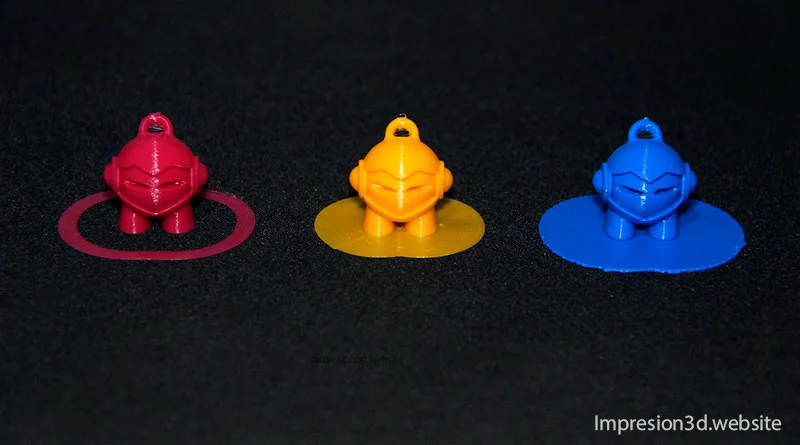
The slicer allows you to add support structures to improve the part's adhesion to the build plate.
Types of membership:
Skirt (edge that does not come into contact with the workpiece)
- Useful for checking that the nozzle is extruding properly.
- It does not directly improve adherence.
Brim (edge attached to the garment)
- Draw several lines around the piece that They improve adhesion without using too many materials.
- Ideal for PLA and PETG.
- In Cura, this is configured under: “Type of base attachment” → “Brim”
Raft (the layer beneath the part)
- Create a base underneath the piece to improve adhesion.
- It is recommended for materials prone to warping, such as ABS or Nylon.
- In Cura, this is configured under: “Type of attachment to the base” → “Raft”
Tip: In most cases, a 5–10-line brim That's enough. Use Use Raft only if adhesion is a constant problem.
Adjust the speed of the first layer
Print speed affects how the filament is deposited on the build plate.
Recommended values:
- 10–20 mm/s for the first layer.
- Lower speeds allow for better traction.
- In Cura, this setting is located at: “First-Layer Speed”
Tip: If you notice that the filament isn't sticking well, reduces the speed of the first layer and see if the grip improves.
Increase the temperature of the first layer
In many slicers, you can configure a highest temperature for the first layer and then reduce it in the subsequent layers.
Recommended values:
- Extruder: +5°C warmer than the rest of the print.
- Bed: +5°C to +10°C in the first layer.
- In Cura, this setting is located at: “Initial extruder temperature” y “Initial bed temperature”.
Tip: Increasing the temperature during the first layer improves the filament's adhesion to the print surface.
Enable retraction and ventilation correctly
Retraction:
- For the first layer, it is recommended that turn off retraction to prevent the filament from being pulled out too quickly, which could affect adhesion.
- In Cura, you can find it at: “Enable retraction on the first layer” (disabled).
🔹 Layer fan:
- For materials such as PLA, It's best to turn off the fan during the first layer and activate it later.
- In Cura, this is configured under: “Fan speed during the first layer” → 0% and then gradually increase it.
Tip: Do not use a fan on the first layer to improve adhesion.
Summary of Recommended Settings in the Slicer
| Parameter | Recommended value |
|---|---|
| Height of the first layer | 0.2 mm – 0.3 mm |
| Extrusion width | 120% – 150% |
| Type of membership | Brim (5–10 lines) or Raft if necessary |
| First-layer speed | 10–20 mm/s |
| Extruder Temperature | +5°C more in the first layer |
| Bed Temperature | +5°C to +10°C in the first layer |
| Shrinkage in the first layer | Disabled |
| Layer Fan | Turned off on the first layer |
Final tip: Always Print a test piece with different settings to find the best configuration for your printer and media.
6. Cost-effective methods for improving adherence

While proper leveling, temperature, and slicer settings are key to achieving good adhesion, in some cases it may be necessary to use additional methods to prevent the print from peeling off. Fortunately, there’s no need to spend money on expensive solutions like special sheets or advanced surfaces.
Here are a few Money-Saving Tips using materials you probably already have at home.
Home Remedies:
- Rhinestones with glue sticks or hairspray: It improves adhesion and is easy to clean.
- Painter's tape: Ideal for PLA and easy to replace.
- Textured surfaces: Some beds come with special coatings that improve adhesion.
Glue Stick: Easy, Inexpensive, and Effective
One of the most widely used and cost-effective methods is the regular glue stick, the kind used for arts and crafts or at school.
How does it help?
- It increases adhesion without damaging the bed.
- It can be easily cleaned with water.
- It works well with PLA, PETG, and ABS.
How to use it:
Apply a thin, even layer on the print bed.
Print as usual.
To clean it, use a damp cloth or warm water.
💡 Tip: Avoid applying too much, as this could affect the quality of the first coat.
Hairspray: Strong hold at a low cost
Another popular trick is to use hairspray, especially those with strong or extra-strong hold.
How does it help?
- It creates an adhesive layer that improves the filament's adhesion to the print bed.
- It works well with PLA, ABS, and PETG.
How to use it:
Rocía a thin layer above the surface of the bed, about 20 cm away.
Wait a few seconds for it to dry before starting to print.
To clean it, use a cloth dampened with water and isopropyl alcohol.
Tip: Use a hairspray that doesn't contain any oily ingredients to avoid residue that's hard to clean off.
Sugar Water: A Homemade Adhesive
A natural and inexpensive alternative is to prepare a mixture of sugar water, which, when it dries, creates a sticky film on the print bed.
How does it help?
- It works well with PLA and ABS.
- It's easy to apply and clean.
How to prepare and apply it:
Mix a tablespoon of sugar in a little hot water until it dissolves.
Use a brush or a cloth to spread a thin layer in bed.
Let it dry for a few minutes before printing.
Tip: You can heat the bed to 60°C to speed up drying.
Painter's tape or blue tape: Easy to use and reusable
The blue painter's tape (or masking tape) is another inexpensive and very effective method, especially for PLA.
How does it help?
- Improves adhesion without affecting the bed surface.
- It can be reused several times.
How to use it:
- Place strips of tape covering the entire bed without leaving any gaps between them.
- Press firmly to avoid air bubbles.
- Print directly onto the ribbon.
- When it loses its grip, replace it.
💡 Tip: If you notice that the print isn't adhering properly, use a spatula to press down on the tape before printing.
Baking Paper: A Little-Known but Useful Option
The baking paper (also called waxed paper) can be used as an adhesive barrier that makes it easier to remove the pieces after printing.
How does it help?
- Prevents the piece from sticking too tightly to the bed.
- It works well with filaments such as PETG and TPU.
How to use it:
- Cut a piece of parchment paper the size of the bed.
- Place it on the surface and secure it with tape along the edges.
- Print directly onto the paper.
Tip: Use it when you have trouble with parts that stick too much and are hard to peel off.
Hot glass surface + isopropyl alcohol
If you have a glass bed, you can improve traction without spending any money using a simple cleaning trick.
How to do it:
- Warm the bed to 60–70°C.
- Clean the surface with 70% or 90% isopropyl alcohol and a lint-free cloth.
- Print as usual.
Tip: Make sure the surface is completely dry before printing.
Summary of Economic Methods
| Method | Materials Needed | Recommended filaments | How to Apply It |
|---|---|---|---|
| Glue stick | All-purpose glue | PLA, PETG, ABS | Apply a thin layer to the bed |
| Hairspray | Strong-hold hairspray | PLA, ABS, PETG | Spray a light layer over the bed |
| Sugar water | Sugar and hot water | PLA, ABS | Apply with a brush and let dry |
| Painter's tape | Blue masking tape | PLA | Stick it to the bed without leaving any gaps |
| Baking paper | Baking paper | PETG, TPU | Place it on the bed and secure it with tape |
| Hot glass + alcohol | Isopropyl alcohol | PLA, ABS, PETG | Clean the heated bed before printing |
There are many methods cost-effective and efficient to improve adhesion without having to buy expensive printing surfaces. From using glue sticks to homemade tricks like sugar water, each solution has its advantages depending on the type of filament and print bed you use.
Final tip: Try different methods and combine the ones that work best for your printer and materials.
7. Gradually cool the print bed once printing is complete
If you remove the part while the bed is still hot, you could damage or break it.
Solution:
- Let the bed cool completely before removing the print.
- Use a thin spatula to help pry the piece loose without forcing it.
Are your prints not sticking to the build plate? Try Justway.com's online 3D printing service!

Sometimes, no matter how many adjustments you make, problems with bed adhesion can cause you to waste time, material, and patience. If you're tired of trying over and over again without getting perfect results, there's a much simpler solution: the online 3D printing service from Justway.com.

Justway is the ideal choice if you need professional-quality 3D-printed parts without having to worry about printer calibration, bed adhesion, or technical issues.
Why Choose Justway.com?
Guaranteed professional quality: Forget about warping, poor adhesion, or printing failures. Justway uses high-end 3D printers and premium materials to ensure flawless results.
Saves time and materials: How much filament have you wasted on failed prints? With Justway, you only pay for the finished part—no spending on test prints or adjustments.
Wide variety of materials and finishes: From PLA and ABS to specialty resins, you can choose the perfect material for your project.
Quick and easy process: Just upload your STL file, choose the material, and you'll receive an instant quote. Your part will be delivered to your home in just a few days.
Ideal for personal and professional projects: Whether you're a designer, an engineer, or a 3D printing enthusiast, Justway offers you the best solution for producing high-precision parts without any hassle.

Don't waste any more time adjusting your printer and struggling with bed adhesion. Visit Justway.com and discover how easy it is to create perfect 3D parts with minimal effort. 🚀
Conclusion
You don't need to spend money on expensive solutions to improve the adhesion of your prints. With these adjustments, you'll be able to get the first layer to adhere perfectly. Do you have another trick for improving adhesion? Share it in the comments and tell us which method has worked best for you.

Responses