

Temperature Tower: Better Quality for Your 3D Prints

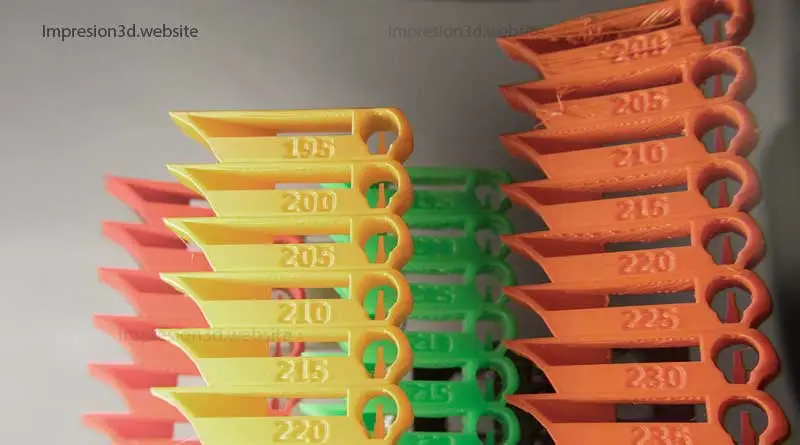
We all strive to improve the quality of our 3D prints, which is why we’re always adjusting the most important factors—temperature, retraction, and speed—not to mention many other parameters that affect the quality of our prints.
Today I want to focus on the temperature towers and how to use them to our advantage, finding the perfect temperature for each type of filament.
What is a temperature tower?
A temperature tower is a test used to determine the optimal temperature for a 3D printing filament.
It is a 3D-printed vertical structure consisting of several horizontal sections. Each section is printed at a different temperature, which makes it possible to quickly determine the optimal temperature for the selected filament.

You'll be able to search in the temperature tower Which section looks best?; which section has the highest-quality layers and walls, which has the best bridges, cones, and curves; and to ignore the defective sections.
What is a temperature tower used for?
A temperature tower is used to determine What is the best printing temperature? for each filament.
Generally speaking, we can say that the best printing temperature for a filament is the one recommended by its manufacturer, since they are the ones who test and evaluate their product before putting it on the market.
The problem is that the manufacturer provides a recommended printing range, rather than a specific temperature. For example, for a roll of PLA filament, the manufacturer's range might be from 190 °C to 230 °C.

Given that a difference of 5 °C can mean the difference between good-quality and poor-quality 3D prints, it would be advisable to know What is the best temperature for each specific filament?.
The best way to find out what the proper temperature is for a specific type of filament is “Print a temperature tower” and make a note of the results.
Why print a temperature tower?
Because a temperature tower can help identify problems related to improper temperature settings.
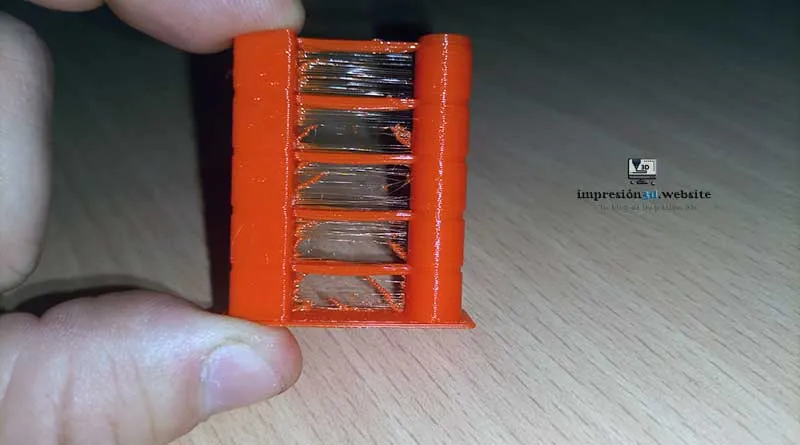
If the printing temperature is too high, there will be excess molten filament, generating threads in the print among other printing defects. On the other hand, if the temperature is too low, there may be under-extrusion issues, or a lower filament flow for the selected speed.

Printing a temperature profile can help resolve these issues by selecting the optimal temperature for the filament.
When Should I Print a Temperature Tower?
You should print a temperature profile for each filament color and brand. Or if you replace any major component of your printer.
It's important to understand that while one manufacturer's PLA filament may print well at 200 °C, another manufacturer's filament may print even better at 215 °C, which means that not all filaments are the same or will print well at the same temperature.
Replacing any component related to the hotend, layer fans, or heating cartridge may affect the quality of the extruded filament. In any of these cases, temperature ramps should be printed.
How to Print a Temperature Tower
To print a temperature tower, you'll need:
- Download a STL temperature tower from Thingiverse (or from Cura).
- Set the different temperatures in the laminator software.
- Generate the G-code file and send it to print.

by bendrexl January 15, 2021
The new versions of Cura They offer the option to add test models directly from the options menu, just by adding a plugin. This is the quickest and easiest way for beginners.
There are different temperature ranges for each type of filament, some for PLA and others for PETG. The choice should be based on the type of filament you are using.
You need to set the different temperatures in Cura because, if you don't, the temperature profile will be printed at a constant temperature. That's why you'll need to open the G-code file to modify it. Let's go through it step by step:
How to Create a Temperature Tower in Cura
- In Cura, the Marketplace and wait for the add-ons to load.

- Then search for and install the add-on called “Calibration Shapes“


- Accept the license

- Restart Cura so that the changes take effect

- Now go to: Menu >> Extensions >> Part for Calibration >> “Add a PLA TempTower”

- A temperature bar will appear for use with PLA filament, ranging from 220 °C at the base to 180 °C.

The next step will be to configure the tower to print at different temperatures.
How to Configure the Temperature Profile in Cura
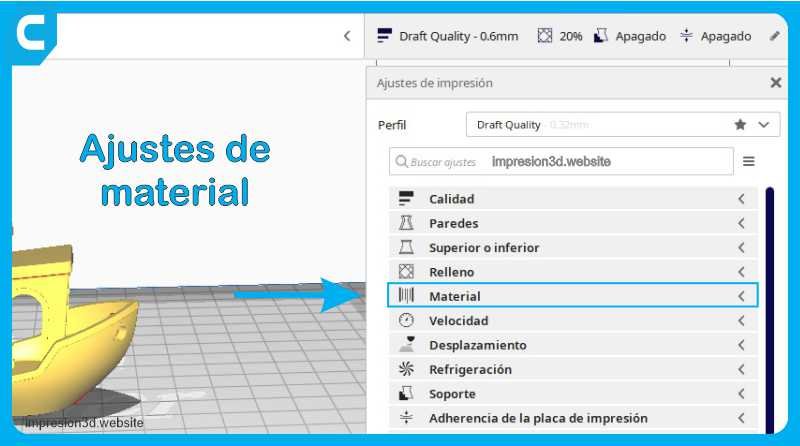
1) In Cura, configure the following settings: (for all the towers you print, except for the temperature, which will be the only adjustment made during printing):
- Coat thickness: 0.2
- Initial layer height: 0.2
- Number of walls: 2
- Filling: 20%
- Printing Temperature: (Enter the temperature for the first section here: 220 °C)
- Plate Temperature: 60 °C
- Speed: 50 mm/s
- Refrigeration: Enable 100%
- Brackets: Not required.
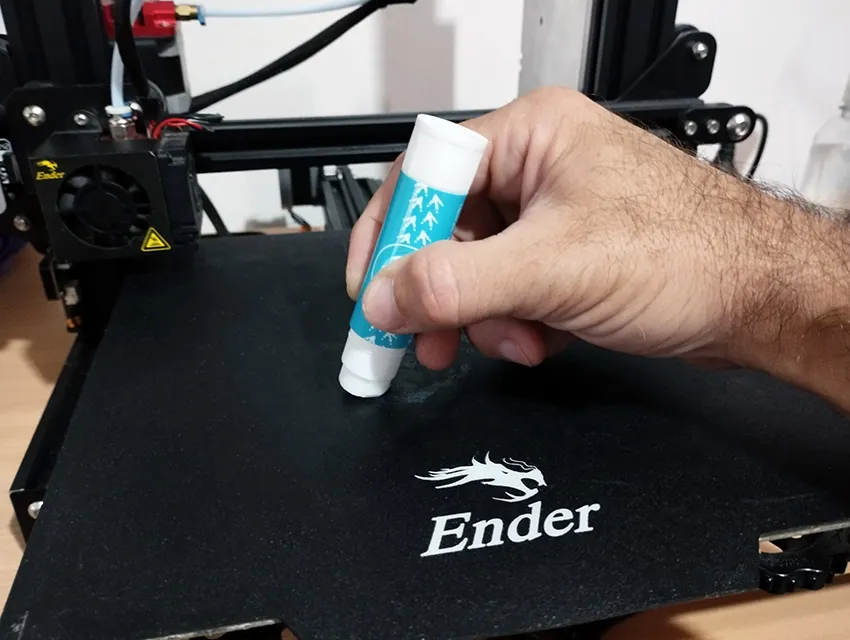
- Adhesion to the plate: Edge, 10 turns
2) Modify the G-code to include the temperature changes for the sections of the tower.
- Go to: Menu >> Extensions >> Post-Processing >> Modify G-Code


- Add a new command sequence: TempFanTower

- Enter the values in the command sequence
(To enter the correct values, you must calculate the following: Total number of layers – base layers / number of tower sections)
In other words: 378 layers (except 4 Base layers) = 374 (divided by 9 (sections of the tower) = 41,55 (rounded to 41)
Enter this information into the script:
- Starting Temperature: 220 (This would be the initial temperature, and it must match the base of the tower.)
- Temperature Increment: -5 (the number of degrees the temperature will drop for each section)
- Change Layer: 41 (The first temperature change would occur in this layer)
- Change Layer Offset: 4 (These would be the base layers.)

Generate the G-code and send it to print
Once you've finished setting everything up, you can create print sections and send the job to print. You should save the file with the name PLA_04mm_TempTower_220_180.gcode to remind you that this temperature tower you set up is meant to be used with PLA and a 04 mm nozzle and temperature differences.
YouTube video: Alexei's 3D Workshop
Delete the script
Once you're done, You'll need to delete the script that you've created. If you don't, every time you print, the temperatures will change from 220 °C to 180 °C as programmed.

How to Analyze the Temperature Tower
Once the tower has been printed, you should perform a visual inspection of all the segments. With a little luck, you may notice some differences between the various temperatures used.
Some factors to keep in mind are:
- Layers that didn't stick together.
- Layers that are scattered or have gaps.
- Melted layers
- Strings or Stringing
- The Quality of Bridging
- Deformed Cantilevers


The purpose of the visual inspection is to identify the best-printed section—one that is free of defects, threads, or deformities—and to record the temperature of that section.
YouTube Video: Lucas 3D
Conclusions:
- When analyzing the PLA temperature towers I realized that it's very important Turn on the layer fans, since disabling them causes errors in the jumper connections, which can lead to confusion.
- Many of the threads or tangles that may occur, are caused by moisture buildup in the filaments. Therefore, you shouldn't rely too much on this issue when choosing the temperature, We need to fix the moisture problems. before taking the temperature readings.
- Another observation is that at higher temperatures, the filaments become brighter, and at lower temperatures, they become more opaque. It is important to note that at lower temperatures, the layers may not bond properly, especially with PETG filaments.
- With some PLA filaments, there doesn't seem to be any change at different temperatures. Does that mean the manufacturer's temperature ranges are correct and you can print within any of those ranges?
- You absolutely must write down the results from the temperature tower, including the brand and type of filament. Many people recommend marking them with a pen and storing the temperature tower in a drawer; personally, I I would add the filament to the Cura settings.
- Any future prints made with the test filament must be done at the selected temperature.

Responses