Easy-to-Remove Support Structures in Cura: Better Fits

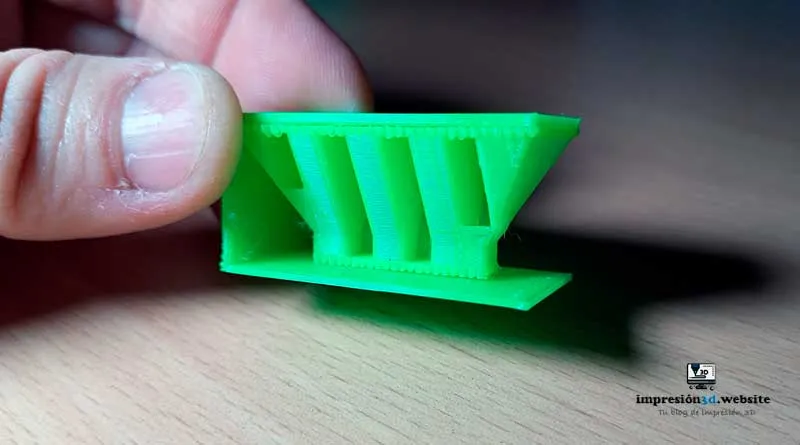
For easy-to-remove supports in Cura, optimize the following settings: Support Pattern, Support Density, Support Z Distance, Support X/Y Distance, Support Interface Density, and, when necessary, also enable tapered supports in experimental mode.
Support structures ensure that the overhanging sections of a model are formed correctly. However, removing these supports after printing can sometimes be a difficult and time-consuming task.
In this article, I'll walk you through the best settings in Ultimaker Cura, a popular slicing software, to make supports easier to remove.
Why is it so hard to remove the supports from Cura?
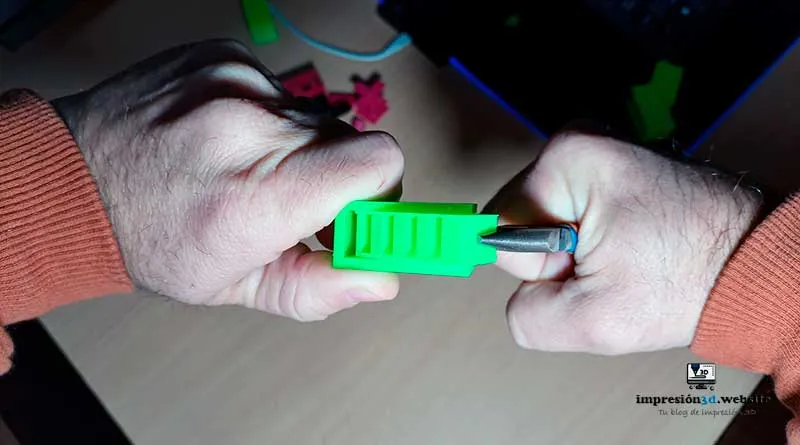
The most common reason is an incorrect configuration in the support structure settings.
When the supports are too dense or too close together, can be closely integrated with the model, which makes it difficult to separate them.
In addition, supports that are too thin or lack sufficient connection points to the model They can break easily or leave behind unwanted residue.
Finally, using the wrong support settings for your specific printer and nozzle size can lead to excessive material usage or poor support adhesion.
How to Make Support Structures Easier to Remove in Cura
To make it easier to remove supports in Cura, it is essential to optimize several settings.
- Support Structure
- Installing the bracket
- The Support Pattern
- The cantilever angle of the bracket
- The strongest support
- The X/Y distance between the supports
- The density of the substrate
- The Z-Axis Distance of the Mount
- Density of the substrate interface
- Enable conical support in experimental mode
Let's explore the key parameters and their impact on the removal of supports:
Choose the best support structure

There are two types of support structures in Cura: “Normal” mode and “Tree” mode.”
Choose the type of structure “normal” for simple, basic models, and support in “tree“ for the most difficult and complex ones.
Choose the best placement for the bracket

Proper placement of the supports can significantly affect how difficult removal is.
The available options are: “Touching the printing plate” y “Everywhere”
Avoid placing the supports directly beneath areas that require a smooth or highly detailed finish (although sometimes that's unavoidable).
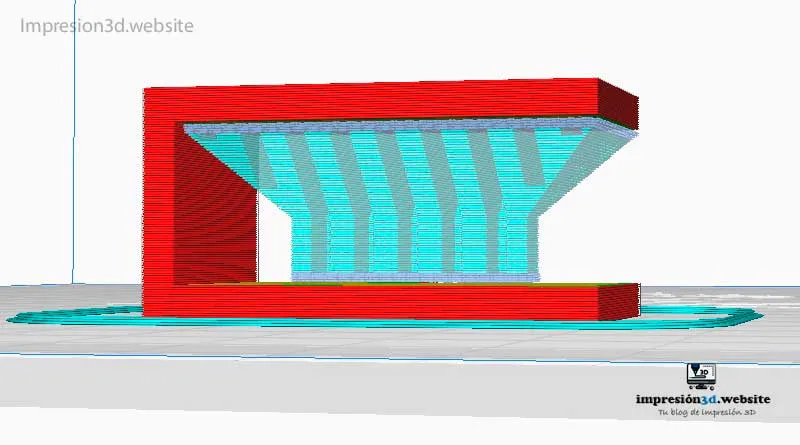
Sometimes, by rotating your 3D model in Cura, you can avoid using supports and print a model that is perfect, neat, and free of unwanted plastic residue.
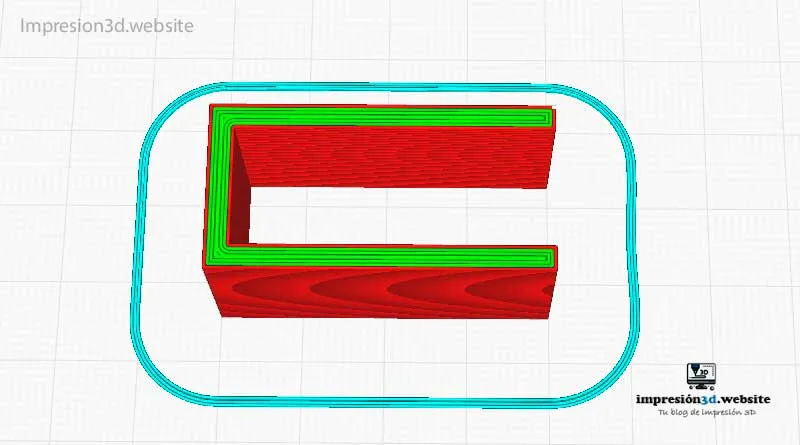
Place the supports strategically, focusing on the key protrusions, to minimize the number of contact points and make removal easier.
The Best Support Pattern

In Cura, the “ZigZag” support structure often makes removal easier compared to other options such as “Grid” or “Cross.”.
The “ZigZag” support structure provides sturdy support while also making it easier to separate the pieces due to its shape.
The Best Cantilever Angle in Cura

By default in Cura, Brackets must be installed at angles of 45° or greater in models where this angle is exceeded. But if you want, you can change this value.
You can print a Overhang Test to determine the maximum angle at which your 3D printer can print overhangs without any problems.
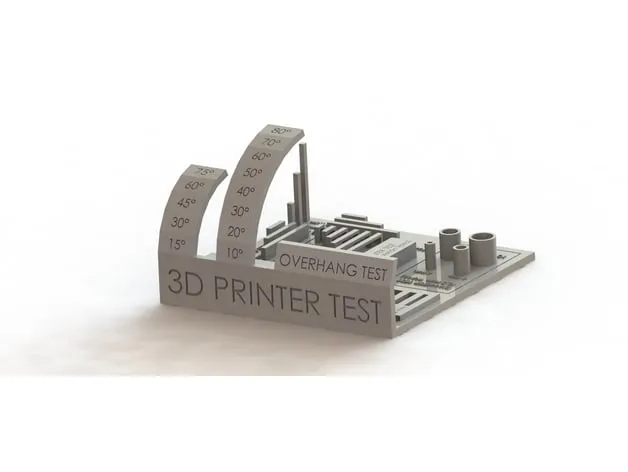
With that You can avoid using supports in places where they may not be necessary, such as in some circular shapes.
Stronger support in Cura

When it comes to the strength of the support, Using the “Zig Zag” pattern in Cura is often beneficial.
This pattern provides a sturdy support structure while also making it easier to peel off, as the zigzag design creates natural tear points that aid in removal.
Best XY Distance in Cura

The XY distance determines the gap between the model and the supports. Increasing this distance slightly will make it easier to remove the supports.
Sometimes the supports stick to the walls of the printed model, and that's because you didn't leave a gap in the settings.
This adjustment will definitely allow you to leave a gap between your supports and the walls of your model.
Normally, by default, Cura will assign a distance based on the line width, which will always be determined by the size of the nozzle your printer is using. But that space might not be enough.
Leave a space that is at least twice the size of your nozzle. For example, if you use a 0.4 mm nozzle, leave an XY distance of 0.8 mm to ensure that the supports do not stick to the model's walls.
Experiment with different settings based on your 3D printer to find the optimal balance between support stability and ease of removal.
What is a good substrate density?

An optimal support density ensures effective support, but also makes removal easier.
A density between 10% and 20% is usually sufficient, but fine-tuning may be necessary depending on your specific project.
Adjust the support density in Cura based on the complexity of your model.
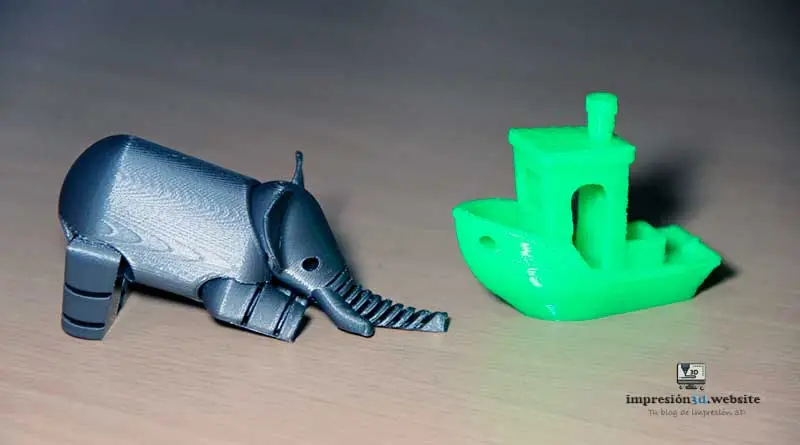
All the samples shown in the images have a substrate density of 12%.
Set the Z-axis distance of the mount

The Z-distance defines the space between the support and the surface of the model.
Increasing this distance slightly may make it easier to remove the support.
This setting is one of the most important ones you should keep in mind. If the Z-axis distance is very small, the support will merge with the top of the model you're printing..
Cura selects this value based on the layer height, but this setting may not be appropriate in all cases, especially if you use nozzles of different diameters.
Therefore, You should always choose a multiple of the layer height you are using..
For example, if your layer height is 0.2 mm, the Z-distance configured by Cura will be 0.2 mm, which means there will be only one layer of space (empty space) between the top of the support and the model.
Another important thing to know is that Round-off correction the parameters based on the layer thickness, which means there will be no intermediate Z distances.
For example, if you choose a distance of 03 mm, Cura will round it to 0.4 mm, and you can check this in the preview.
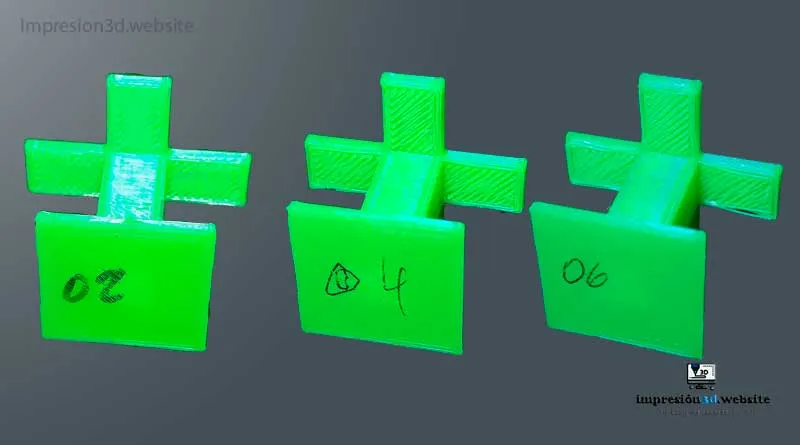
A Z-axis distance of about 0.2 mm to 0.4 mm usually yields good results, but you may need to experiment to find the ideal setting for your prints.
A Z-axis distance of 2 mm it can be effective with a 0.4 mm nozzle, but With a 0.8 nozzle, it will be impossible to remove it, or at least it'll be really hard for you.
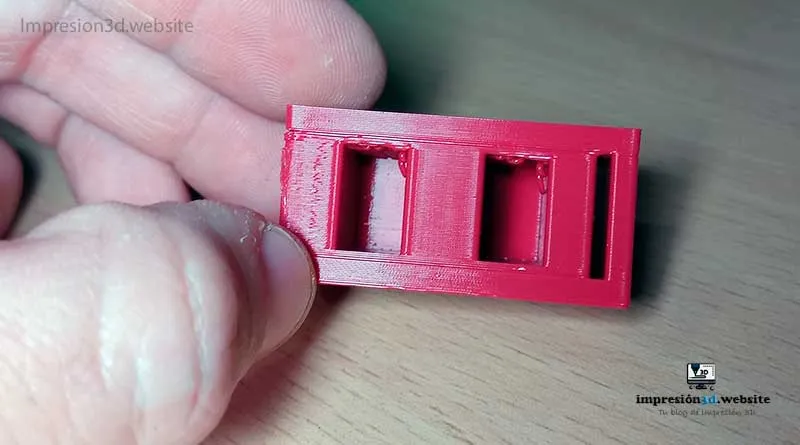
Look at it this way, Always leave at least a 2-layer gap between the top of your build plate and the bottom of the model.
How to Change the Z-Axis Distance of the Support in Cura
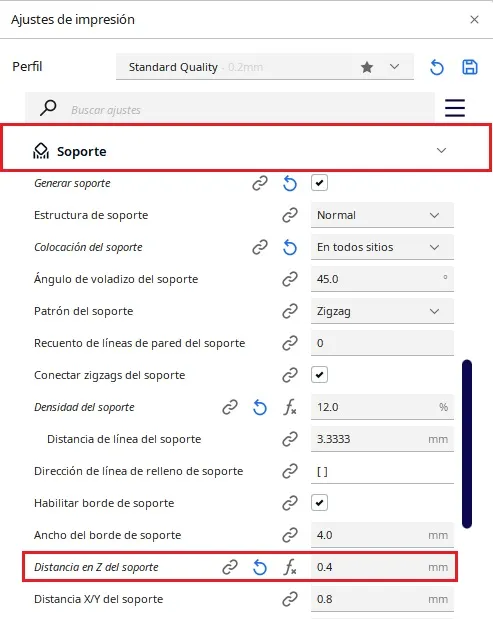
To change the support distance in Cura, follow these steps:
- Open Ultimaker Cura and load your model.
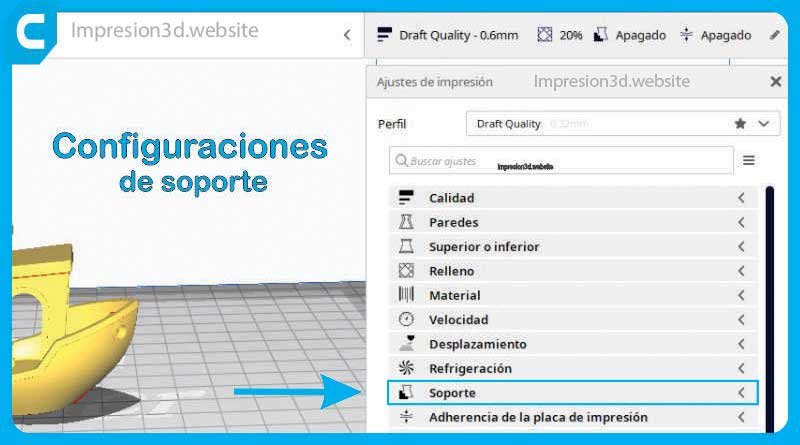
- Go to the “Support” section in the Print Settings panel.
- Adjust the “Z-Distance from Support” parameter to increase or decrease the distance between the supports and the model surface.
- Preview the changes in the 3D viewer and make sure they match your desired results.
- Go ahead and cut out and print your template.
Increase the density of the substrate interface

Be sure to check “Enable Support Interface” to create a ceiling between the support and the model.
For this interface to be more effective and to detach from the model more easily, it must have sufficient density in both its top and bottom layers.
In addition to this, you'll also need to select the “Zig Zag” support pattern so that the ceiling is more effective.
Configure the following settings:
- Support interface density: between 90% and 100%
- Density of the base soil: between 90% and 100%
- Support Interface Pattern: Zig Zag
You'll need to run your own tests to verify the results.
Activate the conical supports
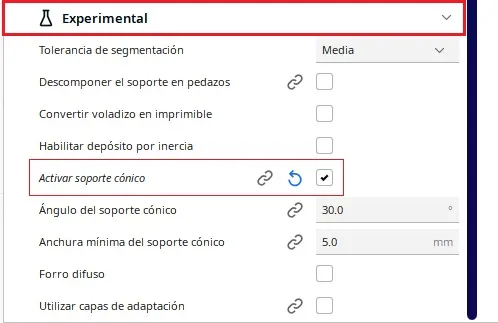
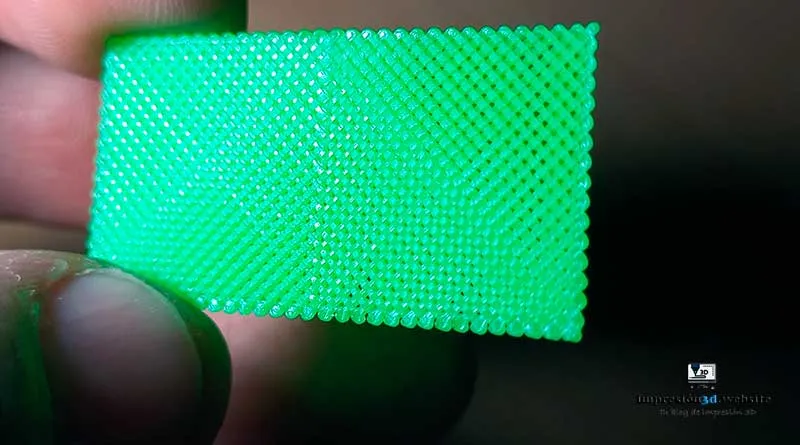
“Enable conical support” is a setting hidden in the “Experimental” section” Ultimaker's "Cura" feature, which is designed to make the support areas smaller at the bottom than on the overhanging sections.
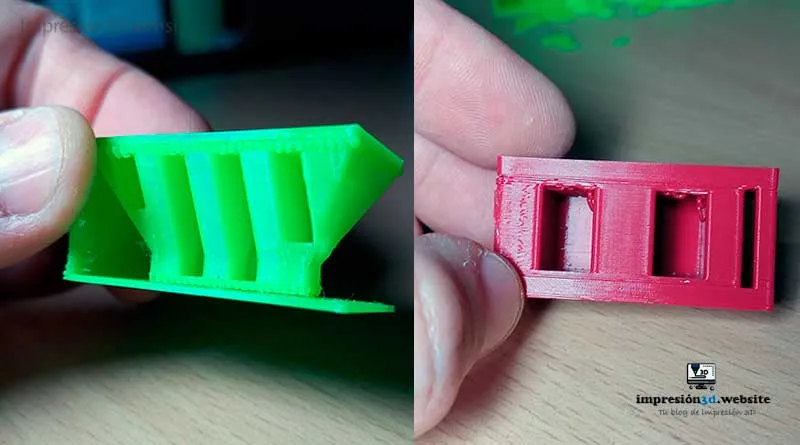
You can activate the tapered support to save time and material, and reducing the contact area of the supports will also have the benefit of leaving fewer marks and less material.
Best Cura Settings for Easily Removable Support Structures
Let's explore the recommended support settings for the different nozzle sizes commonly used in 3D printing:
Easy-to-remove supports in Cura for a 0.4 mm nozzle
| Support Pattern: | Zig Zag |
| Count of the bracket's wall mounting holes: | 0 |
| Connecting the Zigzags on the Bracket: | Enabled |
| Substrate density: | 12% (between 10% and 20%) |
| Z-axis distance of the mount: | 0.4 mm (Layer height × 2) |
| X/Y distance from the mount: | 0.8 mm (Line width x2) |
| Priority of bracket distances: | Z over X/Y |
| Minimum X/Y distance from the mount: | 0.8 mm (Line width x2) |
| Horizontal expansion of the support: | 0.0 |
| Enable the support interface: | Enabled |
| Enable the bracket cover: | Enabled |
| Enable the base plate: | Enabled |
| Density of the support interface: | 90% (between 90% and 100%) |
| Density of the support ceiling: | 90% |
| Density of the substrate: | 100% |
| Support Interface Template: | ZigZag |
| Horizontal expansion of the support interface: | 0 |
| Enable tapered support: | Enabled |
| Angle of the conical bracket: | 30.0° (between 30° and 45°) |
| Minimum width of the tapered support: | 5.0 mm |
Easy-to-remove supports in Cura for a 0.8 mm nozzle
| Support Pattern: | Zig Zag |
| Count of the bracket's wall mounting holes: | 0 |
| Connecting the Zigzags on the Bracket: | Enabled |
| Substrate density: | 12% (between 10% and 20%) |
| Z-axis distance of the mount: | 0.6 mm (layer height x2 or x3) |
| X/Y distance from the mount: | 1.6 mm (Line width x 2) |
| Priority of bracket distances: | Z over X/Y |
| Minimum X/Y distance from the mount: | 1.6 mm (Line width x 2) |
| Horizontal expansion of the support: | 0.0 |
| Enable the support interface: | Enabled |
| Enable the bracket cover: | Enabled |
| Enable the base plate: | Enabled |
| Density of the support interface: | 90% (between 90% and 100%) |
| Density of the support ceiling: | 90% |
| Density of the substrate: | 100% |
| Support Interface Template: | ZigZag |
| Horizontal expansion of the support interface: | 0 |
| Enable tapered support: | Enabled |
| Angle of the conical bracket: | 30.0° (between 30° and 45°) |
| Minimum width of the tapered support: | 5.0 mm |
YouTube video: 3D Printed
Are tree-style mounts better?
Tree-like supports are an alternative to traditional linear supports. They feature a branched structure that provides better accessibility for post-processing, reducing the need for extensive support removal.
Although tree-like supports can be advantageous in certain cases, such as in complex and organic models, they do not always provide the same stability as traditional supports.
I recommend experimenting with both options and evaluating their performance based on the specific requirements of your project.
Best Settings for Tree-Style Brackets in Cura
When using tree supports in Cura, the following settings can help optimize your printing process:
- Tree Support Structure: Enabled
- Bracket angle: 45 degrees
- Support Pattern: Zigzag
- XY Distance: 0.8 mm
- Substrate density: 10% to 20%
- Z-axis distance of the support: 0.2 mm to 0.4 mm
- X/Y distance from the mount: X/Y relative to Z
- Density of the 90% substrate interface
- Support Interface Pattern: Grid
In future posts, I'll take a closer look at tree-based frameworks, conducting tests and sharing the results.
YouTube video: 3D Printed
Conclusions
As I said before, not all supports will be the same for every model. Some models will be simple and easy to print with standard supports, while others will be more complex and will require equally complex supports, such as tree-like supports.
This guide might not work for all the models you want to print, but it can help you experiment a little with some Cura settings you might not have known about.
Try it out and experiment first with small tests, and then draw your own conclusions about what works for you and what doesn't.
Optimize the Z-distance, the X/Y distance of the supports, the support interface density, and other parameters to achieve the right balance between support stability and ease of removal.
Keep in mind that you may need to fine-tune these settings for each specific model, so feel free to experiment and adjust them accordingly to achieve the best results.
Frequently Asked Questions
- Q: What is the easiest support to remove in 3D printing? Supports printed with a “zigzag” pattern at a 45-degree angle are usually the easiest to remove in 3D prints.
- Q: How can I make supports easier to remove in Cura? To make supports easier to remove in Cura, consider adjusting parameters such as support structure, angle, pattern, XY distance, support density, and Z distance.
- Q: What is the strongest support structure in Cura? Cura's “Zig Zag” pattern often provides a strong support structure while allowing for easier removal of the support.
- Q: Are tree-shaped supports easier to remove? Tree-shaped supports may be easier to remove in some cases, especially for complex and organic models. However, their stability may vary compared to traditional linear supports, so it’s important to evaluate their suitability based on the specific needs of your project.
- Q: What are the best PLA support settings in Cura? The best PLA support settings in Cura generally match the recommendations provided above for each nozzle size.
- Q: What is the support Z-distance in Cura? The support Z-distance in Cura refers to the space between the support structure and the surface of the model, which affects how easily the support can be removed. Adjusting this distance can make it easier to remove the support.
If you want to learn more about support settings in Cura and what they mean, I recommend reading the post “Support Settings in Cura”since it might be of interest to you.".
Great article, thank you very much