Best Cura Settings for Beginners

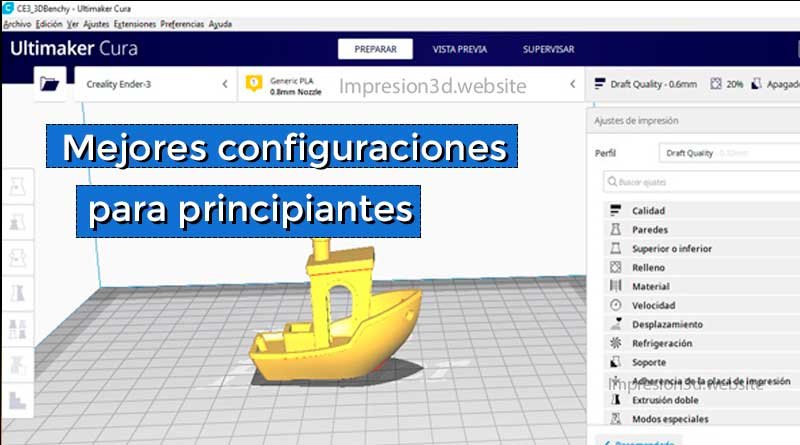
The best Cura settings will allow you to produce better 3D prints with fewer errors and a better time-to-quality ratio.
Ultimaker Cura is a software application designed to work with 3D printers; it's free software, and you can find it by following this link.
Print Settings
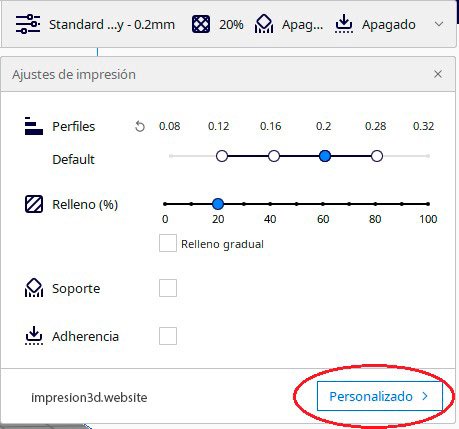
In the Print Settings, if this is your first time opening Cura, you'll need to select the "Custom" option.
This will open up more options that will allow you to make changes to the print settings.
Once this is done, a window will open with many options, which we'll go through one by one.
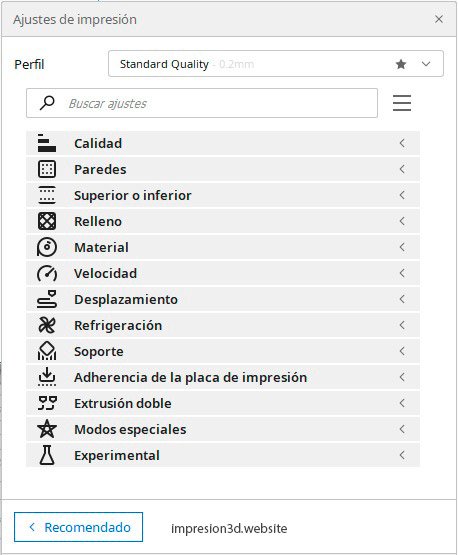
Quality
Quality is determined by the layer height; an incorrect layer height can lead to errors and undesirable results.
Thinner layers = better quality = more printing hours
Thicker layers = lower quality = fewer printing hours
My recommendation is—unless there's an exception—to find a balance between time and quality.
On this tab, you'll change only 3 settings: Coat length, Initial layer height y Line width.
- Coat length: 0.2
- Initial layer height: from 0.16 to 0.2
- Line width: 0.4 (It should be the same as the diameter of your nozzle.)
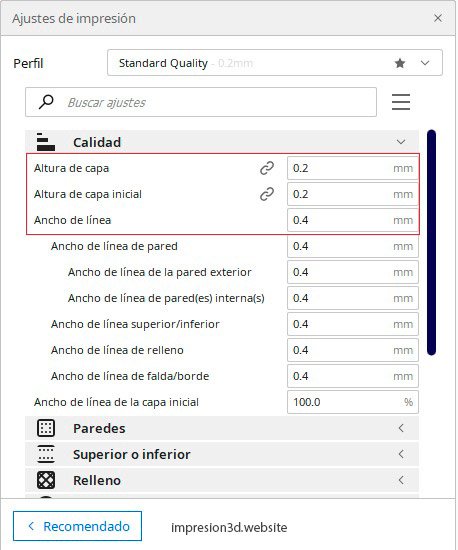
In coat length You'll choose the layer height for the entire print, from start to finish, based on your preferred quality. The sweet spot in terms of time versus quality would be a layer height of 0.2 mm, because the layers aren't as noticeable, and the print time is considerably shorter than with thinner layers.
Initial layer height refers to the first layer, which is one of the most important settings in the entire printing process. This height cannot be less than 0.16, unless you are already an expert and have complete control over the extruder and a perfectly leveled bed.
A layer height of less than 0.16 can cause jams, since the nozzle is so close to the filament that it won’t allow it to exit properly, causing the extruder to skip steps and produce that infamous “Tac Tac Tac” noise, among other issues.
The Line width It will be easy to set up, since you'll always have to place the nozzle size that you have installed on the hotend. If the nozzle is 0.4, then that is the line width. If not, then use whatever size you have.
Walls
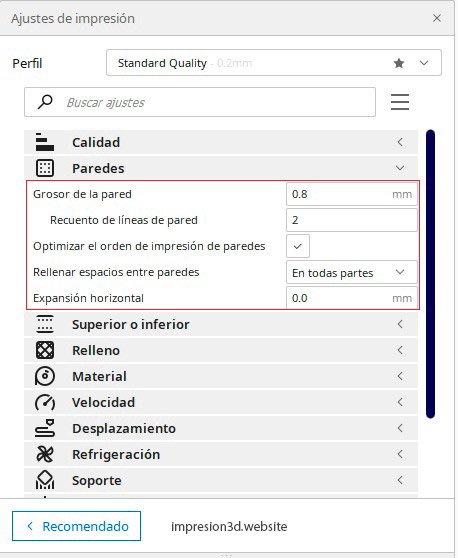
This setting can be configured in millimeters starting at Wall thickness, or by the number of walls starting from count of wall lines.
The more walls a print has, the harder and more solid it will be, but it will also take longer to print.
More walls = greater strength = more printing hours
Fewer walls = lower hardness = fewer printing hours
My general recommendation would be to use between 2 and 4 walls and supplement them with filler. But in the end, it's always up to you.
- Wall thickness: 0.8 mm (for 0.4 nozzles)
- Count of wall lines: 2
- Optimize the printing order of walls: Add an accent
- Filling Gaps Between Walls: Everywhere.
- Horizontal expansion: 0.0 mm
Higher or lower
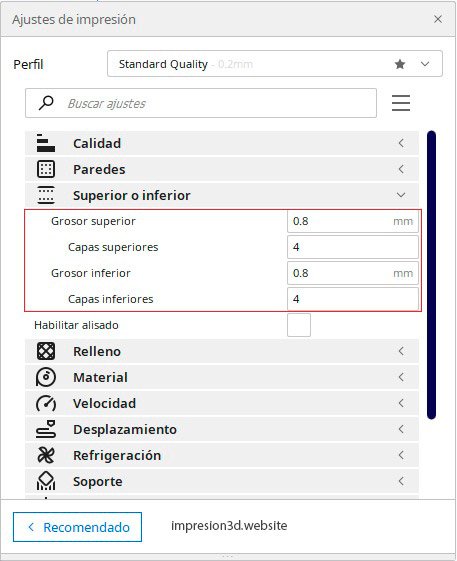
This refers to the number of layers we're going to add on top and on the bottom. I think the default number is fine, but you can change it if necessary and set it to whatever number you want.
- Top Thickness: 0.8 mm
- Upper layers: 4
- Thinner: 0.8 mm
- Lower layers: 4
Filling
A piece can be hollow or solid; this will depend on the amount of filler we choose for our pieces.
If you're printing figurines or models, you might not need as much infill, but if you're printing technical parts that need to withstand some kind of force or provide support, then you'll want to use a denser infill based on your needs.
The amount of fill will directly affect the print time.
More fill = Longer print time
Less fill = Shorter print time
As a general rule, in the Cura settings, you'll set the value between 20% and 25% for any type of print. You can adjust this at any time as you learn more.
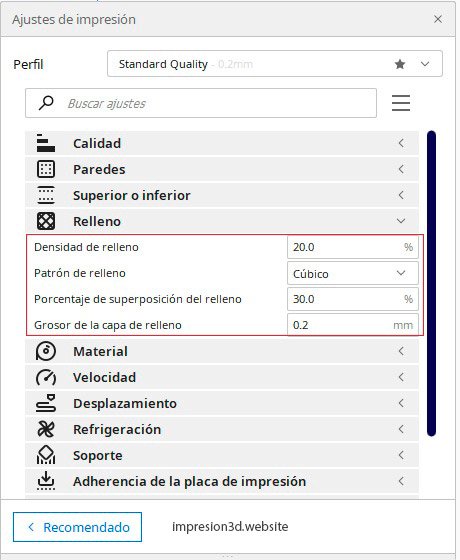
- Filling Density: 20.0 %
- Filling Pattern: Cubic
- PFill overlap percentage: 30.0 %
- Thickness of the filler layer: 0.2 mm (the same as the layer height)
Material
Here you'll find everything related to printing temperature, which is directly related to the type of material you use.
PLA, PETG, and NYLON require completely different temperatures, so it's important to know which material you're working with, since even the heated bed temperatures will vary.
- PLA = 200
- PETG = 230°/60°
- NYLON = 250°/100°
These are general figures; each type and brand of filament may vary. including from color to color. You should always pay attention to the temperatures recommended by the manufacturer.
I recommend that you Download a temperature tower from Thingiverse and follow the tutorial in the next post: Temperature Tower: Better Quality for Your 3D Prints
For PLA, use these settings.
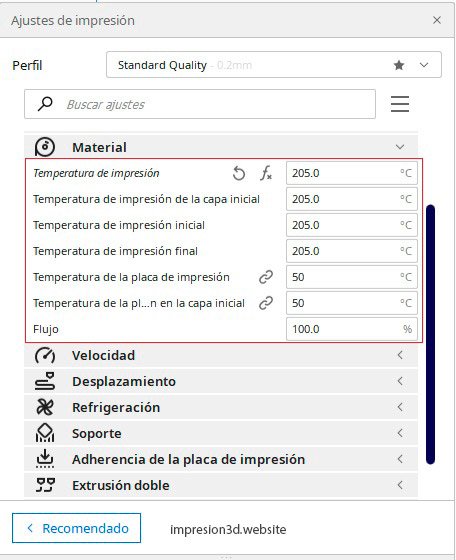
- Printing Temperature: 205.0 °C
- Print Temperature for the First Layer: 205.0 °C
- Initial print temperature: 205.0 °C
- Final printing temperature: 205.0 °C
- Print Head Temperature: 50.0 °C
- Plate temperature in the initial layer: 50.0 °C
- Flow: 100.0 %
Speed
Speed also plays a role in determining the quality of a printed part. Depending on the type of printer we have and the type of filament we use, the higher the speed, the more we will lose a little quality, unless you're already a advanced user and know how to modify certain necessary parameters.
If I had to recommend a print speed for beginners, offering good value for the time spent, It should be between 50 mm/s and 60 mm/s. Above these values, I would recommend using them only for testing purposes to truly understand your printer's limits in terms of the trade-off between time and quality.
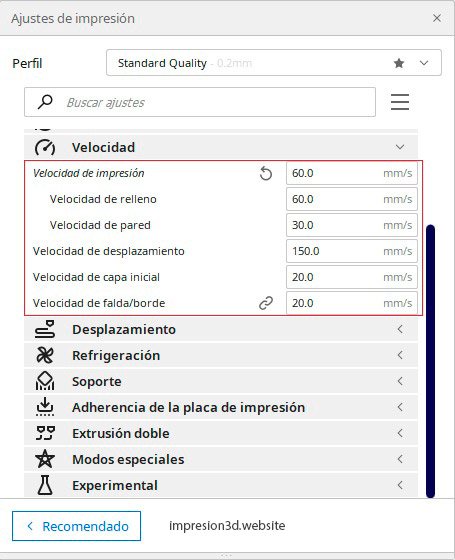
- Print Speed: 60.0 mm/s
- Filling Speed: 60.0 mm/s
- Wall Speed: 30.0 mm/s
- Travel Speed: 150.0 mm/s
- Initial layer speed: 20.0 mm/s
- Skirt/Edge Speed: 20.0 mm/s
Displacement
There are many options for scrolling, but since you're just getting started, we're going to use the following options for now:
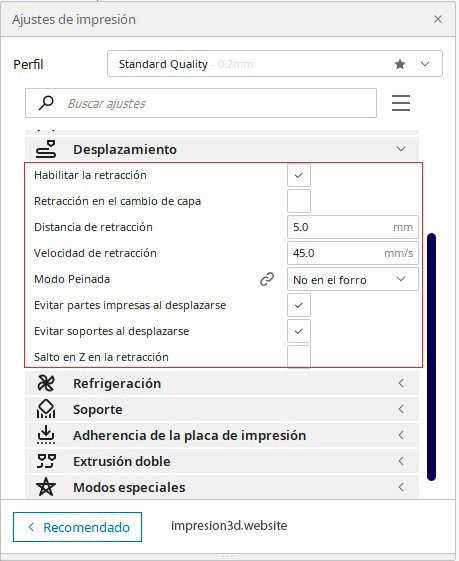
- Enable retraction: Check the box (extremely important)
- Retraction distance: 5.0 mm
- Retraction Speed: 45.0 mm/s
- Sleek Style: Not on the outer surface, or at Everything
- Avoid printing while scrolling: Check the box
- Avoid leaning on things while moving: Check the box
- Z-jump during retraction: Do not mark
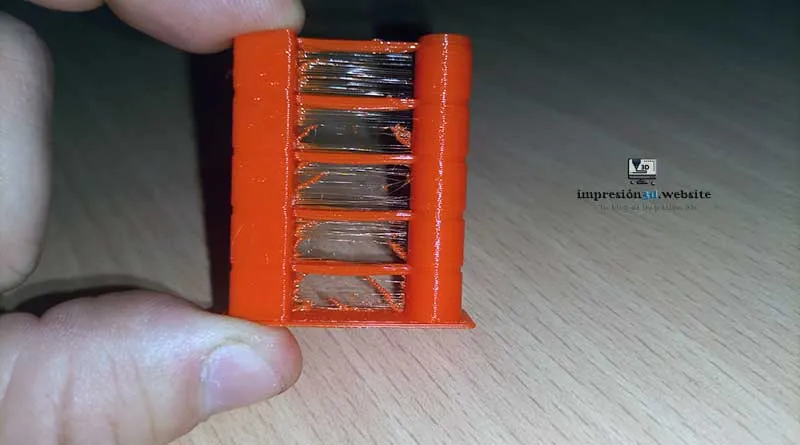
Failure to use the retraction option may result in the wire drawing plastic all over the print, which is quite a hassle to clean.
Retraction distances are the most common settings for PLA, although other factors may cause stringing in prints, depending on the material and the amount of moisture it has absorbed, as well as a lack of proper ventilation.
To learn more, I invite you to read the following posts: Strand Formation in 3D Printing (and How to Avoid It) y Moisture in 3D Printing Filaments: Main Consequences
Avoiding supports and printed parts while moving can help prevent the nozzle from accidentally hitting the print and causing it to come loose from the base.
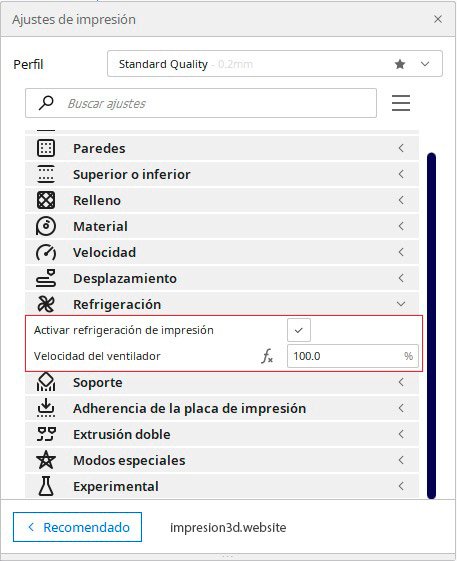
Refrigeration
- Enable print cooling: Check the box
- Fan speed: 100 % (50% for PETG)
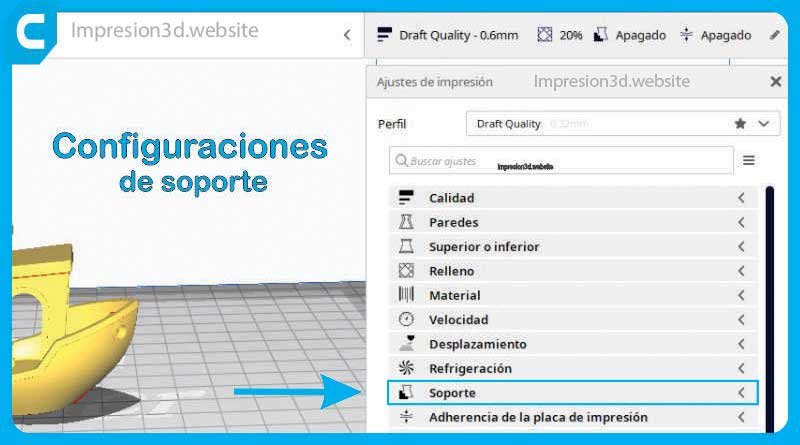
Support
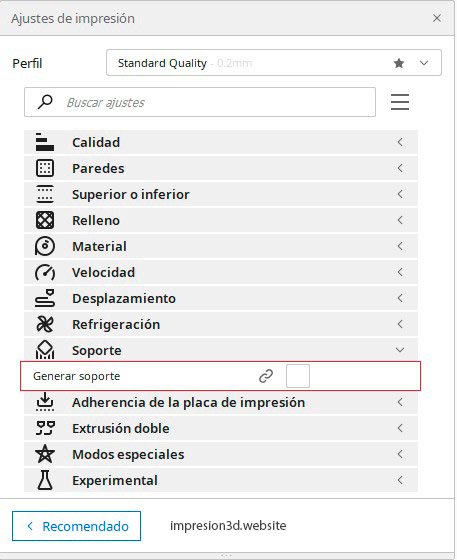
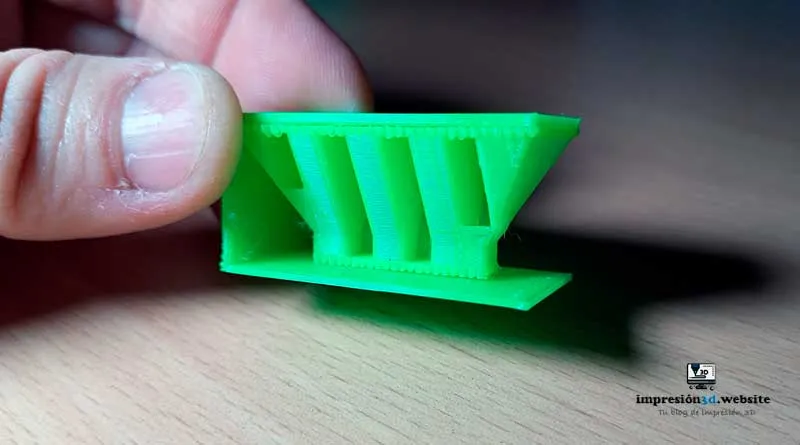
Now, this option will only be necessary if your print has overhangs greater than 45° and requires support, because otherwise they would be printed in mid-air and your print would be ruined. If you need them, enable them; if not, leave them disabled.
Generate support: Disabled (unless you need them). And if you do need them, I invite you to read the post: Easy-to-Remove Support Structures in Cura: Better Fits so that the supports don't stick to the model.
Adhesion of the impression plate
Adhesion to the printing plate will vary depending on what we need to print and the type of substrate we are using.
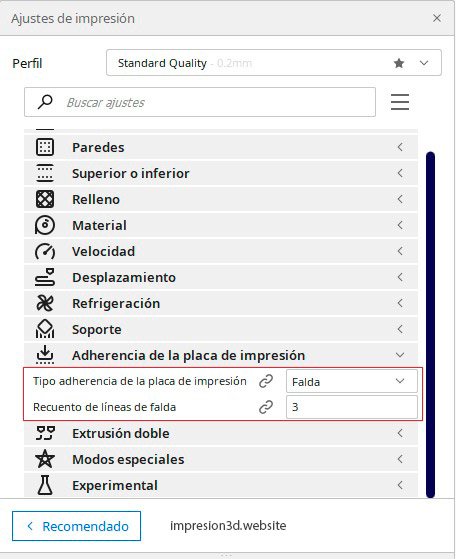
In the Cura settings, you'll enable a skirt with 3 lines, because once you learn how to level the printer bed properly, those 3 lines will help you determine if the bed Is it still even or not?. (Learn more about types of adhesion)
- Type of adhesion of the print bed: Skirt
- Count of skirt lines: 3
The options listed below are special modes and you won't need them right now.
Many of these Cura settings are set by default, and many others are the ones we modify.
Even so, some settings depend on the layer height, the filament, and the nozzle size we're using. If we change any of these factors, the settings will change as well.
Conclusions: Best Cura Settings
The Best Cura Settings for someone just starting out These are the ones that come by default.
Even so, I wanted to highlight a few settings that might help you, such as the one for:
- Do not use a layer height of less than 0.2 mm on the first layer.
- Use a 30% fill overlay
- Use a speed of 20 mm/s for the first layer.
There are many variables, but the goal, in a way, is to help those who are just getting started with this.
[…] Continue reading about: “Best Cura Settings for Beginners“ […]
[…] The Best Cura Settings for Beginners […]