Ultimaker Cura in Spanish: Getting Started.

Ultimaker Cura
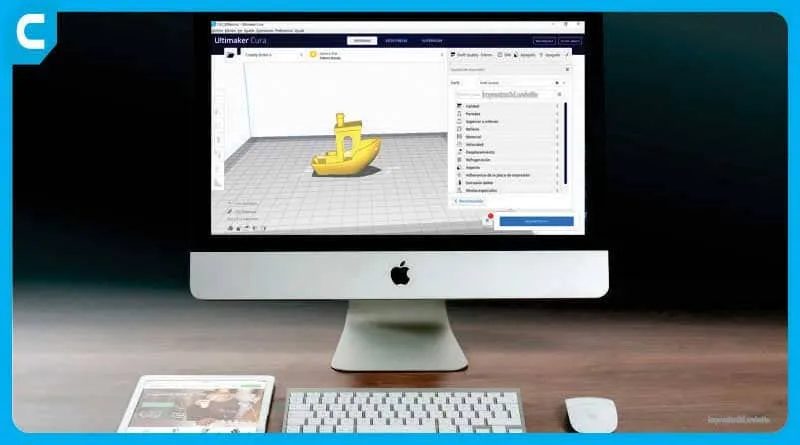
Ultimaker Cura in Spanish is a software application designed to work with 3D printers.
You can open 3D models to slice them into layers, and then send them to the 3D printer so it can begin printing.
In this application, you can modify all the print parameters necessary to ensure a successful 3D print.

Minimum System Requirements
- Graphics card compatible with OpenGL 2 and OpenGL 4.1 for layered previews.
- Resolution 1024 x 768
- Intel Core 2 or AMD Athlon 64
- 550 MB of free disk space.
- 4 GB of RAM
Ultimaker Cura 32-bit in Spanish It will not be available because Cura is 64-bit software only.
Ultimaker Cura Workspace
Once the program is installed, we can take a visual tour and provide a brief description of its interface.

- Open File. Open a 3D file.
- Printer Selection Panel. It shows us the configured printers.
- Control Panel. Select the material type and size of the nozzle.
- Progress Bar. Preparation, preview, and follow-up phase.
- Print Settings Panel. It contains all the parameters for the cutting strategies.
- Marketplace. Additional add-ons and plugins.
- Account Access. It provides access to the cloud, Marketplace add-ons, print profiles, and more.
- Segmentation Panel. It contains a segmented or layered button that changes depending on the current stage.
- Save Button. Save to a removable storage device or to a file.
- Preview buttona. It is used to view layer cross-sections.
- Camera Position. Position the camera at a predetermined angle.
- Model Information. Displays the name of the 3D model and its dimensions.
- Adjustment Tools. Move, rotate, flip, scale, and more options.
Set Up Cura in Spanish
The Preferences menu contains many useful options, including settings for the graphical interface, file handling, and privacy preferences.
You can open it through the menu: Preferences – Configure Cura…

- Language: Ultimaker Cura is available in 15 languages; after making the change, you'll need to restart Cura.
- Currency: You can change this value to modify the currency symbol. It will have no other effect on prices or the application.
- Topic: Ultimaker offers themes for colorblind users and a dark theme to make it easier to use.
- Cut automatically: This setting can be enabled to automatically slice the 3D model when it is loaded.
Interface Behavior
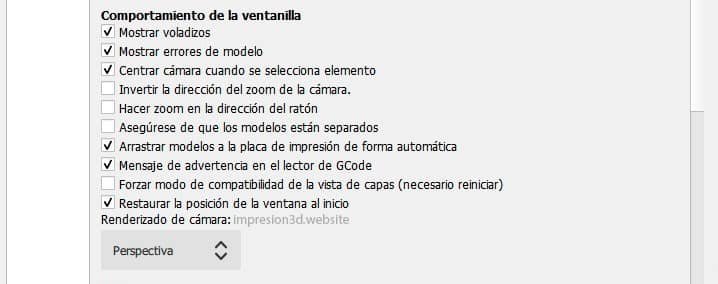
- Show Overhangs: displays the bottom parts of the 3D models in red to indicate that the model requires support material.
- Show model errors: example errors in the 3D model, using different colors for easier identification.
- Center the camera when an item is selected: Focus the camera on the 3D model and keep it centered automatically.
- Reverse the camera's zoom direction: When you scroll the mouse wheel, instead of zooming in, you'll zoom out.
- Make sure the models are separated: This ensures that the models do not overlap with one another, maintaining a safe distance.
Note: Placing models too close together can cause them to overlap. Ultimaker Cura does not warn you when this happens. (unless we make sure to accent that option)
- Automatically drag models onto the print plate: You can turn off this option to allow 3D models to float, which can be useful for creating custom supports or manually aligning 3D models.
- Warning message in the G-code reader: If an error occurs, the program will display a warning message.
- Force compatibility mode for the layer view: This allows older graphics cards to display a 2D version of the layers. You do not need to enable this option if your layer view is working correctly.
- Restore the window's position at startup: Uncheck this option to load Cura Ultimaker with the same position and standard resolution every time you start it.
Note: Disabling this option can be helpful when working with multiple monitors, to ensure that Cura Ultimaker will display correctly upon restarting even if the second monitor is not connected.
- Camera rendering: Perspective and orthographic modes are available.
Opening and Saving Files

- Use a single instance of Cura: Forces the operating system to load all 3D models into the currently running Cura application.
- Scaling Large Models: Automatically scales down models that are too large for the build plate.
- Scaling Models That Are Too Small: Automatically scales models to a visible size; this can happen when models are scaled incorrectly (inches, millimeters).
- Select models when opening them: The 3D model is automatically selected when it is loaded onto the board.
- Add the machine prefix to the job name: A prefix consisting of the initials of the printer currently configured will be added automatically. For example: CE3PRO_file_name.gcode
- Display a summary dialog box when saving the project: Uncheck this option so you don't have to see the description every time you save the project.
- Default behavior when opening a project file: With this option, you can choose whether to open a project (with all settings saved) or simply import the 3D model from that project without changing your current settings. The “always ask” option is also available.
Profiles and Privacy

- Default behavior for values that are modified when switching to another profile: It will ask you whether you want to discard the changes when switching to a new profile, or whether you want to transfer the modified settings to the new profile. The “always ask” option is available.
- Check for updates at startup: The program notifies us via a pop-up window that a newer version of Ultimaker Cura is available.
- Send (anonymous) print information: Allows Ultimaker to collect anonymous usage data to improve Ultimaker Cura.
I invite you to read:
Responses