How to Make a Spotify Keychain for 3D Printing in Tinkercad

Spotify is an app available on Android, Windows, and other platforms that provides a digital music streaming service.
This app lets you copy and share a song's link with anyone you want so they can listen to it, too.
But that's not all—Spotify also has a page that lets you Create a barcode for the song of your choice and upload it as an image so that others can scan it.
In today's tutorial, you'll create this link and You're going to use a 3D modeling program called Tinkercad to shape it into a keychain and print it with your 3D printer.
Basically, you're going to dedicate a song to someone in a very, very special way.
Step 1) Open Spotify and select the song
On your PC, open the Spotify app and search for the song you want to dedicate.
In my case, I'm going to choose the song by Alejandro Lerner called “Secretos”; in your case, it could be a song that means something to you or to the person you want to dedicate it to.
Step 2) Copy the song's link
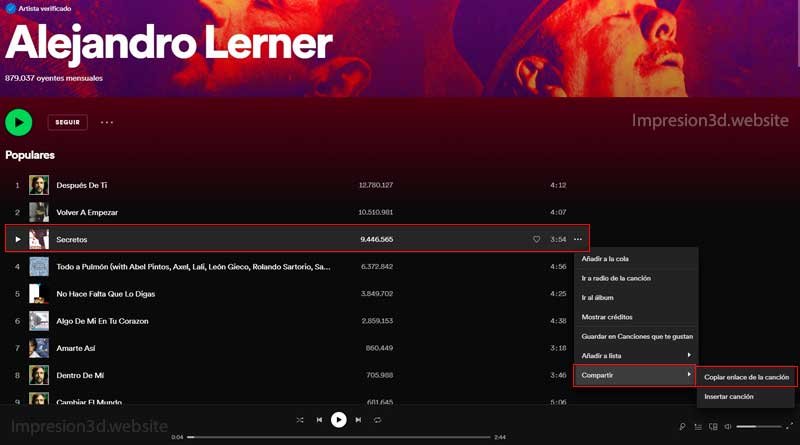
Once you've found the song you want to share, you need to copy the link. To do this, You must click on the three dots at the end of the song title.
A few options will appear here, and you'll need to click on Share and then in Copy the song link.
Step 3) Open Spotify Codes and generate the barcode
In your web browser, go to Spotify Codes and paste the link to the song you just copied
Once you've pasted the link, click “Get Spotify code,” and a section with download options will open on the right side of the screen.
Here, you'll simply change the download format—instead of downloading “JPG,” you'll need to select “SVG.”
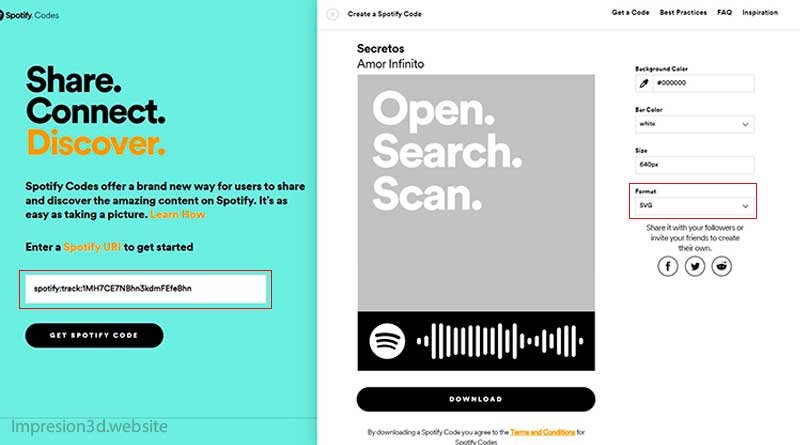
After changing the format, you can click “Download” and a file named “spcode-*.svg” will be downloaded to your Downloads folder; it may contain numbers and letters or have a different name, but the file extension must be .svg
If you want, you can rename it or enter the song's title so you don't get confused.
Step 4) Open Tinkercad and import the file
Autodesk Tinkercad is an online 3D modeling program; it's free and can be used directly in your web browser.
To log in, you can create an account or use your social media accounts, such as Google, for example. Click on log in top right.
Once you're inside, go to 3D Design and select “Create a 3D Design,” and your workspace will open.
Here, you'll need to click the button “Import” top right.
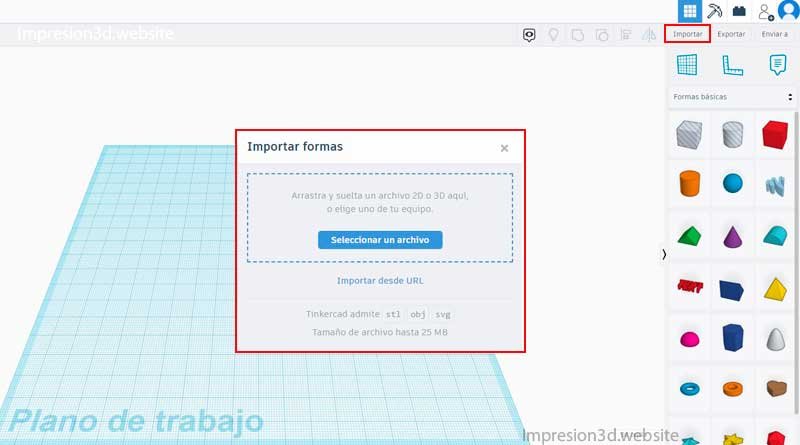
In this window, you'll need to select the file you saved earlier, and then click the Import
Step 5) Model the keychain in Tinkercad
Once you've imported the barcode, you'll model the keychain using some very simple tools.
Don't worry if you don't know how to model or if my examples aren't enough; I'll post a YouTube video anyway to make it clearer.
Correct the measurements
In my case, I'm going to change the size to 18 mm x 70 mm and leave the object centered on the workplane. You can do this by clicking on the corners and manually adjusting the dimensions.
Since the imported object is too tall, I'm going to change its height from 10 mm to 3 mm.
The object should measure 18 mm x 70 mm x 3 mm (at least in my case; if you want to make it in different dimensions, keep in mind that the measurements must be proportional so that it doesn't warp too much).
Create the barcode
Once you've imported the barcode and it has the correct dimensions, you'll give it a solid form.
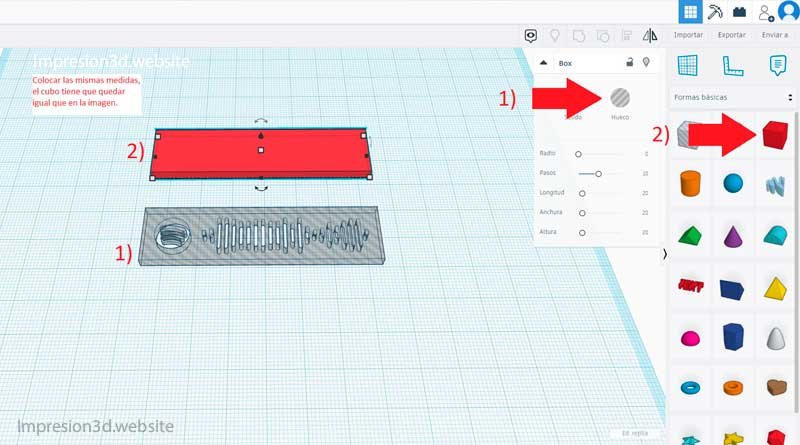
1) Go to the “Shape” window on the right and click “Hollow.”
When you do this, the object with the code should become transparent.
2) Now go to the "Basic Shapes" column on the right and click on the cube.
Place the cube on the work surface and make it the same size as the transparent barcode: 18 mm x 70 mm x 3 mm.
3) Next, you'll select both objects Hold down the “Shift” key and press the letter “L” (or you can go to the top menu and click on the “Align” option there)
Several black dots will appear here; you need to click on the ones in the center.
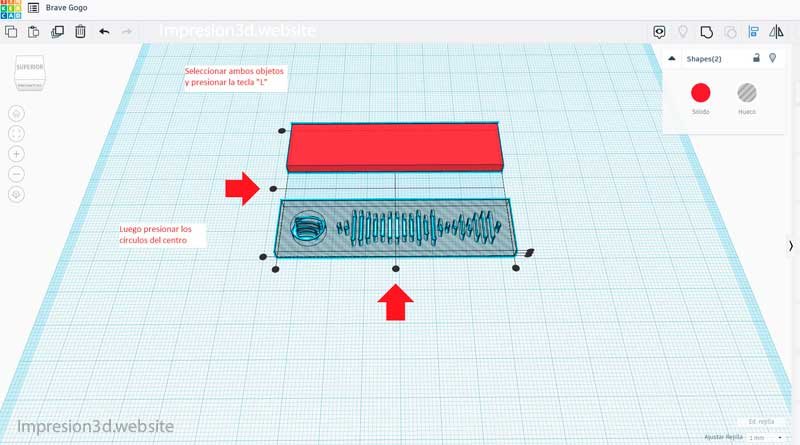
4) Once the two objects are aligned, use the “Group” function by pressing “CTRL + G” (or go to the top menu and click on “Group”).
If you've done everything correctly, the barcode should appear in solid form—that is, without the rectangular borders.
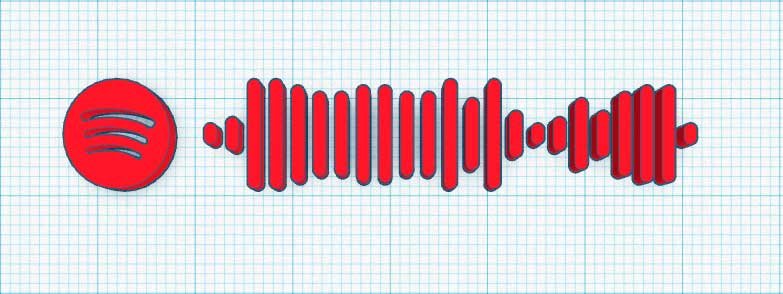
Create the base of the keychain
Now set the barcode aside for a moment and focus on shaping the base of the keychain.
5) Create another cube just as you did before, and set its dimensions to 18 mm x 70 mm. with the difference that you'll make it 2 mm tall.
6) Now you're going to create a cylinder, place it on the workplane, and set its dimensions to the width of the rectangle—that is, 18 mm x 18 mm x 2 mm.
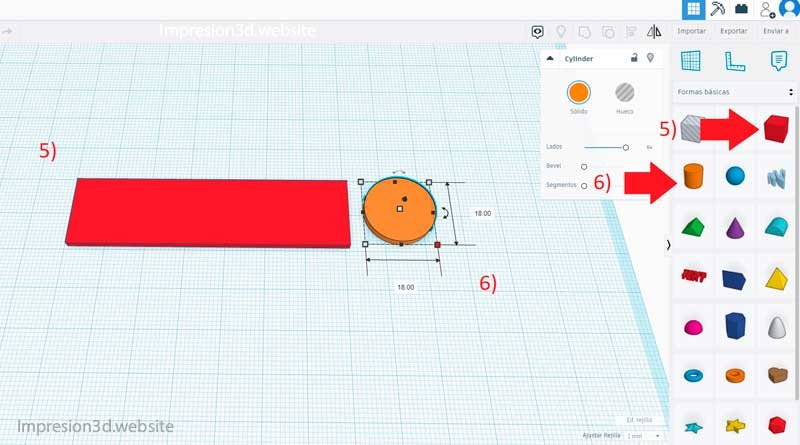
You're going to position this shape so that half of the circle is inside the rectangle and the other half is outside.
7) Now you're going to duplicate this shape using the “Ctrl + D” and you're going to place it at the other end of the rectangle.".
8) You're going to select everything and use the “Align” and then the “ function“Group“.
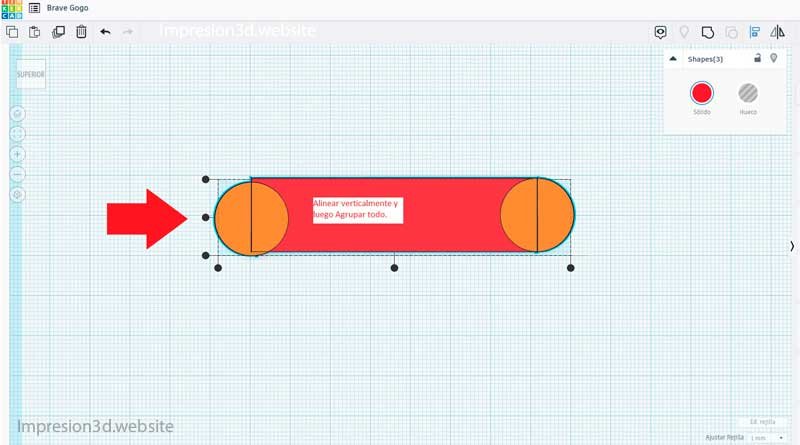
Now you have the base from your keychain.
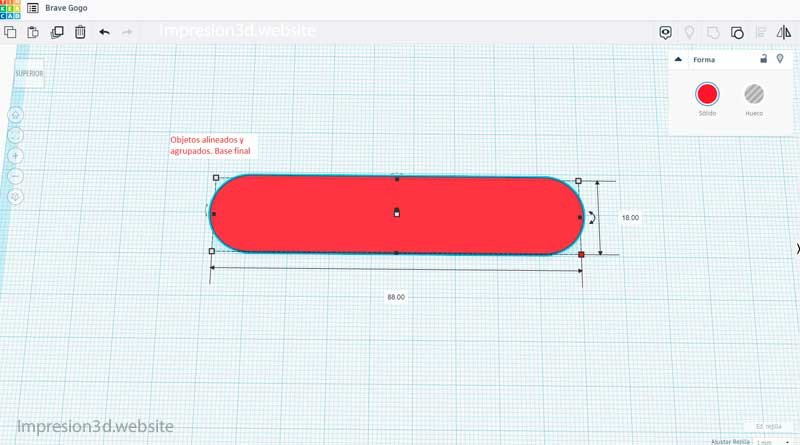
Create the edges of the keychain
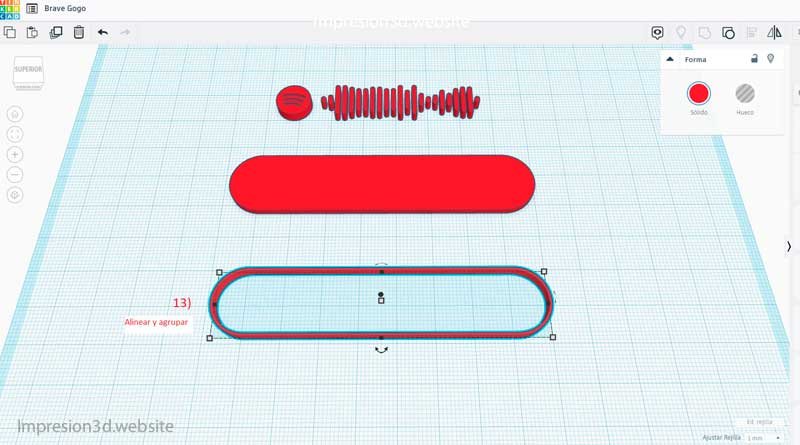
9) Once you have your base ready, go to “duplicate” (Ctrl + D) that base twice (2), so it looks like the image: the code on top and the keychain base three times.
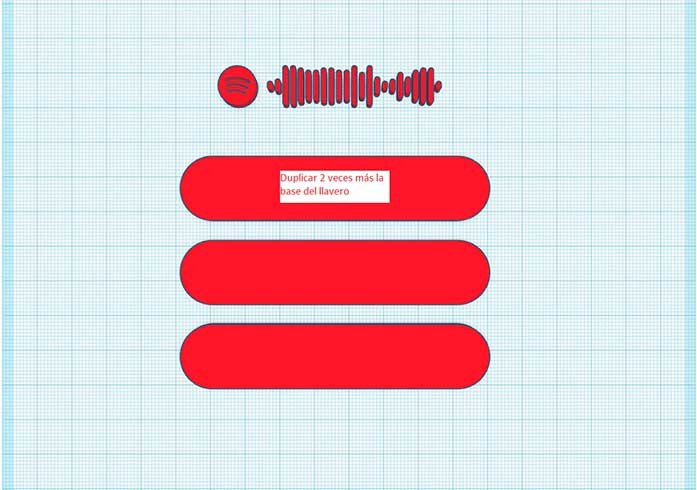
10) At the base of below and the half Are you going to change the height and you're going to put 3 mm instead of 2 mm.
11) At the bottom of the page, you'll subtract 1 mm in width and length. Instead of 88 mm, you're going to put 87 mm and instead of 18 mm, you're going to use 17 mm
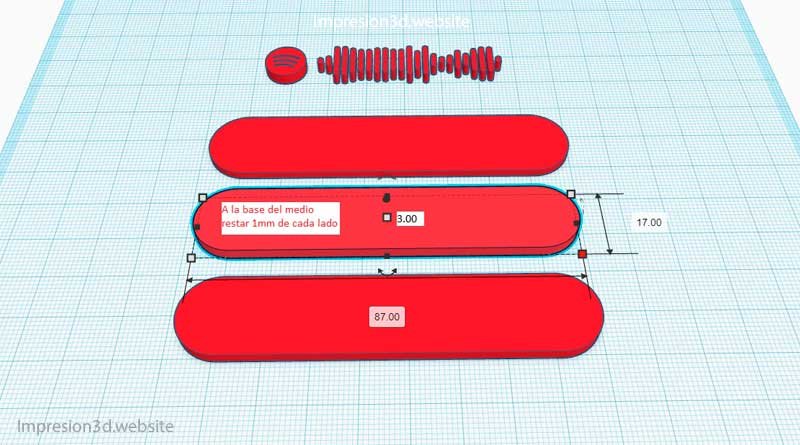
12) Using the selected medium as a base, go to the Shape window and select “Hollow.”
13) Now you're going to select the middle base y the one below and you're going to use the “Align”to put them together. And after you put them together, you're going to Group with “Ctrl + G“
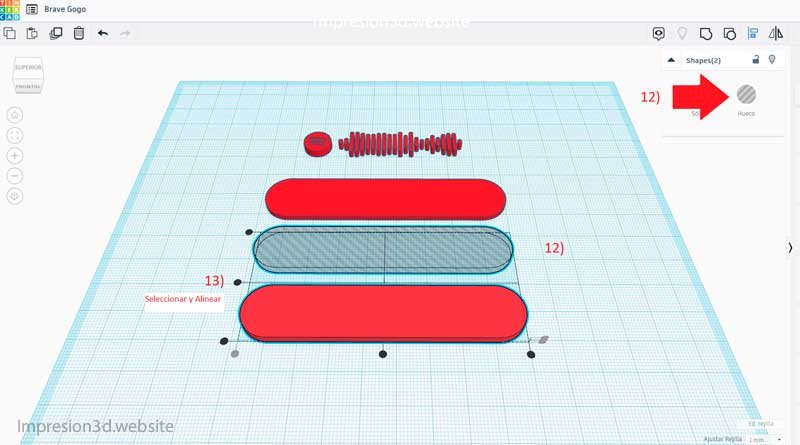
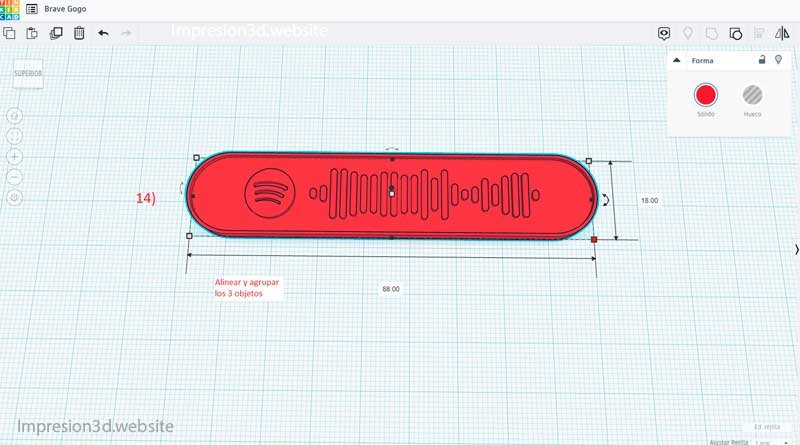
At this point, the edges of the keychain should be ready. Now all that's left is to bring the three objects together, align them, and group them.
14) Select the 3 objects, press “L” to center them, and once they’re centered, group them with Ctrl + G
Make a hole for the keychain
You're almost done with the keychain design—all that's left is to make the hole for the chain.
15) To do this, in the “Basic Shapes”You're going to select a “Hollow Cylinder” and place it on the work surface.
Change the cylinder dimensions. You're going to measure them 3 mm x 3 mm and you'll place it where you want the keyhole to be.
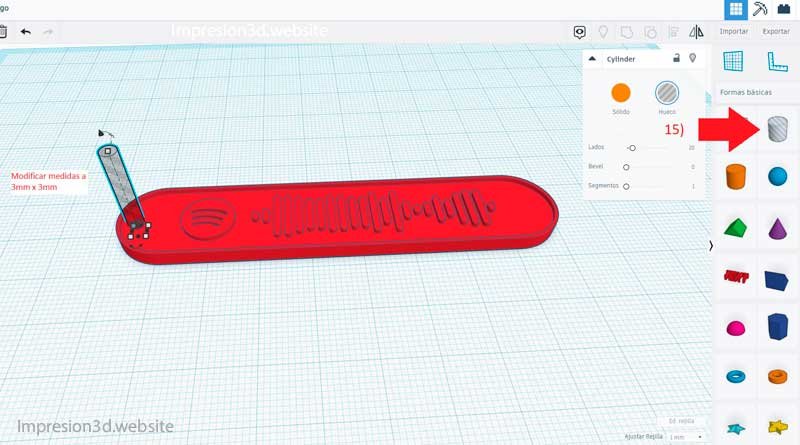
16) Once you've located it, select everything and group it.
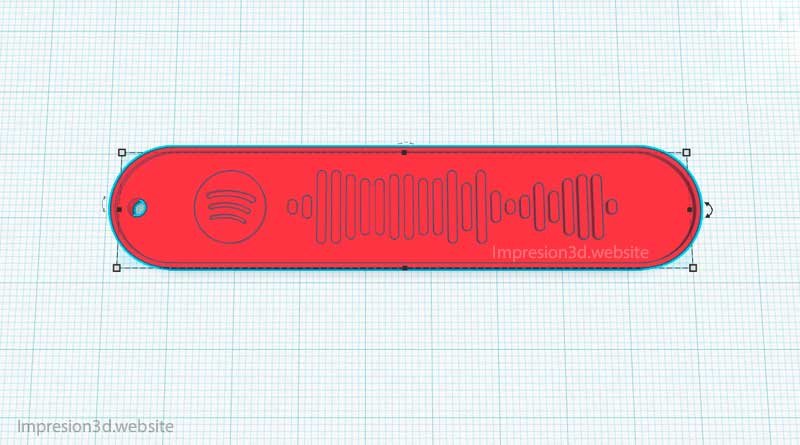
And that's it! You've now made your own Spotify keychain!!
Step 6) Export the STL file
Now that you have your 3D model finished, all that's left is to export it in STL format, which is recognized by slicing software such as Ultimaker Cura or PrusaSlicer.
17) To do this, go to the top-right bar, click “Export,” and select the option .STL
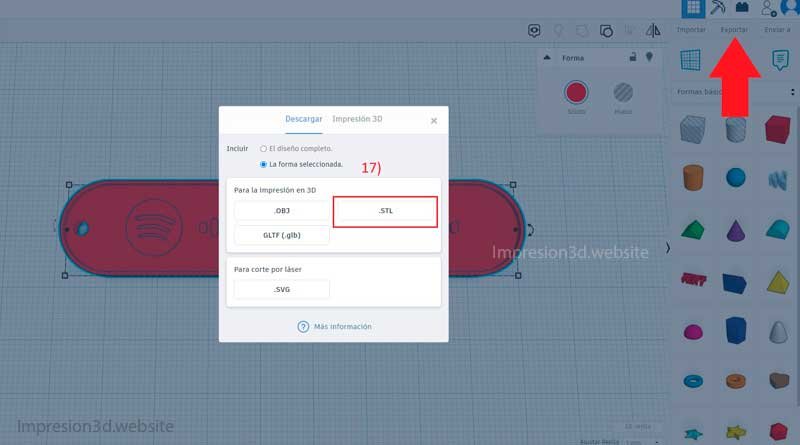
The file will be automatically saved to your Downloads folder.
YouTube Video: Channel Novatech
Step 7) Open the cutter and select the print settings
After opening Cura, you can select your favorite print settings for use with a 0.4 mm nozzle
I'm going to use the parameters described in the post Best Cura Settings for Beginners, you can check out the post if you'd like and then come back.
Once you have your settings ready, go to the preview tab and you're going to figure out which one it is the last base layer of the keychain and what is the first layer of the edge and the bar code.
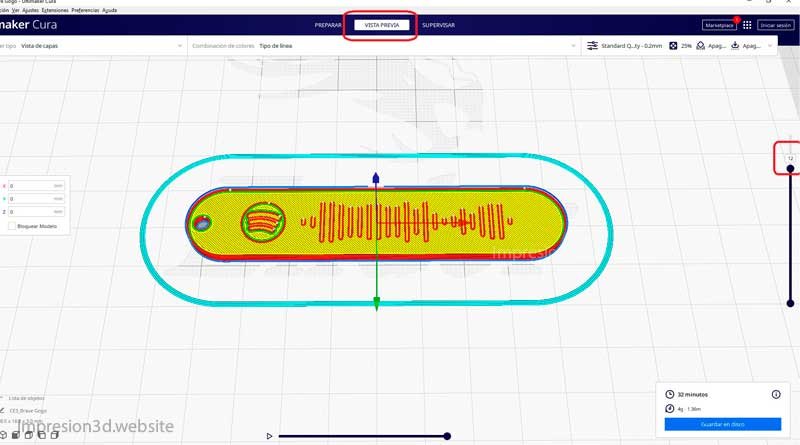
This will be important for pausing the print and changing the filament.
In my case, it will be the 12th print layer.
Edit G-code
From the menu bar, select the option “Extensions” > “Post-processing” > “Modify G-Code”
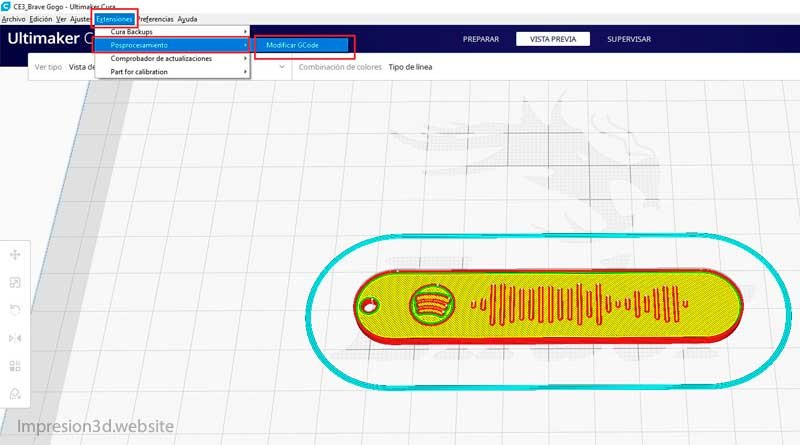
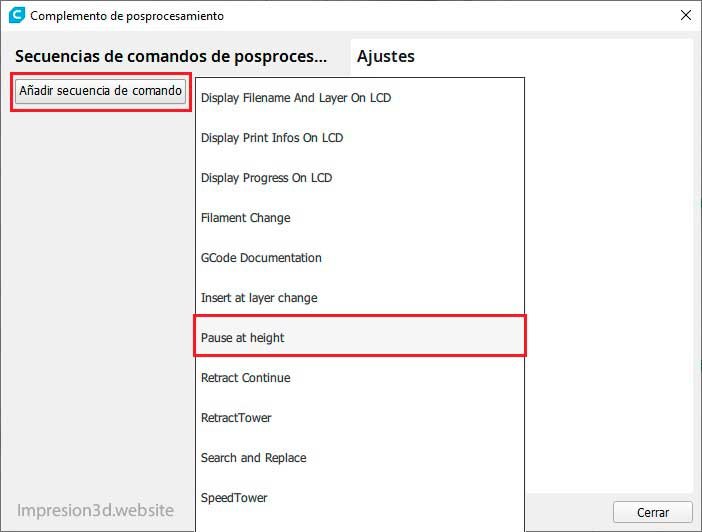
In this window, you must enter a command sequence; you will choose “Pause at Height”
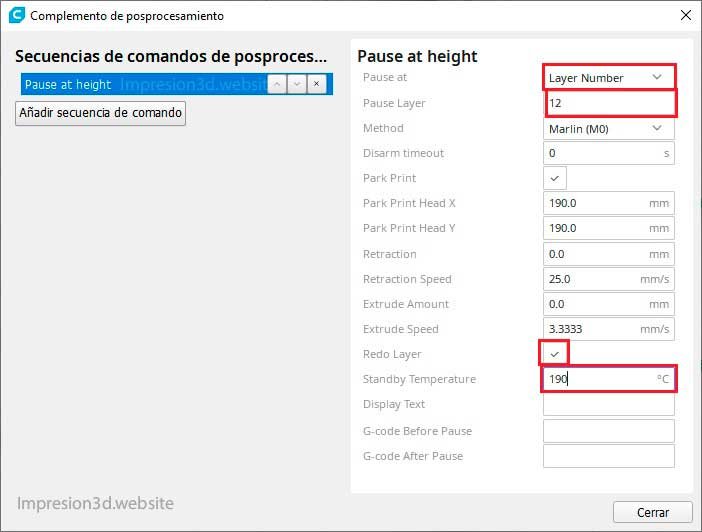
In the window on the right, under the first option that says “Pause at”You're going to type “"Layer Number”
In the second box, “Pause Layer”The layer number at which the filament needs to be changed. In my case, it would be layer number 12, so that's the number I'm going to enter.".
In the box below, “Standby Temperature”I'm going to put" 190 °C , because if we don't put anything in, the nozzle cools down, and if we take too long to change the filament, everything gets ruined.
Close the window and save the file to the microSD card
Step 8) Print the keychain
Congratulations! You've made it to the point where you can print the keychain you designed yourself!
Don't forget to make sure the bed is properly leveled before printing.
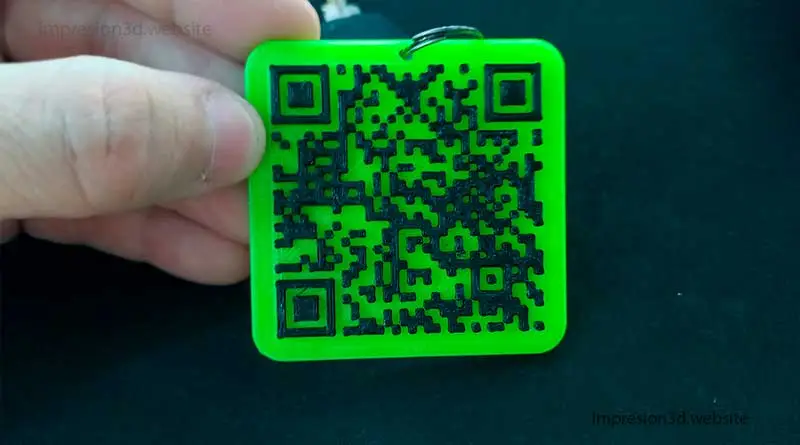
Remember that the 3D printer will print the keychain in one color (green, for example) up to layer 11, at which point it will stop, and the printer will go into standby mode, waiting for you to switch the filament to a different color (black would be appropriate for the barcode).
Once you've loaded the black filament, You'll need to press the appropriate button on your printer to “Continue Printing.”.
From this point on, the printer will begin heating the nozzle and the heated bed again. It will extrude a small amount of filament and continue printing from layer 12 through layer 15 using black filament.
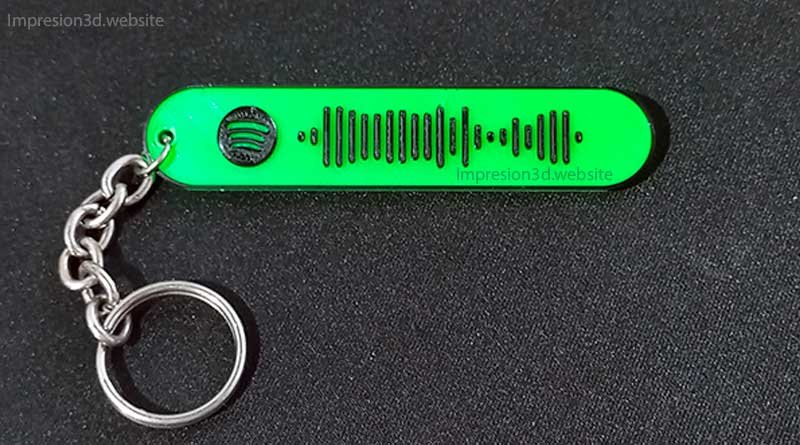
And that's how you print with two colors using a single extruder.
Step 9) Give the keychain as a gift
A song can say a lot about us and the message we want to convey. Choose your song wisely, and maybe you can be more than just a friend to that special someone.
Whatever the case may be, I want you to know that I wish you all the best.
You may also be interested in: How to Calibrate Your 3D Printer's Flow Rate to Produce More Accurate Parts.

I am so grateful that you decided to take the time
and the effort he put into writing this blog. It's full of valuable information.