How to Add and Configure a 3D Filament in Cura

Cura provides a list of 3D filaments that are already included by default in its settings.
If the filament you use is not on this list You can filter by brand, color, and filament type, and configure it with the best print settings.
You can also Set the cost per meter of the 3D filament.
To add and configure a new 3D filament in Ultimaker Cura, go to: “Preferences” – “Configure Cura…” – “Materials” and “Create”
This will allow you to add your filament to the curing options, so you can configure the best settings for that filament.
Why Add a 3D Filament in Cura
Not all filament brands are the same, nor do they melt at the same temperature.
Therefore, to achieve the best print quality with your printer, it's best to have a thorough understanding of the filament you're using.
For example:
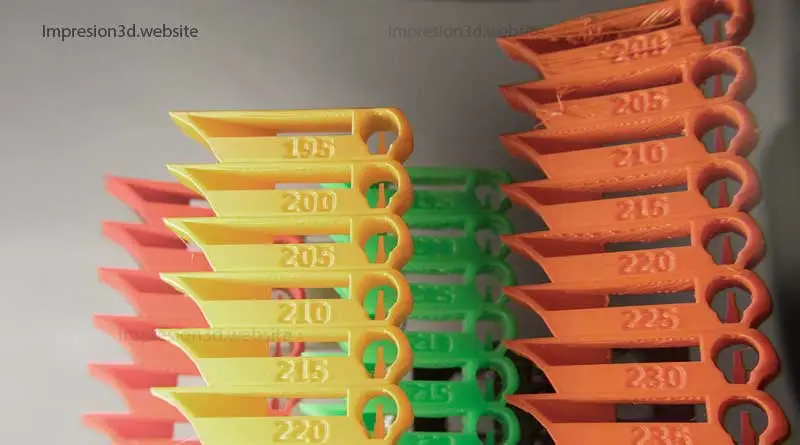
- You can make a temperature tower to find out the ideal filament temperature.
- You can also shrinkage tests, to see at what distances that filament will start to break into strands.
- You can tell if that filament absorbs a lot of humidity, to find a way to keep it dry.
- The cost-per-meter ratio as reported by the manufacturer.
Most of You can save this data in Cura, independently for each filament, and access them with just a couple of clicks without having to manually change the settings in Cura.
The answer is: because you can access the settings for each filament with just a couple of clicks.
How to Add and Configure a 3D Filament in Cura
- Open the Cura settings
- Click on "Materials" and "Create"
- Configure your filament settings
- Configure the filament properties
- Configure the Print Settings tab
1) Open the Cura settings
If the brand of 3D filament you use is not in Cura, you can add your own by clicking on: “Preferences” – “Set Up Cura…” – “Materials” and “Create”


2) Click on "Materials" and "Create"
Once the material settings window opens, click “create” and a “ will be generated,“new generic filament“.
In the example shown in the image, this new filament is named “Custom Material”; you can change this name to reflect your filament’s specifications.

3) Configure your filament settings
At this point, you should configure your filament settings in the window on the right.
To continue with this example, I'm going to set up a blue PLA filament as follows:
- Show Name: Here I'll specify the filament color (in this case, blue)
- Brand: The brand of filament you use regularly (For this example, I'll use Grilon3, which is a brand that doesn't exist in Cura)
- Material Type: Here you need to specify the type of filament—whether it's PLA, PETG, NYLON, or any other type. (I'm going to choose PLA.)
- Color: Click on the color box, and in the next window, choose a color similar to that of your filament. (In my case, blue.)


When you configure the filament information in the right pane, it automatically updates in the left pane.
If you add multiple filaments from the same brand, you'll be able to find them all under the same “tab” for the brand you set up.

4) Configure the filament properties
After configuring the “basic information,” you can continue by configuring the “properties” section below.
In this section, you can enter the weight of the filament, for example, “1,000 g” if it’s a 1-kilo roll, or “500 g” if it’s a half-kilo roll.
Another option that can be configured (and it's really great) is to find out how much money you're spending on each impression, and it's the option to “cost of the filament”
Continuing with the example, it would look like this:
- Density: Leave it as is, because it is configured for a filament with a diameter of 1.75 mm (1.24 g/cm3)
- Diameter: It also stays the same because I'm using 1.75 mm filament
- Cost of the filament: This is where you'll enter the price of the filament you're configuring. (For this example, I'll set it to $9.90)

Below, you'll see two text boxes where you can enter any information you consider important:
- Description: Here you can enter any information you consider relevant about the filament
- Information on Adherence: With PLA, you shouldn't have any adhesion issues, but for other filaments, you can use this box to note down any relevant information.

Once you've finished configuring the information tab, you'll need to configure the tab for “Print Settings“
At this point, it becomes important to make a temperature test, to find out what the ideal temperature is for your filament, as I mentioned above.
5) Configure the Print Settings tab
In this tab, you'll configure the optimal filament printing temperatures and retraction distances for your filament.
When I created the temperature charts for PLA, I found that the print temperature range provided by the manufacturer was fairly accurate. Even so, I was able to determine that (for that brand), the filament prints best at 215° C.
Print Settings:
- Default print temperature: Here's where you need to enter the best temperature for your 3D filament (in my case, thanks to the temperature towers, 215° C)
- Default plate temperature: 60° C
- Temperature in standby mode: It can be 180° C (I set it to 200° C)
- Retraction distance: Another very important setting—you need to know these values and configure them here. (5.00 mm)
- Retraction Speed: speed at which the filament will retract (45 mm/s)
- Fan speed: 100% for PLA

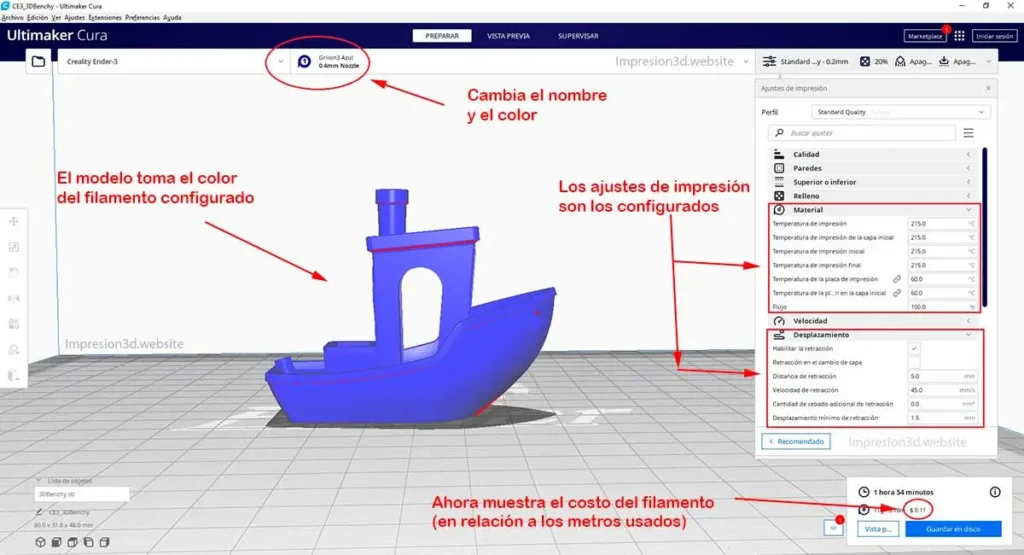
At this point, you have finished configuring all the settings for your filament. You can close the window.
Now you can check that the filament you configured appears in the top bar and that the settings are correct.
When should you add and configure a 3D filament in Cura?
Every time you buy a new filament (one that isn't on Cura's list of default filaments) and you've created the temperature profiles and performed retraction tests for that filament, you can add it to Cura.
That effort won't be in vain, since this data will be saved in Cura, and the next time you buy the same filament, you won't need to add it because it will already be set up.
You'll need to do this for each filament color, regardless of the brand you use.

Hi, I've learned how to configure print materials in Cura thanks to your explanation, but my question is: when I create these material profiles and switch from one filament to another, the temperature, retraction, and other parameters I've set in the material editor don't update in the main Cura settings. How can I ensure that when I switch materials, the main settings automatically update to the optimal configuration I set in the editor?
Hi, Juanma! I just noticed—I ran a test by switching from a PLA filament to a PETG filament from the same brand but with different retraction and temperature settings—and the switch went smoothly.
You should check to see if you've configured the settings for all the filaments correctly and if they've been saved properly.
It may also happen that if you have a .3mf project open and you change the settings to one of your saved filaments, a message may appear asking if you want to “save or discard” the changes. In that case, you’ll need to select “Discard” for the changes to take effect.
Double-check to make sure the temperature and retraction settings were saved correctly for each filament, and let me know how it goes.
Hi Juanma, the same thing is happening to me, and I can't seem to fix it.
My print settings aren't being saved for each material I create.
Were you able to find a solution to this problem?
Thank you and best regards
Hi! I'd like to help you.
What kind of cure do you have?