The 10 Most Common Mistakes in 3D Printing and How to Avoid Them

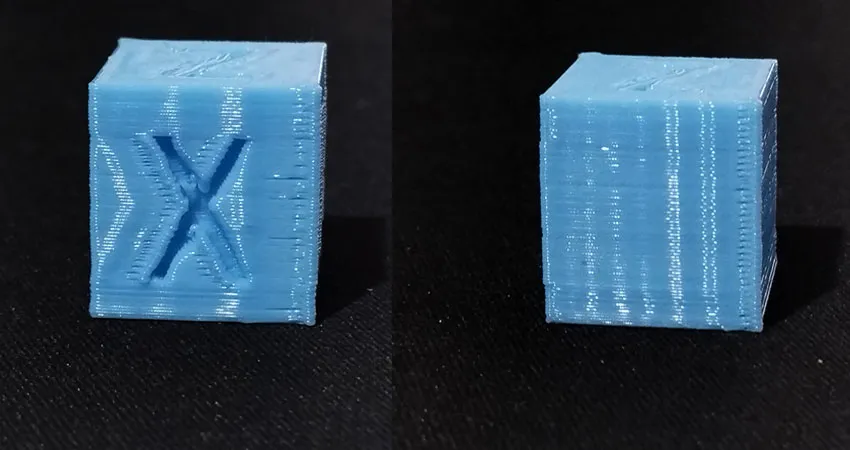
If your prints have defects, don't adhere to the print bed, or come out warped, you're probably making one of these 3D printing mistakes.
It can be frustrating when things don't go as you expect. Here's how to fix them.
1. Poor adhesion to the print bed
If the first layer doesn't stick properly, everything else will fail.
Solution:
- Level the bed properly. Use a sheet of paper or calibrate using automatic sensors.
- Clean the surface thoroughly. Traces of grease or dust can ruin the adhesion. Use isopropyl alcohol.
- Adjust the temperature. Increase the bed temperature (for example, PLA to 60°C, ABS to 100°C).
- Use adhesive if necessary. Hairspray, a glue stick, or painter's tape can help.
Suggested post:
2. Printing with warping (corner lifting)
Warping occurs when the corners of the piece lift up and become distorted.
Solution:
- Use a heated bed. For ABS and other sensitive materials, a constant temperature is key.
- Add a border or skirt. This improves adhesion and reduces thermal stress.
- Controls the room temperature. Avoid drafts and use a closed box if you're printing with ABS.
Suggested post:
3. Underextrusion (lack of material in the print)
If the layers look thin or there are gaps in the part, the extruder isn't dispensing enough material.
Solution:
- Calibrate the extrusion flow. Adjust the setting in the software so that the filament flows properly.
- Check the nozzle. It may be clogged; clean it with a needle or use a “cold pull.”.
- Make sure the filament moves freely. A filament jammed in the spool can cause this problem.
Suggested post:
4. Over-extrusion (too much material)
If the layers look smushed or there is excess material on the parts, the printer is extruding more than necessary.
Solution:
- Reduce the data flow in the software. Adjusting the setting between 90 and 95% usually fixes the problem.
- Calibrate the extruder. Check to see if the extruder is actually pushing out the correct amount of filament.
Suggested post:
5. Stringing (filament strands between parts)
If you see thin threads between parts of your print, it's due to inefficient retraction.
Solution:
- Enable and adjust retraction in the cutting software. Increasing the distance and speed may improve the results.
- Lower the hotend temperature. At lower temperatures, the filament drips less.
- Enable the “Combing” option. This causes the nozzle to move inside the part rather than through the air.
- Remember to dry your filaments: Moisture in the filaments can cause stringing in your prints.
Suggested post:
6. Layer-by-Layer Printing
If the layers don't align and the print looks crooked, there is a mechanical problem.
Solution:
- Check to make sure the straps aren't loose. If they're loose, tighten them.
- Make sure the shafts are well lubricated. Apply grease or oil to the guides and rods.
- Check to make sure the motor screws are tight. A weak engine causes misalignment.
7. “Ghosting” or Vibrations in the Print
If you notice shadows or vibrations on the surfaces of your print, there are likely resonances in the printer's structure.

Solution:
- Reduces print speed and acceleration. Less vibration means better quality.
- Make sure the printer is on a stable surface. A table that vibrates can affect the results.
- Check to make sure the screws and mechanical parts are tight. Play on the structure causes instability.
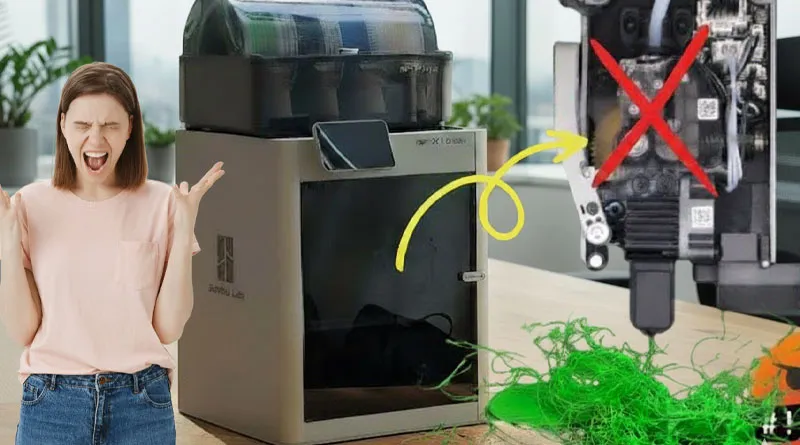
8. Problems with the extruder failing to push filament
Another common problem in 3D printing is when the printer stops extruding halfway through the print—either because the filament is jammed or the motor can't push it through.
Solution:
- Check to see if the nozzle is clogged. Use the “cold pull” technique to clean it.
- Make sure the filament isn't jammed. Check the Bowden tube and the extruder.
- Increase the extruder temperature. A filament that hasn't melted properly doesn't flow well.
Suggested post:
9. Elephant's Foot
If the base of your print widens and looks flattened, you have the infamous “elephant foot.” This happens when the first layer expands more than it should, affecting the part’s accuracy.
Solution:
- Lower the bed temperature. If it gets too hot, the plastic softens and expands.
- Adjust the height of the nozzle. If it's too low, the first layer gets compressed more than necessary.
- Enable “Elephant Foot Compensation” in the cutting software. Some slicers allow you to correct this problem by slightly reducing the size of the first few layers (see "Horizontal Expansion of the First Layer").
- Wear a skirt or a hem. This can minimize the impact of the elephant's foot without affecting the main part.
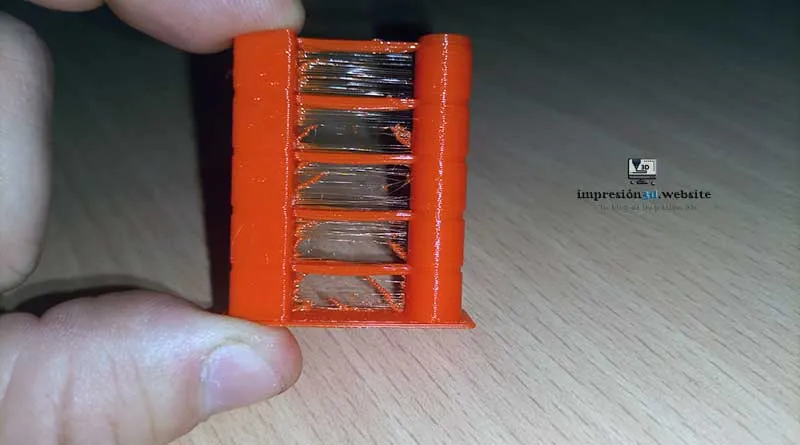
10. Gaps between the walls (walls that don't stick together)
If you notice gaps between the walls of your print, as if the layers aren't fusing properly, the problem is usually related to the wall thickness settings or the amount of extruded material.

Solution:
- Increase the wall thickness. Make sure the thickness is at least 1.2 times the diameter of the nozzle.
- Adjust the extrusion flow. A low flow rate can cause gaps; try increasing it slightly in the cutting software.
- Check for overlapping print lines. In some slicers, you can increase the “wall overlap” to improve adhesion between layers.
- Check the nozzle and the extruder. A partially clogged nozzle or a slipping extruder can cause a lack of material during printing.
Tired of making mistakes with your 3D prints? Let PCBWay.com handle your projects!

If you've ever had to deal with problems like adhesion issues, warping, or poor-quality prints, you know how frustrating it can be.
Instead of continuing to waste time and materials, trust PCBWay.com, experts in rapid prototyping e professional 3D printing.
Its online platform offers you a streamlined, hassle-free process, allowing you to focus on what really matters: your ideas and projects.

Thanks to its efficient system and network of specialized factories, you can get results in a matter of days, without compromising on quality. Plus, its prices are highly competitive, which will allow you to reduce costs at every stage of development.
Another major benefit is its personalized customer service. If you ever have questions or need to make adjustments to your design, the PCBWay.com team is available to guide you every step of the way.
Forget about 3D printing errors and let PCBWay.com handle your projects!
Its user-friendly platform allows you to upload and manage your STL files, choose materials, and specify details, all in an intuitive and secure way.
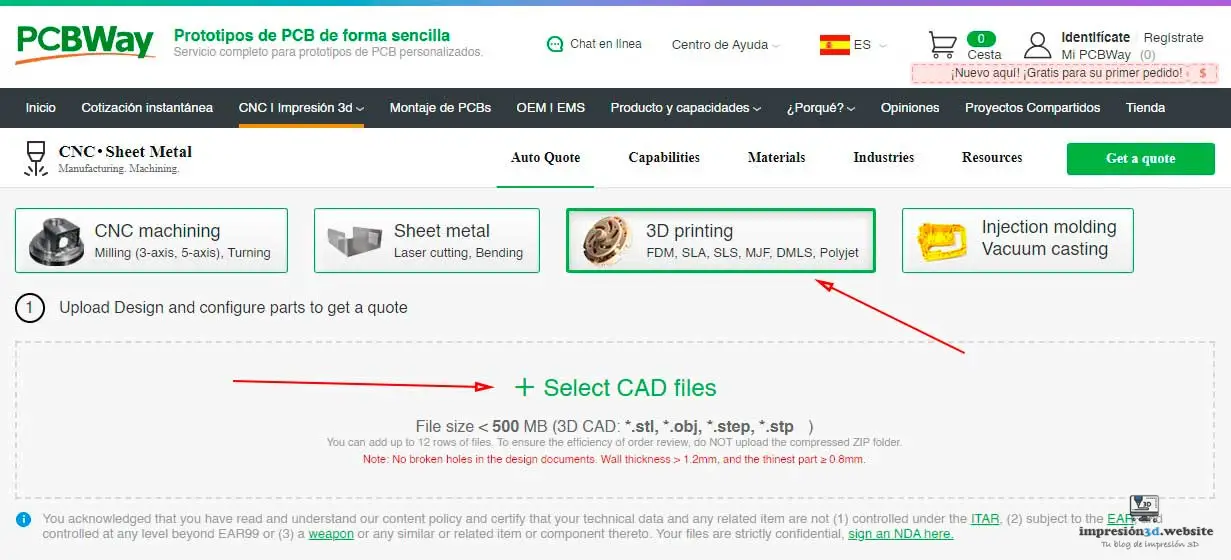
Don't let 3D printing errors and delays affect the quality of your projects.
With PCBWay.com, you'll be able to move forward with confidence, knowing that your prototypes will be accurate, fast, and affordable.

Visit their website now and bring your ideas to life without worrying about the technical details!
Conclusion
These 3D printing errors are common, but easy to fix with the right adjustments. Have you encountered any of these problems? Share your experience in the comments and tell us what tips you use to improve your prints. We look forward to hearing from you!
You might be interested in:

Responses