

All About Klipper: The Definitive Guide to Optimizing Your 3D Printer

What is Klipper?
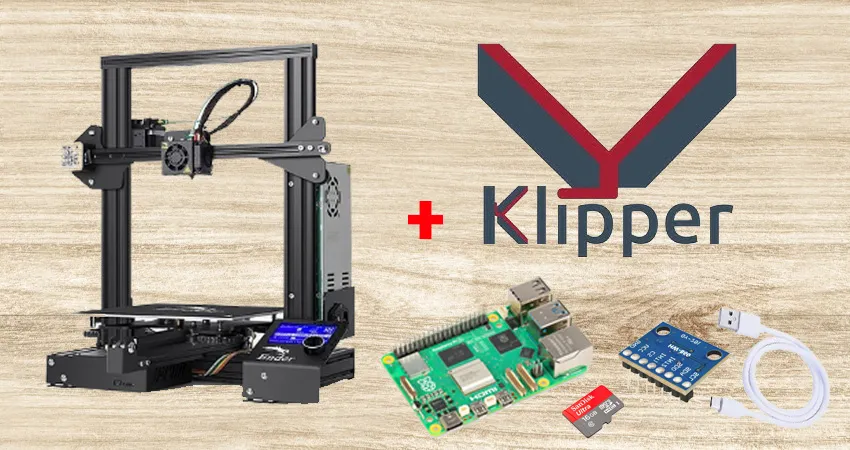
Klipper is open-source firmware designed to improve the performance and accuracy of 3D printers. Unlike other traditional firmwares such as Marlin, Klipper takes an innovative approach by offloading much of the processing to an external computer—usually a Raspberry Pi—rather than relying solely on the printer’s controller board.
This architecture allows for more precise control of motor movement and the execution of advanced calculations without overloading the printer's board. As a result, Klipper can handle higher print speeds without compromising quality and provide advanced features that other firmware cannot execute efficiently.

History and Evolution of the Klipper Firmware
Klipper was created by Kevin O’Connor in 2016 with the goal of optimizing the performance of 3D printers through a new approach to command processing. Since its launch, it has gained popularity within the 3D printing community thanks to its flexibility, compatibility with multiple controller boards, and the ability to be constantly updated with new features.
Over time, Klipper has been adopted by manufacturers and enthusiasts looking to improve the speed and precision of their printers without having to replace the main hardware. Its community has grown significantly, offering improvements and optimized configurations for various printer models.
What is Klipper used for in 3D printing?
Klipper is firmware designed to optimize the performance of 3D printers, allowing them to reach higher speeds without sacrificing quality. Its main function is to improve the precision of motor control and the efficiency of G-code processing, which results in faster, higher-quality prints.
Improvements in Printer Performance
One of Klipper's most important benefits is its ability to significantly improve the performance of the 3D printer.
- Faster speed without compromising quality
Thanks to its efficient processing system, Klipper enables printing at higher speeds without causing defects such as vibrations, ghosting, or loss of layer precision. - Reduction of the resonance effect
Klipper incorporates advanced algorithms to compensate for printer resonance, which minimizes visual artifacts on printed parts and improves stability during high-speed movements. - More Accurate Microstep Interpolation
It controls stepper motors more efficiently, resulting in smoother movements and reducing printer noise during operation. - Improved control of the extrusion flow
With advanced extrusion calibration and pressure compensation, Klipper achieves more precise control over filament flow, which improves layer quality and reduces problems such as under-extrusion or over-extrusion.
Additional features provided by Klipper
In addition to improving the printer's performance, Klipper offers a range of advanced features that are not available in traditional firmware.
- Macros and Advanced Automation
Klipper allows you to create custom macros to automate tasks such as filament changes, bed leveling, and temperature presets. - Support for multiple controller boards
You can use multiple electronic boards at the same time to control different printer functions, such as additional axes, sensors, and advanced accessories. - Modern Web Interfaces
Klipper integrates with graphical interfaces such as Mainsail y Fluidd, which allow you to monitor and control the printer from any device with internet access, without the need for a traditional LCD screen. - Advanced Calibrations
It includes automatic calibration tools to improve print accuracy, such as dynamic temperature control, extruder step calibration, and real-time error detection. - Greater stability and security
By performing calculations outside the printer's main board, Klipper reduces the likelihood of freezes and printing errors, thereby improving system stability.
How does Klipper work?
Klipper works by dividing processing tasks between two main components: the Raspberry Pi (or any other system running Linux) and the controller board of the 3D printer. Unlike traditional firmware such as Marlin, where the controller board handles all calculations in real time, Klipper leverages the processing power of the Raspberry Pi to execute more complex tasks efficiently and quickly.
This separation of tasks improves print speed, reduces latency, and provides greater system stability, resulting in faster and more accurate prints.

Before we continue, did you know that this post is sponsored by JUSTWAY.COM?
Want perfect prints without the hassle? Try Justway.com's online 3D printing service.

Are you tired of dealing with adhesion issues, calibration problems, or complicated technical settings? If you want professional results without wasting time, Justway.com has the perfect solution for you.
At Justway, we offer a Fast, reliable, and high-quality online 3D printing service, designed for makers, businesses, designers, students, and entrepreneurs alike.
🚀 Benefits of printing at Justway.com
- ✅ Accurate 100% Prints, thanks to equipment that is calibrated and operated by experts.
- ✅ Wide variety of materials, including PLA, PETG, ABS, resins, and more.
- ✅ Fast delivery nationwide, with follow-up and personalized attention.
- ✅ Instant Online Quotes, without having to sign up.
- ✅ Functional or visual prototyping, finished pieces, educational models, custom designs, and much more.
🔧 How does it work?
- Upload your STL or STEP file to the platform.
- Choose the material, color, type of finish, and quantity.
- You'll receive the quote in seconds and confirm the order.
- We'll take care of the rest. You'll just receive your item, ready to use.

🧠 Perfect if…
- You don't have a 3D printer, but you need a part.
- Your printer is out of order or isn't producing good results.
- Do you want to validate a design without wasting time or filament?.
- Are you looking for a reliable service with professional quality?.
💬 Try Justway.com's 3D printing service today and say goodbye to technical problems.
Visit justway.com/prototipado-rapido and start printing with confidence.

Klipper Architecture: Task Separation Between the Raspberry Pi and the Controller Board
In a traditional 3D printer running Marlin, the controller board receives G-code commands directly and processes all the necessary calculations for motor movement, temperature control, and other functions in real time. However, this approach has limitations due to the board's limited processing power.
Klipper solves this problem by dividing the tasks as follows:
- Raspberry Pi (or equivalent system)
- It receives and analyzes the G-code sent by the user.
- It performs complex calculations related to kinematics and motion control.
- Optimize the commands before sending them to the controller board.
- 3D Printer Controller Board
- It receives the preprocessed commands from the Raspberry Pi.
- Execute only the instructions necessary to operate the motors and other components.
- It reduces the workload and improves operational efficiency.
This modular design allows the printer to perform advanced calculations without relying on the limited hardware of the controller board, resulting in a faster, more stable, and more accurate system.
Real-Time Communication and Command Processing
Klipper uses an efficient communication system based on UART (serial port) or SPI to send commands between the Raspberry Pi and the controller board.
- Receiving and Analyzing G-Code
When a user sends a G-code file to Klipper (either through a web interface such as Fluidd or Mainsail, or via OctoPrint), the Raspberry Pi analyzes the code and converts it into optimized instructions. - Preprocessing and Movement Planning
Klipper processes all paths and calculates the optimal times for executing the printer's movements. This allows it to anticipate commands and avoid delays that could cause printing defects. - Sending Commands to the Controller Board
Instead of having the board control every detail of the movement, Klipper sends it a series of preprocessed instructions that need to be executed only at the precise moment. This reduces the workload and minimizes synchronization errors. - Real-time execution
The controller board executes the received commands with greater precision and without the latency that would occur in a system where all calculations are performed on the same processing unit.
This operating model allows Klipper to offer advanced features such as pressure compensation during extrusion, vibration reduction, and high-speed printing without compromising quality.
Requirements for Installing Klipper on Your 3D Printer
Before installing Klipper on your 3D printer, it is important to make sure you have the necessary hardware and software for it to run properly. Unlike other firmware such as Marlin, Klipper requires a specific configuration that includes an external processor—usually a Raspberry Pi—and some additional software for installation and management.
Required hardware: Raspberry Pi, SD cards, and other components
To run Klipper properly, you'll need the following hardware:
- Raspberry Pi (or a compatible alternative)
- Klipper is designed to run on a Raspberry Pi (recommended models: Raspberry Pi 3B, 3B+, 4B, or later versions).
- You can also use other Linux-based mini PCs, but Raspberry Pis offer the best compatibility.
- The Raspberry Pi will be responsible for performing the advanced calculations and sending the optimized commands to the printer.
- microSD Card for the Raspberry Pi
- We recommend a microSD card with a capacity of at least 8GB to install the operating system and the necessary software.
- It is recommended that you use high-quality cards to avoid data corruption issues.
- USB cable or UART/SPI connection
- The Raspberry Pi must communicate with the printer's controller board via a USB cable or a UART/SPI serial connection.
- It is recommended to use high-quality USB cables to prevent interference or communication outages.
- Power Supply for the Raspberry Pi
- It is important to have a suitable power supply (at least 5V 3A for the Raspberry Pi 4).
- If the Raspberry Pi does not receive enough power, disconnections or data transmission errors may occur.
- 3D Printer Controller Board
- Most boards compatible with Marlin are also compatible with Klipper, including the Creality V4.2.2 and V4.2.7, BIGTREETECH SKR, MKS GEN L, among others.
- In some cases, it may be necessary to update the board's firmware or make some changes to the settings.
Required Software: Operating Systems and Installation Tools
To install and run Klipper on the Raspberry Pi, you'll need the following programs:
- Operating System for the Raspberry Pi
- We recommend installing Raspberry Pi OS (formerly known as Raspbian) o Debian.
- You can also choose from preconfigured distributions such as Mainsail OS o FluiddPi, including Klipper and a ready-to-use web interface.
- Klipper Firmware
- It must be downloaded from Klipper's official GitHub repository and compiled to ensure compatibility with the printer's board.
- The firmware is installed and configured via an SSH connection to the Raspberry Pi.
- Web interface for managing Klipper
- We recommend installing a graphical interface to manage Klipper easily and efficiently.
- The most popular options are:
- Mainsail: Lightweight, modern, and optimized for Klipper.
- Fluidd: Similar to Mainsail, but with a different design.
- OctoPrint with the Klipper Plugin: It can be used, but it consumes more resources.
- Python and Required Dependencies
- Klipper requires Python and some additional packages to run properly.
- During installation, these will be downloaded automatically.
Once these requirements are met, you'll be ready to begin the process of installing Klipper on your 3D printer.
Steps for Installing Klipper
Once you have the necessary hardware and software, it's time to install Klipper on your 3D printer. Below, we'll walk you through the process step by step.
Setting Up the Environment: Configuring the Raspberry Pi
- Download and install the operating system
- Download Raspberry Pi OS Lite (without a graphical interface) or MainsailOS/FluiddPi if you want a ready-to-use web interface.
- Use Raspberry Pi Imager o balenaEtcher to save the image to a microSD card.
- Set Up Access to the Raspberry Pi
- Enable SSH by creating an empty file named
sshon the microSD card. - Connect it to the Wi-Fi network by adding a file
wpa_supplicant.confwith network settings (optional if you're using an Ethernet cable).
- Enable SSH by creating an empty file named
- Connecting to and Accessing the Raspberry Pi
- Insert the microSD card into the Raspberry Pi and turn it on.
- Connect via SSH from your PC using a program such as PuTTY (Windows) or the Linux/Mac terminal: bashCopyEdit
ssh pi@raspberrypi.local(The default password israspberry).
- Update the system and download Klipper
- Run the following commands: bashCopyEdit
sudo apt update && sudo apt upgrade -y git clone https://github.com/Klipper3d/klipper.git cd klipper ./scripts/install-debian.sh
- Run the following commands: bashCopyEdit
Installing the Firmware on the Printer Controller Board
- Configure Klipper for the printer board
- Navigate to the Klipper directory and run the configuration script: bashCopyEdit
cd ~/klipper make menuconfig - Select your microcontroller type (e.g., STM32F103 if you're using a Creality 4.2.2).
- Save and compile the firmware using
make.
- Navigate to the Klipper directory and run the configuration script: bashCopyEdit
- Upload the firmware to the board
- Extract the generated file (
klipper.bin) and save it to an SD card. - Insert the SD card into the printer and turn it on to update the firmware.
- Extract the generated file (
Initial Setup and Calibration of the Printer Using Klipper
- Configure the Klipper file (
printer.cfg)- Download a base configuration file for your printer from the Klipper repository.
- Edit it with the correct values for steps per mm, connection pins, and sensor type.
- Connect Klipper to the printer
- Use a command like
ls /dev/serial/by-id/*to find the printer port. - Edit
printer.cfgand restart Klipper.
- Use a command like
- Perform the initial calibrations
- Leveling the bed: Configure the autoleveling system if you're using a sensor such as BLTouch.
- PID tuning: Adjust the hotend and bed temperatures using the command: bashCopyEdit
PID_CALIBRATE HEATER=extruder TARGET=200 - Resonance Measurement: If you use Input Shaping, take a measurement using an accelerometer.
By following these steps, Klipper will be properly installed and configured on your 3D printer.
YouTube Channel: JC 3DESIGN (JUAN CARLOS)
Comparison Between Klipper and Marlin
Marlin and Klipper are two of the most widely used firmware options in 3D printing. Each has its own features, advantages, and disadvantages. Below, we analyze the key differences between the two.
Key Differences in Features and Performance
| Feature | Klipper | Marlin |
|---|---|---|
| Processing | It runs on a Raspberry Pi, which allows for faster calculations. | It runs directly on the printer's circuit board, with limited resources. |
| Print Speed | Optimize the movements to print faster without sacrificing quality. | It may limit the speed based on the board's capacity. |
| Input Shaping | It reduces vibrations and improves print quality. | Not available in standard versions of Marlin. |
| Updates and Configuration | It is edited and updated in real time without recompiling. | It requires recompiling and flashing every time the configuration is changed. |
| Web interface | Compatible with Mainsail and Fluidd for remote control. | Requires OctoPrint or other external solutions. |
| Board Compatibility | Compatible with many boards, but requires a Raspberry Pi. | It works on almost all motherboards without additional hardware. |
| Support for advanced features | Improved support for macros, accelerometers, and advanced pressure extrusion. | It supports most standard features, but with some limitations. |
Advantages and Disadvantages of Each Firmware Version
✅ Advantages of Klipper
- Faster printing speeds without sacrificing quality.
- Input Shaping reduces vibrations and improves accuracy.
- It allows you to modify settings without recompiling the firmware.
- You can control the printer via a web interface (Mainsail, Fluidd, Moonraker).
- Support for advanced macros and custom commands.
❌ Disadvantages of Klipper
- It requires a Raspberry Pi, which increases the cost.
- Installation and configuration are more complex than with Marlin.
- Some printer boards may not be compatible without modifications.
✅ Advantages of Marlin
- It does not require any additional hardware, since it runs directly on the board.
- Easy to install on most 3D printers.
- Wide compatibility with various boards and sensors.
- A large community with extensive documentation and support.
❌ Disadvantages of Marlin
- Lower processing capacity compared to Klipper.
- Less efficient at high print speeds.
- It requires recompilation and flashing every time a configuration change is made.
Klipper is ideal for those looking to improve their printer's performance and optimize print speed, whereas Marlin remains a reliable and easier-to-install option for users who want to avoid additional complications.
Modifications Required for a 3D Printer Running Marlin to Migrate to Klipper
Migrating a 3D printer that uses Marlin to Klipper requires some changes to both the hardware and the firmware settings. Below, we explain what modifications are necessary for a successful transition.
Hardware and Connection Updates
For Klipper to work properly, you need to add a Raspberry Pi or a similar microcomputer, since this firmware does not run directly on the printer board like Marlin does.
✅ List of Required Hardware
- Raspberry Pi (preferably a 3B, 3B+, or 4 model).
- microSD card (at least 8 GB) to install the Klipper operating system.
- USB Cable (compatible with the printer) to connect the Raspberry Pi to the printer board.
- Power Supply for the Raspberry Pi (5 V and at least 2.5 A).
- Accelerometer sensor (optional, but recommended to enable Input Shaping and reduce vibrations).
Connecting the Raspberry Pi to the printer
- Turn off the printer and the Raspberry Pi before making any connections.
- Connect the printer board to the Raspberry Pi using a USB cable.
- Make sure the Raspberry Pi is connected to the internet to make it easier to install Klipper.
- If you use an accelerometer, connect it to the Raspberry Pi by following the Klipper documentation.
Once this is done, the printer will be ready to receive the new firmware.
Changes to the firmware configuration and settings
Klipper's configuration differs from Marlin's because, instead of recompiling and loading the firmware onto the board every time a change is made, you edit a configuration file on the Raspberry Pi.
📌 Steps to Adjust the Settings
- Generate basic firmware for the printer board
- You must compile a small Klipper firmware program that will be loaded onto the printer board.
- This firmware is responsible solely for receiving and executing commands from the Raspberry Pi.
- Create a custom configuration file
- In Klipper, all configuration is managed through a file
.cfg, which can be easily edited from the web interface (Mainsail or Fluidd). - This file must contain information about the motors, sensors, temperature limits, and other printer-specific parameters.
- In Klipper, all configuration is managed through a file
- Adjust the step-per-mm and acceleration values
- It is important to verify that the values of steps per mm, maximum speeds y accelerations make sure the Klipper settings are correct.
- They can be optimized to improve print quality and speed.
- Configure the leveling sensor (if applicable)
- If the printer uses a sensor such as the BLTouch, the corresponding settings must be added to the file
.cfg. - In Klipper, the auto-leveling system works more efficiently thanks to processing on the Raspberry Pi.
- If the printer uses a sensor such as the BLTouch, the corresponding settings must be added to the file
- Enable Input Shaping (optional, but recommended)
- Input Shaping reduces vibrations during high-speed printing.
- An accelerometer sensor is required, although it can also be configured manually using resonance tests.
Once these adjustments have been made, the printer will be ready to work with Klipper, offering improvements in speed, accuracy, and ease of setup.
Klipper's Impact on Print Speed and Quality
One of Klipper's greatest benefits is the optimization of 3D printer performance. Thanks to its advanced architecture, this firmware allows for a significant increase in print speed without sacrificing quality. Next, we'll look at how it achieves these increases and some real-world examples of the improvements obtained.
Increases in print speed without compromising quality
Klipper allows for printing at much higher speeds than Marlin thanks to its ability to process commands more efficiently.
🔹 Faster processing of G-code commands
- Marlin relies on the printer's controller board to process movements, which limits its execution speed.
- Klipper, on the other hand, offloads the processing to the Raspberry Pi, which is much more powerful, enabling faster and more accurate calculations.
🔹 Input Shaping: Reduction of Vibrations and Oscillations
- At high speeds, the printer can produce ringing (wave effect on the parts) due to the inertia caused by sudden movements.
- Klipper solves this with Input Shaping, an algorithm that compensates for vibrations, allowing for faster movements without sacrificing quality.
🔹 Pressure Advance: More Precise Extrusion
- This feature adjusts the pressure in the extruder to compensate for changes in speed, reducing problems such as over-extrusion at corners.
- It's more efficient than the traditional one Linear Advance by Marlin.
🔹 Fewer restrictions on step rate
- The controller boards in 3D printers have a limit on the number of commands they can process per second.
- Klipper allows for a higher step frequency, which improves performance in high-speed motors.
As a result, many printers can double or triple your print speed without compromising quality.
Case studies and practical examples of improvements achieved
Many users have reported surprising improvements after switching to Klipper. Here are a few examples:
📌 Example 1: Creality Ender 3 with Klipper
- Speed with Marlin: 60 mm/s (with visible artifacts in the print).
- Speed with Klipper: 150 mm/s (with similar or better quality).
- Enabling Input Shaping reduced ringing and allowed speeds of 200 mm/s to be achieved in some prints.
📌 Example 2: Artillery Sidewinder X1 with Klipper
- Reduction of the printing time for a single part from 5 hours to 2.5 hours without any loss in quality.
- Improved corner quality thanks to Pressure Advance.
📌 Example 3: Voron 2.4 with Klipper
- It reached speeds of 300 mm/s while maintaining sharp details.
- Thanks to the optimization of acceleration, it managed to accelerations of up to 10,000 mm/s² no vibrations.
These examples show that Klipper not only improves speed but also the quality and stability of the prints.
Troubleshooting Common Issues When Using Klipper
Although Klipper offers many advantages, it can also present some challenges, especially during installation or initial setup.
Here, we address the most common errors that may arise and how to resolve them effectively, as well as recommend resources where you can find help from the community.
Common Installation Errors and How to Fix Them
🔸 Error flashing the firmware to the controller board
- Symptom: The printer does not respond or will not connect after the firmware is loaded.
- Reason: Incorrect selection of the microcontroller (MCU) or incorrect parameters when compiling the firmware.
- Solution: Be sure to select the correct microcontroller (for example,
STM32F103for many Creality boards). Use tools such asmake menuconfigand carefully follow the specific instructions for your motherboard.
🔸 Connection issues between the Raspberry Pi and the printer
- Symptom: The firmware installs, but Klipper cannot communicate with the board.
- Reason: Incorrect serial port or insufficient permissions.
- Solution: Check with
ls /dev/serial/by-id/to identify the correct port. Make sure the user has permission to access the serial port (dialout, for example).
🔸 “MCU ‘mcu’ shutdown” or “Lost communication with MCU” error”
- Reason: Physical connection issues, power supply problems, a faulty USB cable, or a reboot of the Raspberry Pi.
- Solution: Use a short, high-quality USB cable. Consider using an external power supply for the Raspberry Pi.
🔸 Web Interface (Fluidd/Mainsail) Does Not Load or Displays Errors
- Reason: Moonraker was not installed completely, or there were errors in the
config.json. - Solution: Check the configuration files. Restart the service using
sudo service moonraker restart. Check the logs at/tmpFor more information.
🔸 Incorrect file configuration printer.cfg
- Symptom: The printer is not moving properly, or the limits are set incorrectly.
- Solution: Carefully check the steps-per-mm values, maximum speeds, and offsets. Many errors can be resolved by comparing them to a file
printer.cfgknown for your printer model.
Resources and Communities for Additional Support
Fortunately, Klipper has a very active community and valuable resources to help resolve any issues.
Official Klipper Documentation
- Location: https://www.klipper3d.org
- It is the most comprehensive and reliable resource. It includes detailed guides for a wide range of printers, advanced features, calibration, and troubleshooting.
Active forums and communities
- Reddit: r/klippers
A very active community where you can find answers to almost any question. - Official Discord: Ideal for real-time support.
- GitHub: Check the open issues to see similar problems and their solutions.
Shared configuration repositories
- Many users upload their files
printer.cfgfor different printer models. You can use them as a starting point and customize them to suit your needs.
If you have questions or specific problems with your installation, seeking help in these forums can save you hours of frustration.
Conclusion and Final Recommendations for Getting the Most Out of Klipper
Klipper has established itself as one of the most powerful and flexible solutions for improving the performance of 3D printers, especially those that originally used Marlin firmware. Thanks to its innovative architecture, it allows you to print faster without sacrificing quality, incorporate advanced features, and control the entire system from a modern, customizable interface.
✅ Is it worth installing Klipper?
Yes, especially if:
- Do you want to print faster without compromising quality?.
- You want more control over your printer and printing processes.
- You have a basic understanding of Linux or are willing to learn.
- You're looking for features that aren't available in other firmware versions.
🛠️ Key Tips for Getting the Most Out of Klipper
- I spent time calibrating it: A good initial setup (extruder, PID, acceleration) will make all the difference.
- Explore macros: Klipper lets you automate many processes using custom macros.
- Try input shaping: This feature reduces vibrations and improves print quality during high-speed printing.
- Keep your system up to date: Klipper, Moonraker, Fluidd, and Mainsail all receive frequent updates.
- Join the community: There's always something new to learn. The Klipper community is very active and collaborative.
Last
Installing Klipper isn't complicated if you follow the steps correctly, and the improvement it can bring to your 3D printer is remarkable. Not only will you transform the way you print, but also the way you interact with your machine.
So if you're looking for more speed, better quality, and greater control: Klipper is the way.
You might be interested in:


Responses