How to Activate and Configure Hair Straightening in Cura

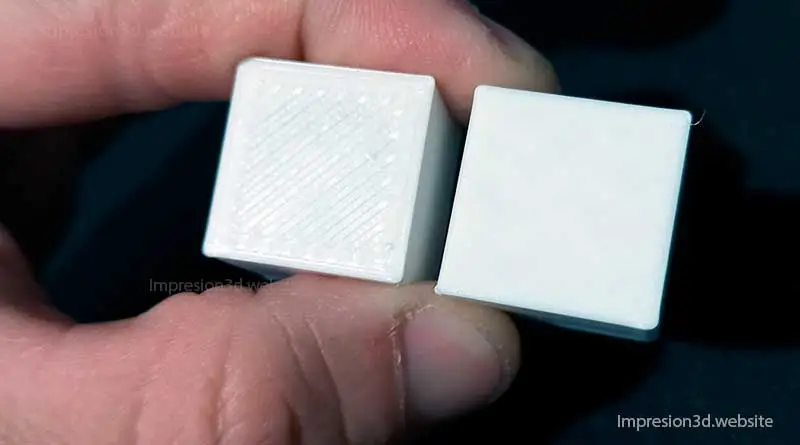
Smoothing is a setting in Cura that produces smooth surfaces on the top layers of the printed model.
When you enable this feature in Cura, the nozzle will move over the last layer while still hot, leaving a smooth surface.
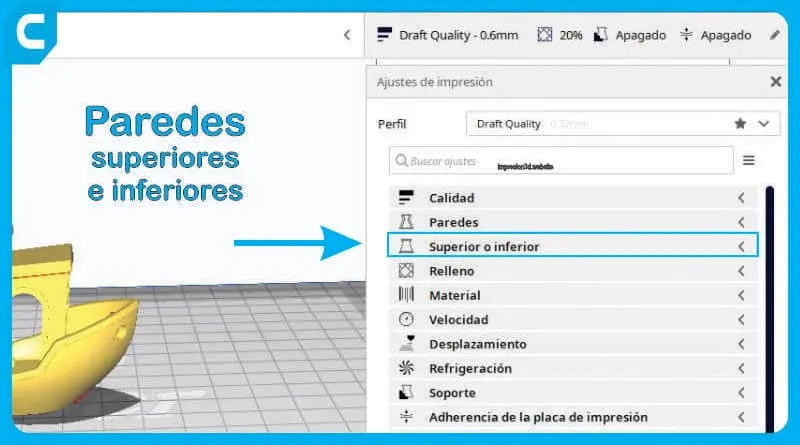
To enable text smoothing in Cura Go to the “Higher or Lower” settings and check the “Enable smoothing” box”
Once the checkbox is selected, additional options will appear that allow you to change the default settings in order to achieve the desired results.
- Iron only the top layer: Ironing will be done only on the topmost layer.
- Straightening Pattern: Choose the ironing pattern for the top layers.
- Line Spacing in the Smoothing Process: Determines the distance between lines (line thickness).
- Straightening Process: Percentage of material extruded during the smoothing process, it can fill in some surface cracks.
- Straightening Treatment: The distance that must be maintained from the edge to avoid irregular edges.
- Straightening Speed: The straightening speed can be adjusted to tailor the process.

Once activated, it prints a test cube using the default settings.
How It Works
After printing the last layer (the top layer), the nozzle makes an additional pass over the top layer, but this time using finer lines. This smooths out the surface and may correct some cracks.
When the process is complete, the top surface will be completely smooth and matte, resulting in a better finish on the top layers.
For the straightening treatment to work properly, the top layer must be of good quality and well-set. That's why A minimum of 4 topcoats is recommended, so that there are no gaps or cracks.
To achieve a smooth finish, the nozzle must make passes that are much narrower than normal (narrower than the nozzle's diameter) and extrude just the right amount of material, so as not to leave excess plastic that would compromise the finish.

Smoothing Settings in Cura
When the smoothing function is enabled, all flat surfaces parallel to the heating bed are smoothed.
If you only want to smooth the top layer, then you should select Iron only the top layer.
For a straightening treatment, I recommend choosing Zigzag, but you can run your own tests.
For the following options, I recommend keeping the default settings (for a 0.4 nozzle) and print a test cube.
- Straightening Pattern: Zigzag.
- Line Spacing in the Smoothing Process: 0.1 mm.
- Straightening Process: 10.0 %.
- Straightening Treatment: 0.38 mm.
- Straightening Speed: 20.0 mm/s.

If you see that it turned out well, then you can try printing with those settings.
If not, then continue experimenting by increasing or decreasing the flow of the straightening solution. This will depend on whether you see too much or too little material being deposited during the process.
- Straightening Pattern: Zigzag.
- Line Spacing in the Smoothing Process: 0.2 mm.
- Straightening Process: 17.0 %.
- Straightening Treatment: 0.38 mm.
- Straightening Speed: 60.0 mm/s.

In any case, I recommend that you do your own testing And then let me know what you think of the finish on your 3D prints with this smoothing option in Cura.
YouTube video: Alexei's 3D Workshop
Tell me, what would you use Cura's smoothing feature for… 3D keychains? Custom parts?
I invite you to read: Threads in 3D Printing and How to Avoid Them, Diffuse Map in Cura – Add texture to your models!, and Spiralize the outer contour – Cura's «Vase mode».
[…] Learn more about: “How to enable and configure smoothing in Cura“ […]