Strand Formation in 3D Printing (and How to Avoid It)

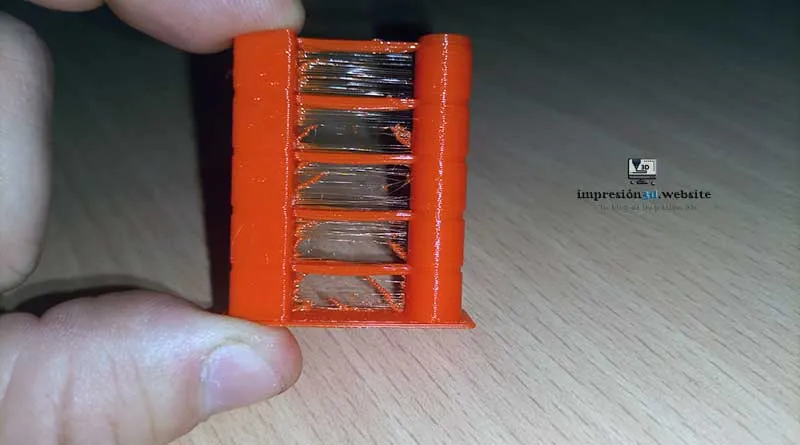
While looking for information on how to eliminate stringing in 3D printing, I found that people were only talking about retraction distances and filament temperatures, leaving out other important factors.
Today I want to share with you all the ways I've found to prevent or eliminate stringing in 3D printing.
To completely eliminate stringing in 3D printing, you need to master the retraction settings, the filament melting temperature, and the speed of the traverse movements; remove moisture from the filaments; ensure the print bed is perfectly level; and keep the nozzle clean at all times.
What Is Stringing?
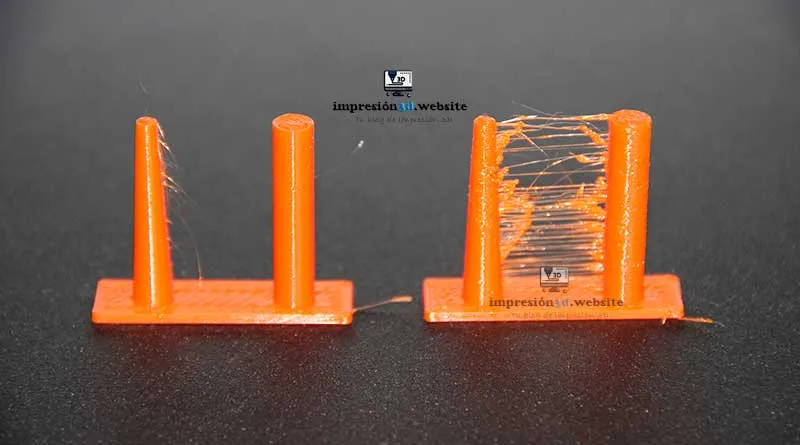
Stringing It is the formation of plastic filaments during the 3D printing process.
These threads look unsightly and unprofessional, and require post-processing to remove them manually.
These “strands” in 3D printing are very common and are caused by a number of factors that I will list and discuss below.
How to Avoid Stringing in 3D Printing
If your 3D printer leaves a lot of string on the print, it's because you may have moisture in the filaments, the settings for shrinkage and temperature may be the wrong ones.
In addition, other factors such as having the dirty nozzle and the uneven bed can cause stringing in your prints.
To avoid stringing in 3D printing, you should:
- Enable and configure retracts (in Cura).
- Enable "Smoothed" Mode (in Cura).
- Configure travel speed (in Cura).
- Turn on the Cooling (in Cura)
- Set the Print Speed (in Cura)
- Choosing the Optimal Temperature for Your Filament (in Cura).
- Remove moisture from the filaments.
- Clean the extruder nozzle.
- Level the print bed correctly.
- Check that the Bowden cable connectors are not broken.
- Lubricate the Bowden tube.
Enable and configure the retraction settings
It's very important to make sure the retraction settings are enabled in your favorite slicer, (in my case, it's "Cura").
These settings will determine the distance and speed at which the filament coming out of the nozzle will be “retracted” before the extruder moves to another point on the print bed.
This is important because if it is not activated or configured correctly, the nozzle will continue to lose filament when moving between the walls of the print.
What Is Retraction in a 3D Printer?
Normally, the extruder's NEMA motor pushes the filament through the Bowden tube, which passes through the hot end as the extruder carriage moves, forming the walls of the print.
Retraction in a 3D printer is the movement of the extruder that, instead of pushing, “pulls the filament back” in order to relieve pressure on the filament at the print nozzle.
When the nozzle needs to be moved from one point to another, the extruder must stop pushing the filament and retract it to prevent the filament from continuing to ooze out of the nozzle.
When you stop pushing the filament and retract it, the pressure in the nozzle should be released, which should prevent plastic strands from forming as the nozzle moves between two points.
How to Enable and Configure Retraction in Cura
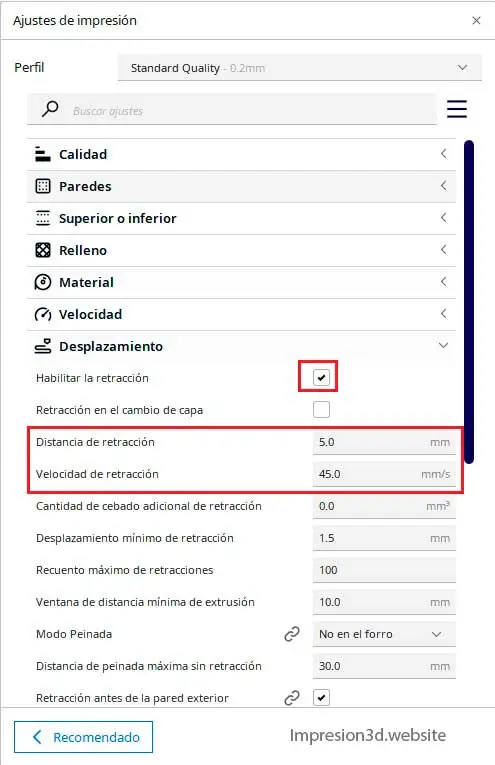
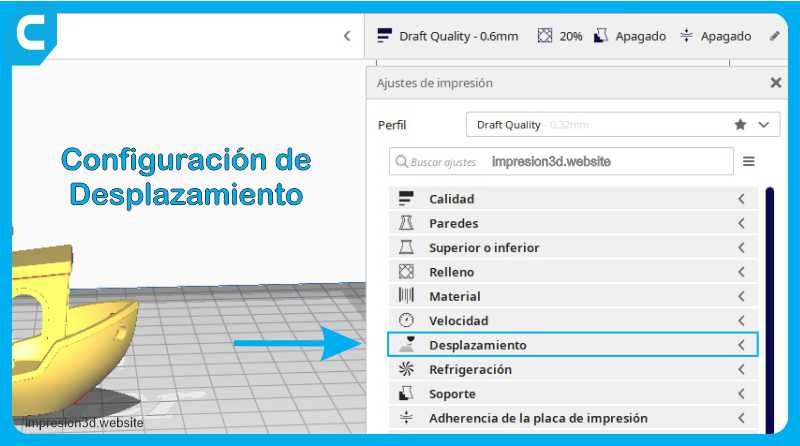
In the Cura print settings Go to the “Scrolling” tab” and select “Enable retraction”.
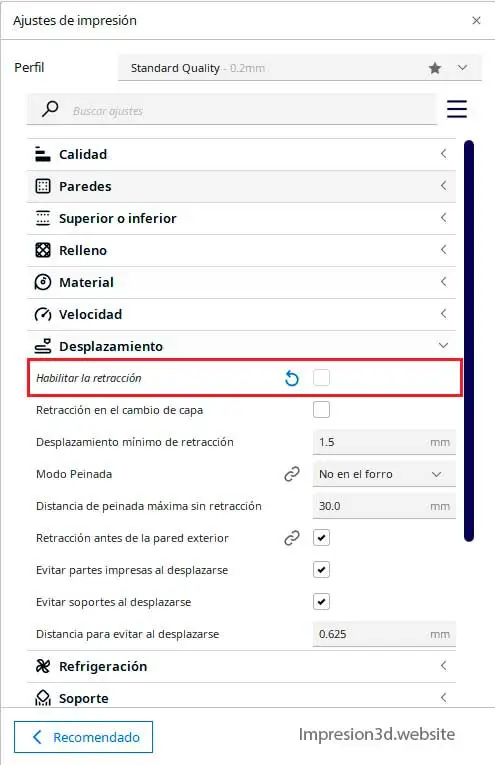
When you select “Enable Retraction” More options will appear, such as “Retraction Distance” and “Retraction Speed”
These options will allow you to set the speed and distance at which the filament will be retracted before the extruder carriage moves to another location.
The default settings in Cura may vary depending on the 3D printer you have, but in the latest versions of Cura, the default settings are quite accurate.
The default retraction settings in Cura for an Ender 3 are:
- Retraction distance: 5.0 mm
- Retraction speed: 45.0 mm/s
I also recommend running retraction tests to find the best settings for your printer.
The key to performing a retraction test is not to change multiple settings at the same time. Change only one setting—for example, the retraction distance—and observe the results.
Then, once you're satisfied with a value, you can lock it in and adjust another one—such as the retraction speed, for example.
This would involve printing several test sheets until the optimal settings are found.
How to Print a Retractable Tower
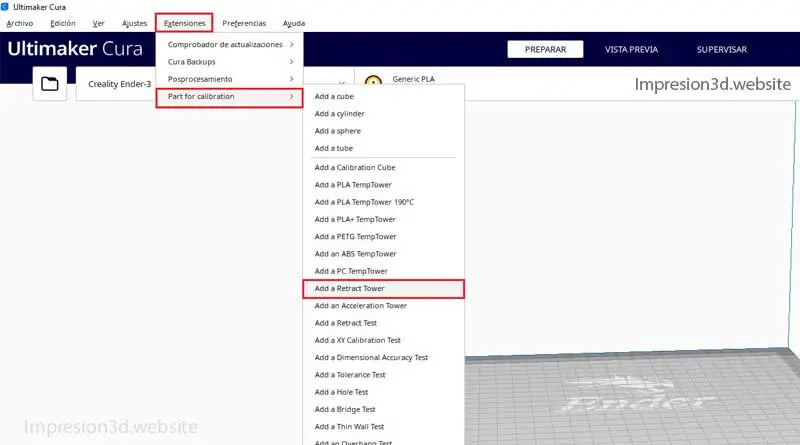
If you already have the “Calibration Shapes” plugin installed In Cura, go to the menu => Extensions => “Part for calibration” and select: “Add a retract Tower”
If you don't have it installed, you can see how to install it in a step-by-step guide in the post Temperature Tower: Better Quality for Your 3D Prints
Or you can also download one from Thingiverse at Here
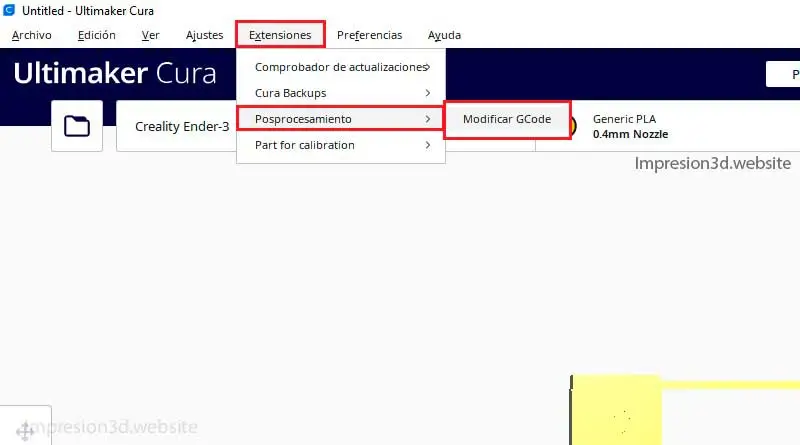
Once you have your model in Cura Go to the menu => Extensions => Post-processing => “Modify G-code”
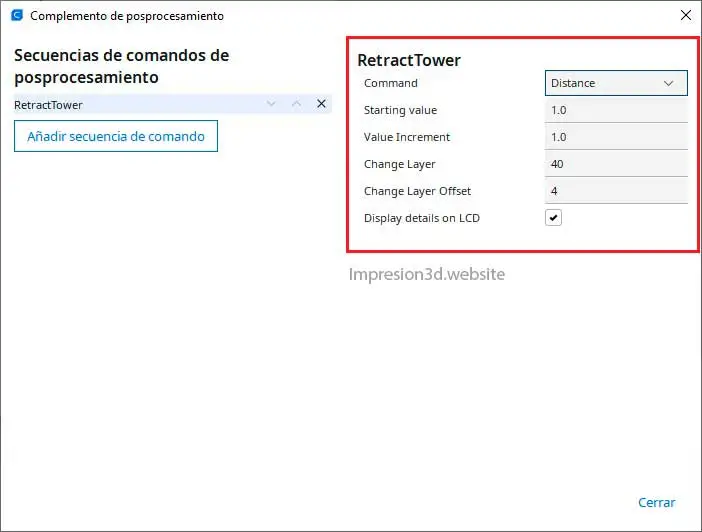
Add a new command sequence, and select “Retract Tower“
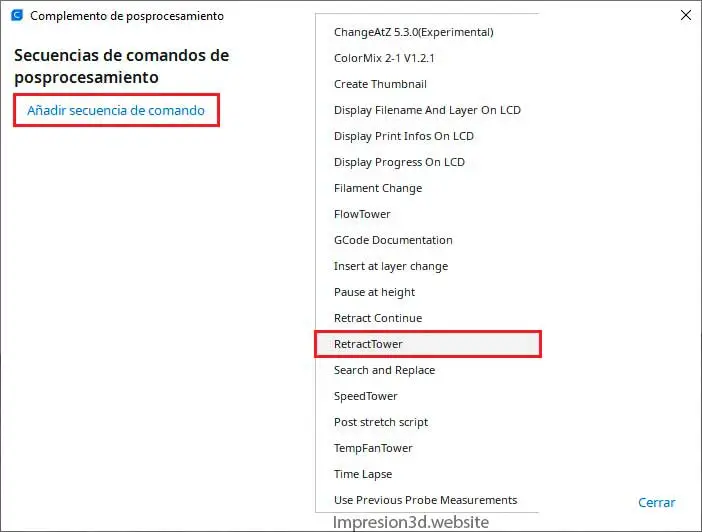
On the right side of the window, you'll see all the options available for the retraction tower command.
Set Retraction Distance
You'll have two options: Speed and Distance.
I'm going to choose "distance" for this example, and the values will be as follows:
- Command: Distance
- Starting Value: 1 (this value represents a retraction distance of 1 mm)
- Value Increment: 1 (This would be the distance value that would be added as the section moves upward)
- Change layer: 40 (This is the layer where Section 1 changes)
- Change Layer Offset: 4 (These would be the base layers of the model)
Print the retraction tower using the default settings for the type of filament you're using, with a layer height of 0.2 mm
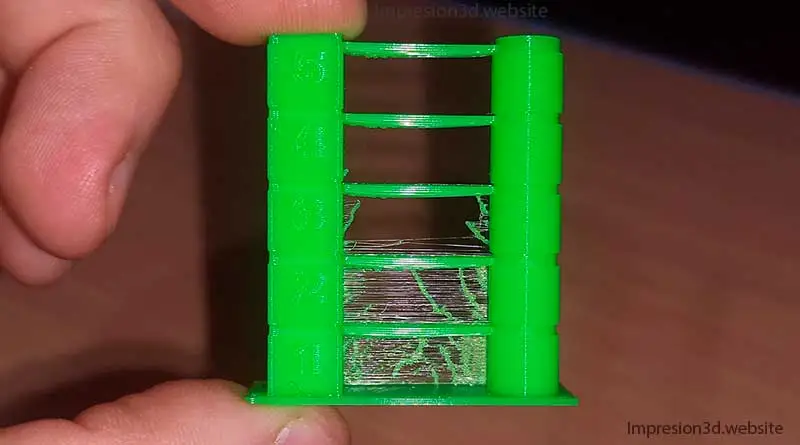
Look at the retraction tower and see which of the sections has no wires.
The section without printed filaments will be the best retraction distance option for your printer.
Set the retraction speed.
If you want, you can also repeat the process, but this time select the speed option.
- Command: Speed
- Starting Value: 25.0 (this value represents a retraction speed of 25 mm/s for the 1ra (section)
- Value Increment: 5.0 (This would be the speed value that would be added as you climb each section)
- Change layer: 40 (This is the layer where Section 1 changes)
- Change Layer Offset: 4 (These would be the base layers of the model)
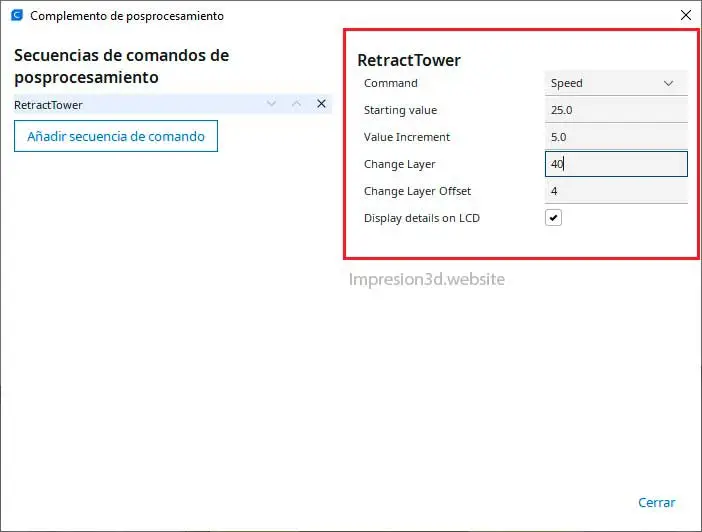
Just like before, remember not to change any other values. The only values you should change are those in the command-line window; don't change anything else for now.
Print the model using the same settings as before and a layer height of 2 mm
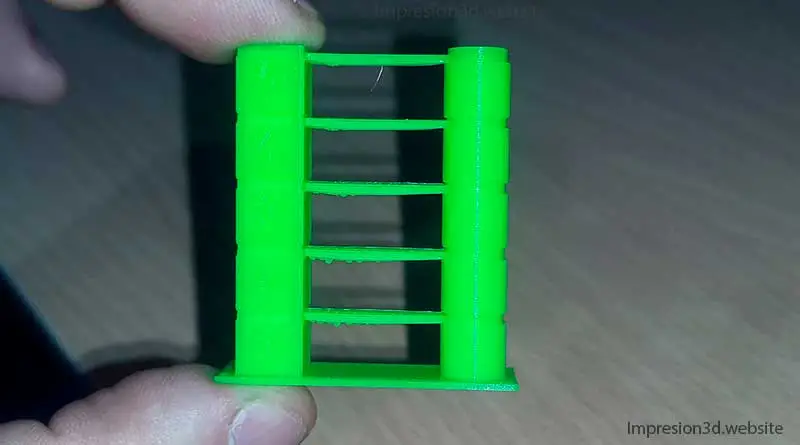
Note which speed gave you the best results, and set that as the default retraction speed.
Enable "Peinada" Mode in Cura
One trick that can help you avoid stringing in 3D printing is the “Comb Mode” in Cura.
To save time, the Slicer usually finds the shortest and fastest path to move the nozzle in a straight line to the next point.
While this may seem like a good thing (since it will reduce printing time), it can cause strings to form on your print.
What is "smoothed" mode?
Combing mode is an option in the Cura settings that directs the nozzle to travel along the inside of the printed areas as it moves.
If filament were to ooze out of the nozzle, The plastic filaments would remain inside the printed model and not on the outside.
When you enable this option, the travel distances will be slightly longer, but it will reduce the need for retraction.
To enable comb mode in Cura, go to the extrusion settings => Comb Mode => “Not on the lining”
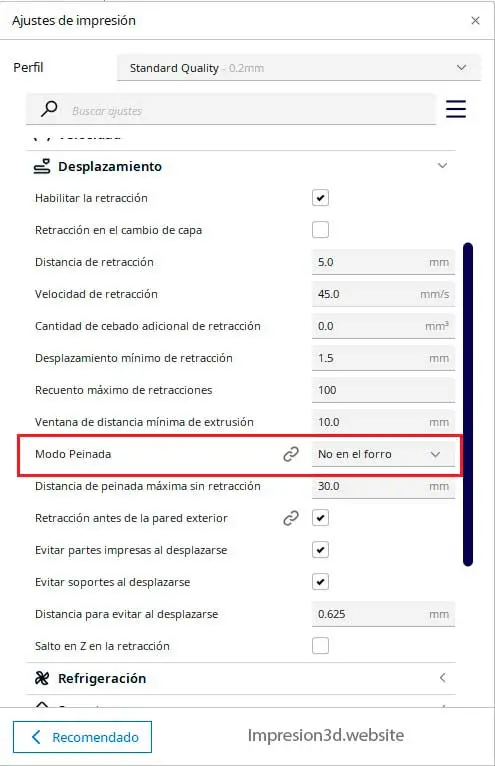
With this option enabled, you'll be able to reduce the likelihood of strings forming on your 3D prints.
Set Scroll Speed
The travel speed in Cura is the speed at which the nozzle moves from one point to another when it is not printing.
This speed is important because if the molten filament has low viscosity, it may drip from the nozzle during the travel.
To prevent this from happening, it's best to set a faster scroll speed.
In Cura, these speeds may be set by default, but it's still important to check whether they're correct.
Make sure the printer is in good working order, clean, and that all its hex nuts and belts are tight, since the movements can be a little jerky at high speeds.
Set the travel speed in Cura to between 120 mm/s and 150 mm/s; this may depend on the type of printer you have and its capabilities.
- Travel speed: 150 mm/s
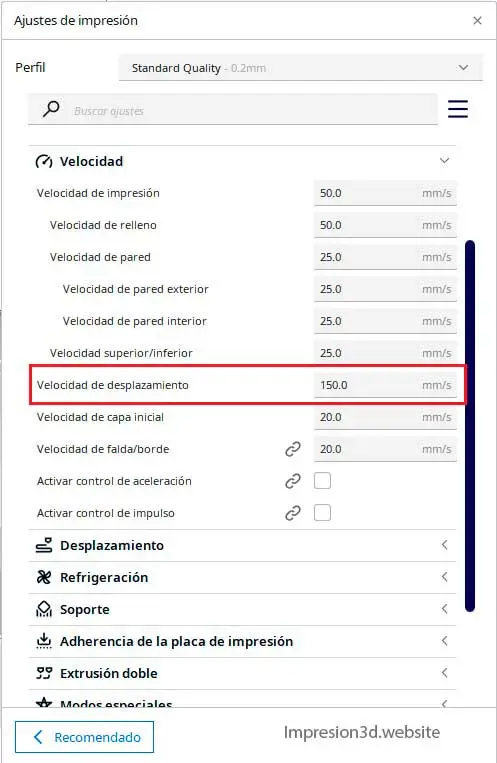
I have my Ender 3 and Ender 3 Pro printers set to a travel speed of 150 mm/s, and they work very well.
Enable Print Cooling
Layer fans play a very important role during printing, as they are responsible for cooling the filament deposited on the print bed.
Sometimes, when using different settings, we may forget to turn on the cooling, and in the case of some low-viscosity filaments, this can be harmful, as it will cause stringing in the print.
With some technical filaments They recommend turning off the ventilation because the layers adhere better, But this isn't a law
If you forget to turn on the fan when printing with other filaments, such as PLA, you'll likely end up with stringing.
Try enabling cooling for PLA and PETG at 100%
- Enable print cooling: Yes
- Fan speed: 100.0 %
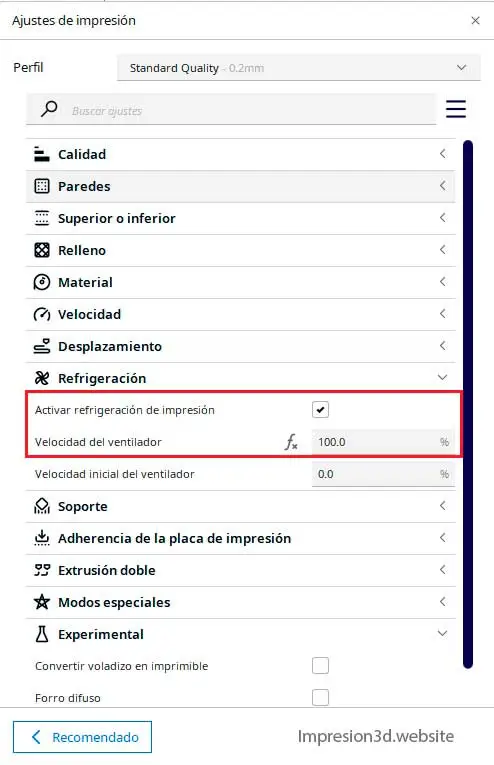
Set the Print Speed
The maximum print speed will depend on each 3D printer, since some are equipped with linear guides and are much faster than others.
For budget 3D printers such as the Ender 3, the most common print speed ranges from 50 mm/s to 60 mm/s.
The key point to note here is that the melting temperatures of 3D filaments are directly proportional to the print speed.
For example: You cannot set a high melting temperature and use a "Super Slow" print speed..
Imagine using a temperature of 230 °C for a PLA filament and a speed of 10 mm/s for the entire print.
This couldn't happen because printing at that speed would take a long time, and also because the filament would keep oozing out of the nozzle, leaving a bunch of threads.
Find a print speed that you like, that you're comfortable with, and that your 3D printer can handle while still producing high-quality prints.
On an Ender 3, my standard speed is 50 mm/s
- Print speed: 50.0 mm/s
- Filling speed: 50.0 mm/s
- Wall velocity: 25 mm/s
- Travel speed: 150 mm/s
- Initial layer speed: 20 mm/s
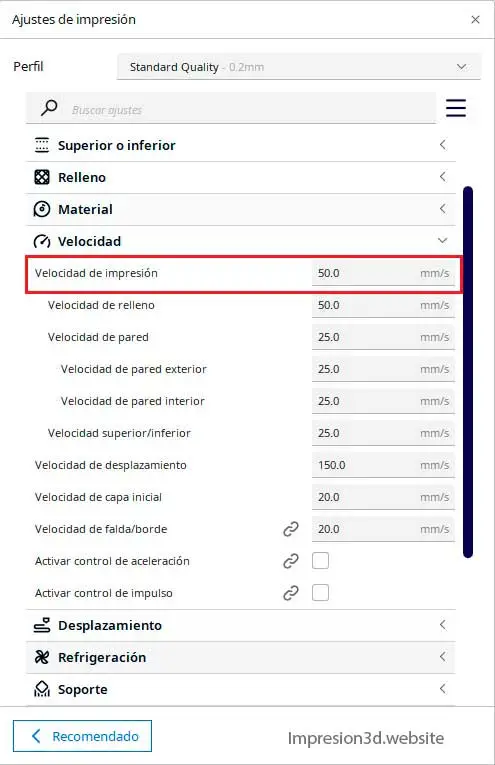
In this example, the only exceptions are those in the first layer and the wall velocities.
But The overall speed is 50 mm/s, and the travel speed is 150 mm/s which would be the most important part.
Choosing the Optimal Temperature
Choosing the Best Melting Temperature for Your Filaments It is one of the most important points of this publication, since It is one of the reasons why strings form in 3D prints.
Excessive heat combined with poor or no cooling can cause the filament to produce excessive stringing during 3D printing.
Do you know what the optimal temperature is for the filament you're currently using?
Most people use the temperatures recommended by the manufacturer, which is fine, since they are the ones who have conducted the tests and know the limits of their own product.
The thing is, the manufacturer didn't conduct those tests with you printer, that's why provide a temperature range for PLA filament, which can range from 190 °C to 230 °C, for example.
The important thing is that you know the optimal temperature for YOUR printer.
The best way to determine the optimal temperature for a 3D printing filament—whether it's PLA, PETG, or NYLON—is Build a temperature tower Without a doubt.

If you don't know how to make a temperature tower, I'll tell you that I have a post on this blog dedicated to that, where I'll show you with pictures How to Make a Temperature Tower and with photos of the examples I made.
So once you know the best melting temperature for your filament with your 3D printer, You should always use it with that filament.
Remove moisture from the filaments
Did you know that filaments have hygroscopic properties? Well, a large percentage of the errors in your prints are due to this, which means you should take it seriously.
3D printing filaments can absorb moisture from the environment and cause all kinds of problems with your prints, including stringing.
When I learned about all the problems that moisture in the filaments could cause, I understood why I was having so many issues with 3D printing.
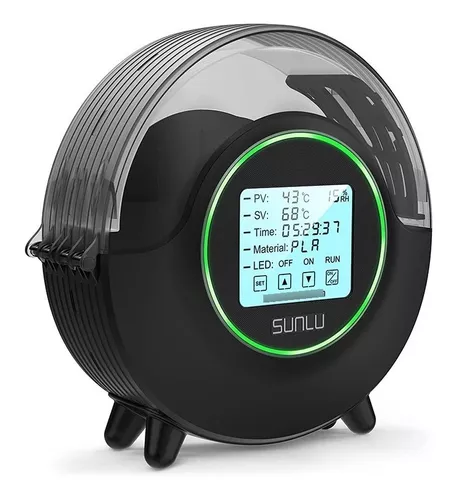
The two most common methods for drying filaments are:
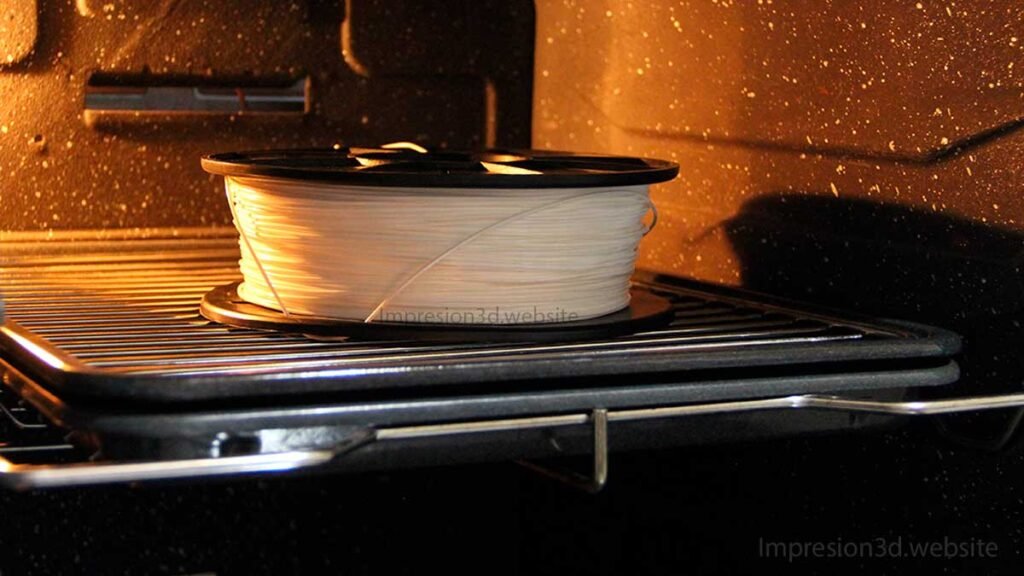
- Drying box for 3D printing filaments
- Kitchen Oven.
In the publication: Moisture in 3D Printing Filaments: Main Consequences Here's a list of the best ways to store filament spools to keep them from getting damp.
Once you've removed the moisture from the filaments, the likelihood of strings forming in your prints will be significantly reduced.
I invite you to visit it and take your time reading it, since that publication It can fix a LARGE portion of your 3D printing errors, including stringing or filaments in 3D printing.
Clean the extruder nozzle
It doesn't seem like a big deal (as if the thin lines in the prints were caused by a dirty nozzle, right?), but yes, a dirty nozzle does make a big difference.
Have you ever found yourself staring at the nozzle while it's extruding filament? Maybe during the first layer, you noticed that a little ball of molten plastic got stuck to the nozzle—has that ever happened to you?
That little plastic ball will move back and forth, spinning around the nozzle, sometimes leaving strings in the print (especially with PETG filament) and other times getting stuck on one of the outer walls of your model.
I know a lot of people don't think cleaning the nozzle is important, but believe me, it is.
And I feel so strongly about it that I even have a post about all the different ways to clean a nozzle.
Personally, I think the best way to keep the nozzle clean is to not let it get dirty in the first place—in other words, Cleaning the printer before and after use.
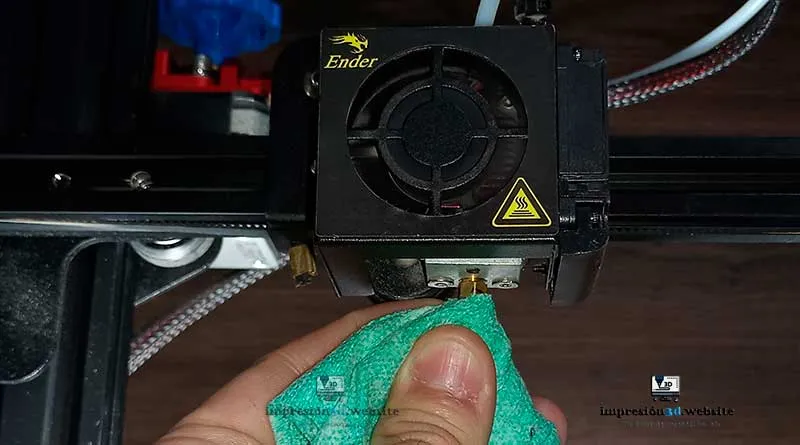
It's as easy as taking a small cloth or paper towel (being very careful not to burn yourself) and wiping down the nozzle before and after printing your model.
I know it doesn't seem like much, but trust me, keeping the printer nozzle clean can make all the difference.
Level the print bed correctly
For some people, leveling the print bed may be easy, but for others it can be a little more difficult, since they don't quite understand how far the nozzle should be from the print bed.
The reason I'm including this item on the list is because If the nozzle is too close, it can cause excess plastic to be deposited on the print bed, as if it were a burr that forms on the first layer.
If the nozzle is even closer and the print speed for the first layer is slow, It's possible that the filament might start to “leak” out of the nozzle, which also produces that little plastic ball I mentioned earlier.
The goal, then, would be to learn how to Level the bed perfectly, so that excess filament doesn't escape through the nozzle and form little plastic balls.
Properly leveling the print bed is vital, since The success of your prints will depend on the first layer.
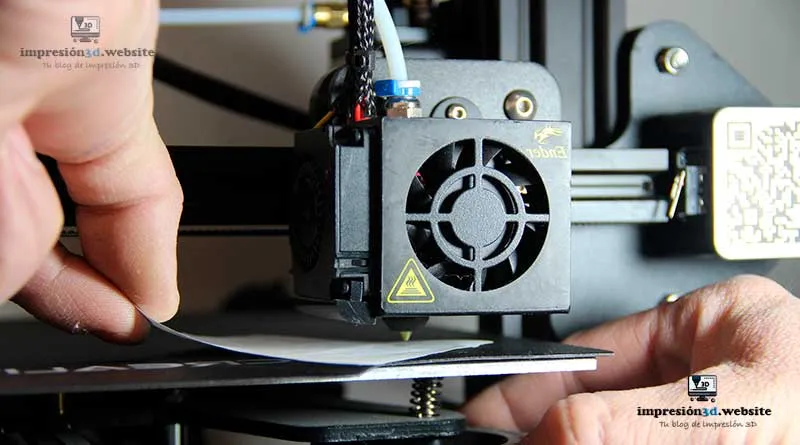
Here's a link to a post about How to Properly Level the Print Bed, using an Ender 3 and an Ender 3 Pro as examples.
Check the Bowden tube connectors
The fact is, even though it may not seem like it, a failure can have multiple causes.
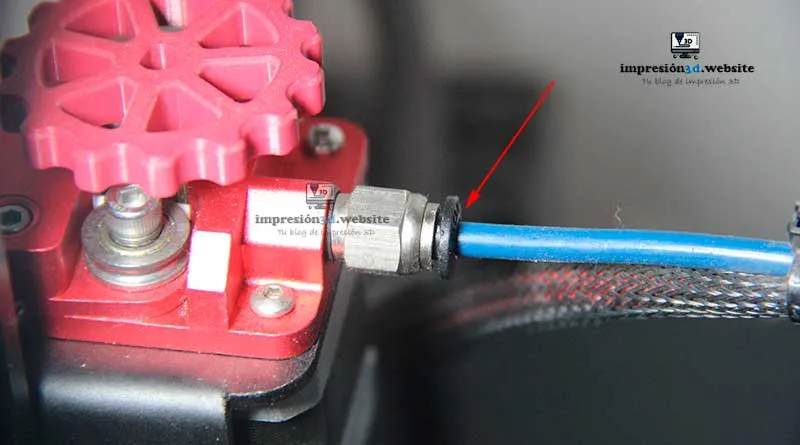
A very common issue that can cause stringing in prints is a break in the connectors that attach the Bowden tube to the extruder and the hot end.
Pneumatic couplers or connectors for 3D printers can break, causing the Bowden tube to give way and move from side to side.
This issue can cause retraction to fail and result in the filament continuing to ooze out of the nozzle.
In addition to causing threading issues, a broken pneumatic connector can lead to other types of failures during printing.
If it were to come completely loose, the hot end would continue to print in midair, since the extruder would be unable to push the filament through the Bowden tube.
In the publication “No filament is coming out of the extruder”Let me tell you a little more about this.".
Make sure the printer's pneumatic connectors (the ones that connect the Bowden tube) are working properly and that the ends of the tube aren't loose or moving from side to side.
Lubricate the Bowden tube
Once you've done all of the above and there are still strings on your prints, there's a trick that can help you out of a bind.
Imagine you've already done all of the above—dried filaments, a leveled printer, a clean or new nozzle, tight or new connectors, retraction and other Cura settings configured correctly—and yet you're still getting stringing in your prints.
You have only one option left, and that is lubricate the Bowden tube.
I think that once you've done all of the above, it's very difficult for the PLA filament to form strings or tangles, but it seems to me that the problem might arise when using PETG filament, since its composition makes it more prone to forming strings.
When you have to lubricate the Bowden tube, it may be a sign that you probably need to replace it—or perhaps trim off the burnt part that rests against the nozzle. In any case, this trick will work if you need a quick fix.
Let's see how to lubricate the Bowden cable:
Step 1:
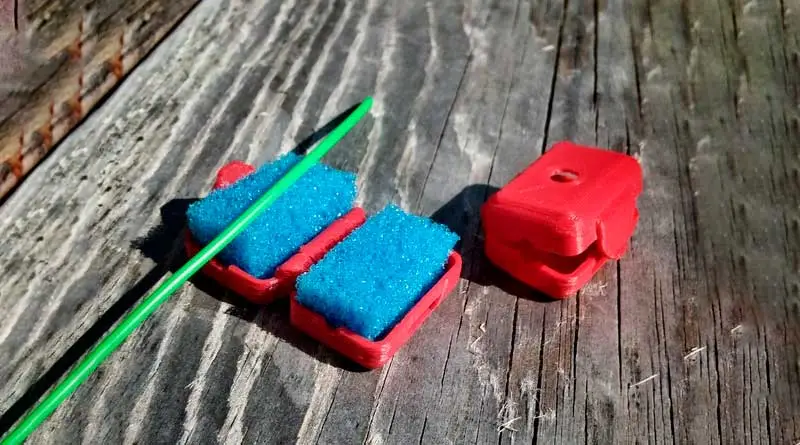
Download and print a filament cleaner from Thingiverse; if you already have it, you can skip this step.
Step 2:
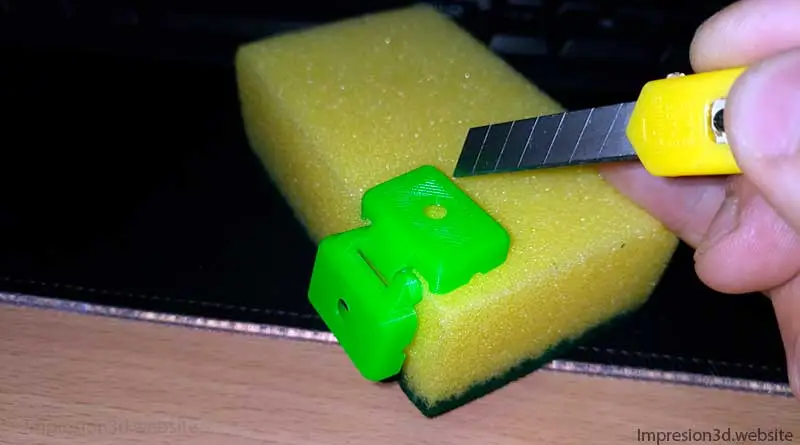
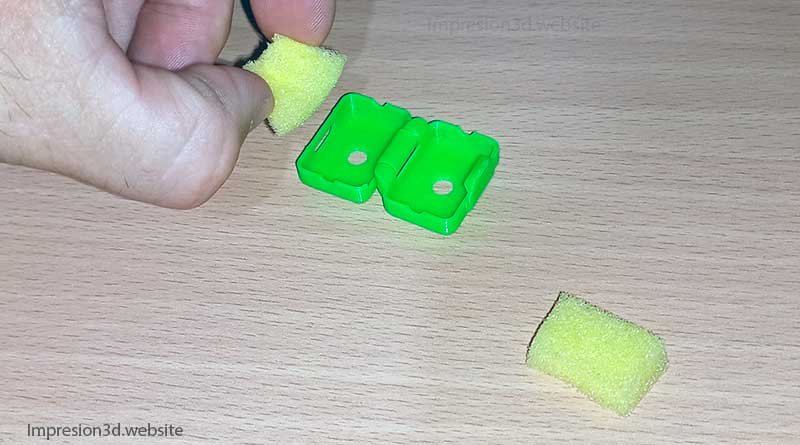
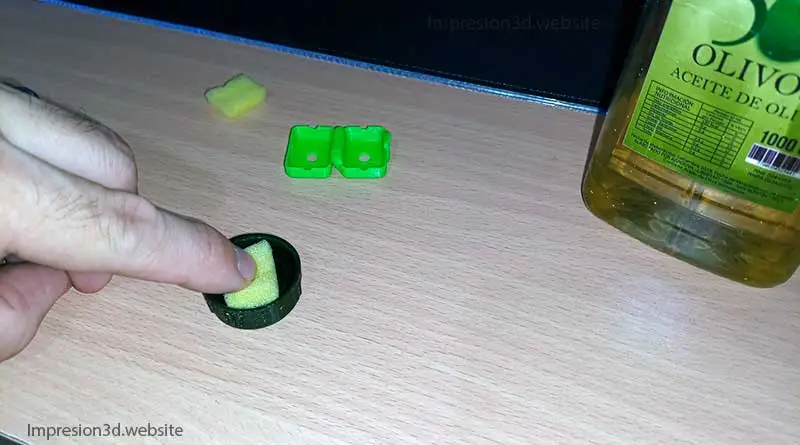
Find a sponge and cut it to the right size so it fits inside the cleaner you printed.
Step 3:
Moisten the sponges with olive oil; just a couple of drops on each side will be enough.
Step 4:
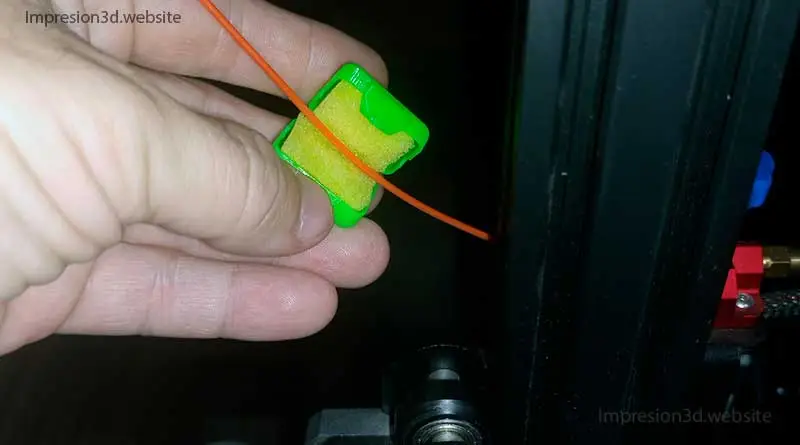
Place the cleaner on the filament before it enters the extruder
Step 5
Heat the nozzle and extrude 100 mm of filament

Step 6:
After extruding 100 mm of filament, remove the cleaner with the sponges and print a retraction test.
Once you have the retraction test, compare the results to see if all your effort has paid off.
YouTube Channel: CHEP (Turn on subtitles)
Final Conclusions
I believe that the problems causing stringing in prints can be classified into three categories: mechanical (related to the printer), software (related to the slicer), and environmental (moisture in the filaments).
So there isn't just one reason why the threads form, but rather There are several, ranging from filament settings to printer maintenance and proper filament storage.
While not all printers are the same (some use a Bowden tube and others use direct extrusion) The tests I've mentioned in this post apply to all of them.:
- Temperature Tower
- Tower for retraction distance.
- Retraction Speed Tower.
- Retraction Test
To summarize, here is a list of all the problems and their solutions.
List of Problems:
- Strands in 3D printing are formed due to a printing temperature too high.
- The incorrect retractions can contribute to the formation of strings in 3D printing.
- Incorrect Settings in Cura, as cooling and speed can cause strings in prints.
- The Moisture absorbed by the filaments can produce yarns and other printing problems.
- The dirty nozzles They combine molten filament that is extruded and forms threads in 3D printing.
- One nozzle too close to the bed During printing, molten filament can accumulate at the nozzle and form strands.
- The Bowden tube can come loose or slippage of the pneumatic connectors, causing problems, including loose wires.
- The part of the Bowden tube that rests against the nozzle It can catch fire and cause problems.
List of Solutions in order of importance:
1- Humidity:
Remove moisture from your filament: If your 3D printer is leaving strings and your filament isn't new, then the first thing you should do is dry your filament and find a way to store it so it doesn't absorb any more moisture.
2- Temperature:
Find the perfect temperature: You shouldn't proceed to the next step until you know the right temperature for the type of filament you're using. Print a temperature tower and choose the best one to always use with that filament.
3- Level the bed:
Strive for perfection: No matter what you do, if your print bed isn't perfectly level, you won't get very far—the success of all your prints depends on this step.
4. Clean the Nozzle:
Clean the nozzle before and after printing: It's very common to forget about the nozzle; everyone always makes sure to clean the print bed to ensure better adhesion, but they forget about the nozzle.
5- Pneumatic Connectors:
It goes unnoticed—it's something that happens, and you won't realize it unless you look at the Bowden tube connectors. Does the pipe come loose from the couplings and move from side to side?
If so, replace the connectors with new ones.
6- Burnt Bowden tube:
Another common problem is that the tip of the Bowden tube burns where it rests against the nozzle. This can cause all kinds of problems, the most common being the Sub-extrusion the most common issue with printers like the Ender 3.
Cut off the burnt part or replace the Bowden tube with a new, higher-quality one.
7- Curing Settings:
Set the retraction settings correctly, enable "combed" mode (the "No" option in the settings), use the temperature selected in step 2, enable cooling (layer fans), and use the correct print speed.
Related publications:
If you missed it earlier, here's a list of the posts I mentioned throughout the article.
Be sure to check them out—they can be a great help to you.
1- Moisture in 3D Printing Filaments: Main Consequences
2- Temperature Tower: Better Print Quality 3D
3- How to Properly Level the Build Plate on Your 3D Printer
4- How to Clean a 3D Printer Nozzle (All Options).
[…] I invite you to read: Filaments in 3D Printing (and How to Avoid Them) […]